Analytics
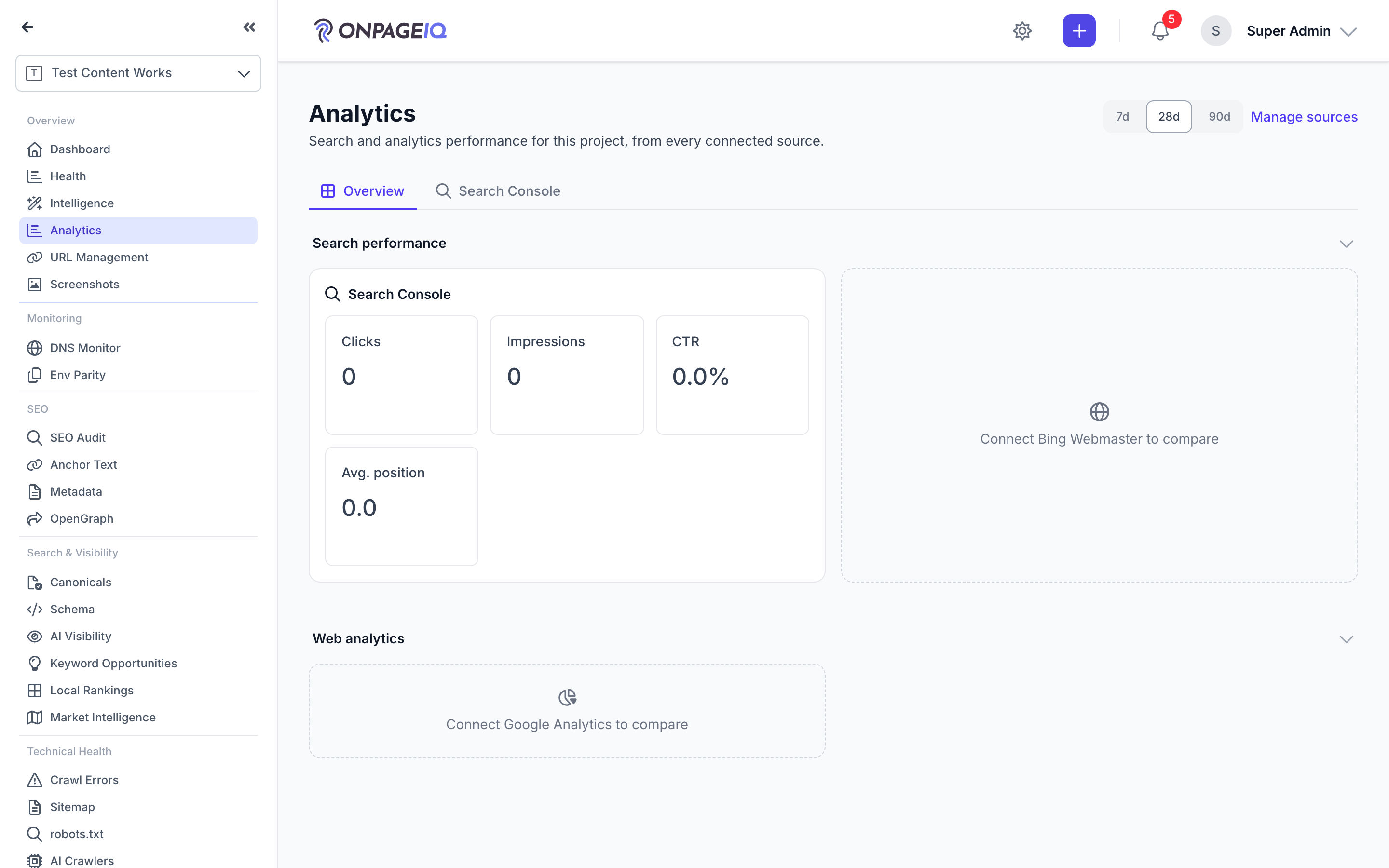
One page with a tab per connected analytics or search provider — Google Search Console, GA4, Bing Webmaster — rendered through a shared metrics panel.
User goal
Compare what each connected source says about the site without visiting three vendor consoles.
- Tier
- Any plan to view; individual providers have their own tier gates
- Nav label
- Analytics
- Route
- /projects/{project}/analytics
- Gates
- —
Prerequisites
- At least one analytics/search provider connected on the project (Settings → Integrations)
- A completed sync for that provider
QA focus
- The PAGE needs only project-view authorization — it is deliberately not tied to any single provider's feature flag; provider access is gated inside the page
- Only connected providers get a tab (IntegrationMetricsRegistry filters by isConnected)
- The retired standalone Bing dashboard route still resolves and permanently redirects into the Bing tab
Overview
Analytics is one project page with a tab per connected analytics or search provider, so you can compare what each source says without visiting three vendor consoles.
What you get
- Tabs only for providers that are actually connected (currently Google Search Console, GA4, and Bing Webmaster)
- A shared metrics panel so the same kind of metric sits in the same place across sources
- An empty state pointing at Settings → Integrations when nothing is connected
- A permanent redirect from the old standalone Bing dashboard URL into the Bing tab
How it works
- Connect a provider and wait for a completed sync
- Open Analytics and switch tabs; unconnected providers have no tab at all
- Individual providers still apply their own tier gates inside the page
Common issues & false alarms
- No tabs at all → no provider is connected yet; connect one under Settings → Integrations
- A tab is missing → that provider is not connected for this project, or the org's tier does not include it
- Tab present but empty → the provider is connected but has not completed a sync yet
Interactive guide
Step of
What to do
Where to find it
Expected (pass)
Negative cases
Tips
Screenshot pending capture
All steps (reference)
-
Step 1. Open Analytics and pick a source
Each connected provider gets a tab. The panel layout is shared across providers, so the same metric sits in the same place whichever source you are reading.
What to do: Project → Analytics → switch between the provider tabs.
Where: projects.analytics
Expected (pass)
- One tab per connected provider, in registration order
- Switching tabs re-renders the shared panel for that source
- An unconnected provider has no tab at all
Negative cases (must fail safely)
- No providers connected → an empty state pointing at Settings → Integrations
- Another org's project id in the URL → refused
-
Step 2. Check the legacy Bing link still lands correctly
The standalone Bing dashboard became the Bing tab here. Its old route name is kept as a permanent redirect so saved links keep working.
What to do: Open the old /projects/{project}/bing/dashboard URL.
Where: projects.bing.dashboard
Expected (pass)
- Redirects to Analytics with the Bing Webmaster provider selected
Negative cases (must fail safely)
- Without view access to the project → refused before redirecting
Related guides
Integrations (GSC & GA4)
Connect Google Search Console and Google Analytics 4 per project.
Intelligence Hub
Cross-source insights combining GSC, GA4, scans, and audits.
Performance Insights
Core Web Vitals and performance metrics from crawled pages.
SEO Audit
Site-wide SEO audit dashboard with crawl status, scores, and deep-dive sub-routes.
AI Traffic Attribution
Measure the traffic AI assistants (ChatGPT, Perplexity, Gemini, Copilot, and more) actually send you — confirmed AI referrals from your GA4 data, a separate "Possible AI Direct" estimate for referrer-stripped visits, a regex simulator for GA4 channel groups, and a client-ready PDF.