Site Architecture
Visual crawl tree, click-depth analysis, orphan detection, and architecture export — plus the definitions behind every number on the Statistics panel.
User goal
Understand how the site is wired together — how deep pages sit, which ones nothing links to — and know exactly what each number on the page counts.
- Tier
- Pro+
- Nav label
- Architecture
- Route
- /projects/{project}/architecture
- Gates
- —
Prerequisites
- Architecture crawl completed
QA focus
- Total Pages agrees across the dashboard tile and the Statistics, Metadata, Schema and Open Graph surfaces — one crawl, one number
- Content pages + Archive pages = Total Pages whenever archives are shown
- Max Depth is a real click distance in BOTH archive-toggle positions — unreachable pages carry a sentinel depth that must never surface as the maximum
- Orphan counts include pages found via the sitemap that no link reaches
- Page details open in a slide-over (not a modal) from the graph tooltip or Pages table
- Export download is a signed URL; cross-org architecture 404s
Overview
Site Architecture maps how visitors can move through the site — click depth, the page tree, and pages nothing links to — so the Statistics panel and related SEO surfaces agree on one crawl.
What you get
- A visual crawl tree, depth analysis, and orphan detection (Orphan badge in the page list)
- A Statistics panel whose definitions match Metadata, Schema, and Open Graph totals from the same crawl
- A page details slide-over (depth, inbound/outbound links, issues, equity) from the graph or Pages table
- Sitemap-seeded pages the link crawl never reached
- Queued architecture exports downloaded through a signed URL
How it works
- The crawl starts at the homepage and follows links the way a visitor would
- A second pass reads the site’s sitemap and visits anything the link crawl missed (orphans have no inbound links)
- Sitemap seeding is controlled by
site-architecture.sitemap_seeding(enabled switch plusmax_seeded_pagesbudget) - Toggle Show archive pages to change what is counted and listed without re-crawling
- Click a page in the tree tooltip (View full details) or the Pages table to open the slide-over; Escape or Close dismisses it
What each number means
- Total Pages
- Distinct pages the crawl reached that returned a normal response and are actual web pages. Redirects, errors, PDFs, images and other files are excluded, and a page linked from fifty places still counts once.
- Not the same as Total URLs on the URLs page. That is the project's scan list, which you and imports add to and which is never pruned. This is what exists on the site right now.
- Content pages
- Total Pages minus the archive types below — the pages a person would call "the site".
- Archive pages
- Listing pages a CMS generates automatically: category, tag, author, date and pagination. Real pages, but rarely what you mean by your content.
- The Show archive pages toggle only changes what is counted and listed. It never re-crawls, so flipping it is instant and lossless.
- Total Links
- Every link found on every crawled page, including links pointing out to other websites. It is normally many times larger than Total Pages.
- Max Depth
- How many clicks the furthest page sits from the homepage, following links only. The homepage is 0. A link in the footer counts exactly the same as one in the main menu — this measures clicks, not navigation levels.
- Orphans are excluded: with no path to them they have no click distance at all. Hiding archives can lower Max Depth, because the deepest pages on many sites are archives.
- Orphan Pages
- Pages that exist and load, but which nothing on the site links to. Visitors cannot click their way to them and search engines struggle to find them, so they are worth fixing with an internal link from a relevant page.
- Only orphans the sitemap declares can be found. A page that is neither linked nor listed in the sitemap stays invisible, and a site with no sitemap gets no orphan discovery at all.
- Error Pages
- Crawled URLs that returned a client error, a server error, or timed out.
- Sitemap Files
- A count of saved sitemap-generator configurations for this project. It is not derived from the crawl.
- Reads 0 for everyone today: nothing in the product creates these configurations yet, so the number is not telling you anything about your site. In particular it is NOT a count of sitemaps found on your website, and it is not the sitemap orphan detection depends on — that one is the sitemap published on your own site. Re-crawling never changes this number.
- Depth Score
- A letter grade for how quickly the site can be navigated, based on the spread of click depths. Pages beyond the project's configured deep_page_threshold count against it — the same limit that drives the Deep badge and the deep-page issues, so all three agree.
- Unreachable pages are left out of the grade entirely. They have no click distance to score, so they are reported separately as their own row rather than counted as the deepest pages on the site.
Common issues & false alarms
- Total Pages looks smaller than the URLs page → they answer different questions; the URL list accumulates every address ever added and is never pruned
- Orphan Pages jumped after an upgrade → the orphans were always there and were previously undiscoverable; nothing regressed
- Max Depth reads 2 or 3 and the site has three menu levels → Max Depth counts clicks from the homepage, not navigation tiers
- Total Links looks impossibly large → it includes outbound links to other sites
- Orphan Pages is 0 on a site with no sitemap → orphan discovery needs a sitemap to compare against
- Large sites slow to render tree
Interactive guide
Step of
What to do
Where to find it
Expected (pass)
Negative cases
Tips
Screenshot pending capture
All steps (reference)
-
Step 1. Start an architecture crawl
The crawl walks the site from the homepage, then reads the sitemap to pick up anything nothing links to. Progress updates live.
What to do: Open the project's Architecture page and start a crawl if one has not run.
Where: projects.architecture
Expected (pass)
- Job queued and visible in Horizon
- Progress indicator updates as pages are visited
Negative cases (must fail safely)
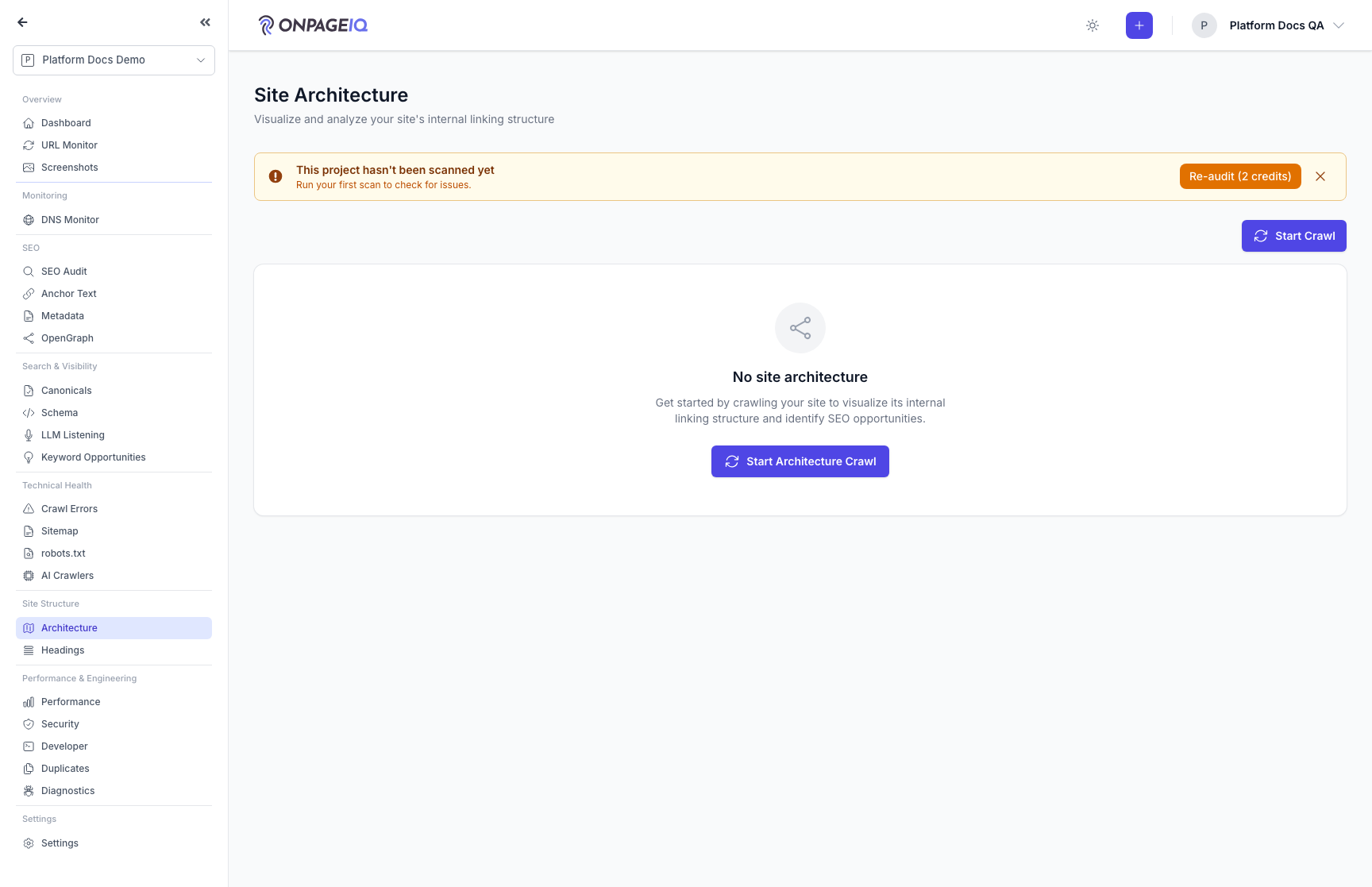
- No crawl yet → empty state with a call to action, not a fabricated zero
-
Step 2. Read the Statistics panel
Every number on the panel is defined above. The one relationship to check by eye: Content pages plus Archive pages equals Total Pages whenever archives are shown.
What to do: Architecture → read the Statistics panel on the left.
Where: projects.architecture
Expected (pass)
- Content pages + Archive pages = Total Pages
- Total Pages matches the dashboard Pages Found tile and the Metadata, Schema and Open Graph tabs
- Max Depth is a small click count, never a sentinel value
Negative cases (must fail safely)
- A failed or in-progress crawl must not replace the last good numbers
-
Step 3. Toggle archive pages and confirm the counts move together
Hiding archives removes them from the counts and the page list without re-crawling. Every surface should drop by exactly the archive count.
What to do: Architecture → switch Show archive pages off, then re-check the dashboard and the sibling tabs.
Where: projects.architecture
Expected (pass)
- Each surface drops by exactly the Archive pages figure
- The Statistics row reads "Archive pages (hidden)" so the totals do not look self-contradictory
- Max Depth may drop, because archives are often the deepest pages
-
Step 4. Find and fix orphan pages
Orphans carry a red Orphan badge in the page list, and the filters can show only those. Each one is a page that exists but cannot be clicked to — the fix is an internal link from a relevant page.
What to do: Architecture → filter to Orphan Pages → open one and confirm it loads.
Where: projects.architecture
Expected (pass)
- Badged pages match the Orphan Pages figure in Statistics
- An orphan loads normally in a browser but cannot be reached by clicking through the site
Negative cases (must fail safely)
- Site publishes no sitemap → orphan discovery has nothing to compare against and the count stays 0
-
Step 5. Open page details in the slide-over
From the graph tooltip or the Pages table, open full details for a URL. The panel shows depth, inbound/outbound links, unresolved issues, and equity flow without leaving Architecture.
What to do: Architecture → click View full details on a node (or View on a Pages row) → review the slide-over → Close or press Escape.
Where: projects.architecture
Expected (pass)
- Slide-over opens (not a centered modal)
- URL opens in a new tab when http(s); non-http schemes do not become clickable javascript:/data: links
- Closing clears the selection so the panel stays dismissed
Negative cases (must fail safely)
- A node id from another organization must not populate the panel
-
Step 6. Export the architecture
Generate an export and download it through a signed link.
What to do: Export → wait for the job → follow the download link.
Where: projects.architecture.export.download
Expected (pass)
- File contains the expected URLs
- Path traversal blocked
Negative cases (must fail safely)
- Tampered signed URL → 403/404
- Another organization's architecture → 404
Related guides
SEO Audit
Site-wide SEO audit dashboard with crawl status, scores, and deep-dive sub-routes.
Projects & URLs
Manage projects, URL inventory, tags, and page-level detail.
Exports & Reports
PDF/CSV/JSON/XLSX exports for scans, issues, metadata, and org reports.
Project Health
One composite health score for the project, its four domain sub-scores, what changed since last time, and what to fix next.