Exports & Reports
PDF/CSV/JSON/XLSX exports for scans, issues, metadata, and org reports.
User goal
Download client-ready reports and data extracts.
- Tier
- PDF Pro+; reports vary
- Nav label
- Reports / Export
- Route
- /reports
- Gates
- —
Prerequisites
- Data to export exists
- Tier allows format
QA focus
- Exports org-scoped
- Screenshot exports need addon
- Files not empty
Overview
Exports and reports turn scan results, project issues, and saved reports into downloadable files you can share outside the app.
What you get
- Scan exports (including PDF when your plan allows)
- Project issue exports in CSV, JSON, or PDF
- Spreadsheet and other project export formats
- An org reports index listing only your organization’s reports
How it works
- Export from a completed scan or from the project issues / export actions
- Prefer queued export for large PDFs to avoid timeouts
- Tier and feature gates can block formats such as PDF on Free
Common issues & false alarms
- Large PDF timeout — queued export preferred
Interactive guide
Step of
What to do
Where to find it
Expected (pass)
Negative cases
Tips
Screenshot pending capture
All steps (reference)
-
Step 1. Scan PDF export
Download scan results as PDF.
What to do: scans.export.pdf
Where: scans.export.pdf
Expected (pass)
- PDF downloads
- Free tier blocked if no pdf_export
Negative cases (must fail safely)
- Foreign scan → 403
-
Step 2. Project issues export
CSV/JSON/PDF of all project issues.
What to do: projects.export.issues.csv
Where: projects.export.issues.csv
Expected (pass)
- Row count matches issue table
-
Step 3. Metadata export suite
CSV, JSON, PDF, XLSX for metadata surfaces.
What to do: projects.export.metadata.xlsx
Where: projects.export.metadata.xlsx
Expected (pass)
- Valid spreadsheet MIME type
-
Step 4. Reports index
Org-level saved/generated reports.
What to do: reports.index
Where: reports.index
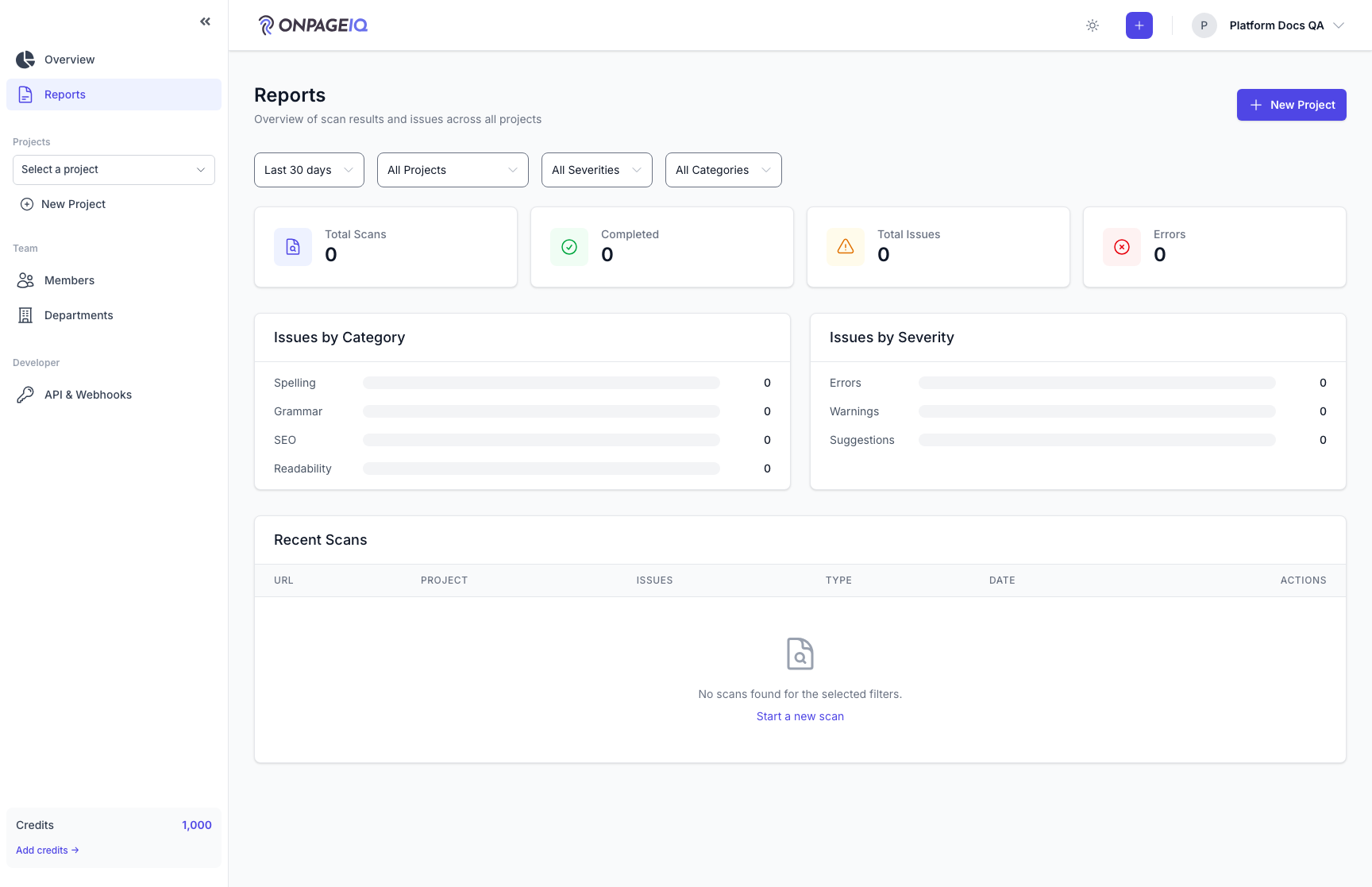
Expected (pass)
- Lists org reports only
Related guides
Content Scans
Run spelling, grammar, SEO, and readability checks against project URLs.
Issues Workflow
Triage, assign, and resolve spelling/SEO/security issues via kanban and filters.
Screenshot Add-on
Capture desktop/tablet/mobile screenshots per URL, gallery view, live compare, and highlight annotations.