Keyword Research Add-on
Discover keyword opportunities from GSC data and AI analysis on project SEO surfaces.
User goal
Find high-impact keywords to target based on site content and search data.
- Tier
- Pro+ (keyword_research_addon)
- Nav label
- Keyword Opportunities
- Route
- /projects/{project}/seo/keyword-opportunities
- Gates
- keyword-research-addon keyword-research-addon
Prerequisites
- keyword-research-addon active
- GSC integration optional but improves results
QA focus
- Read-only dashboard without addon on downgrade
- Mutations gated by policy and entitlement
- Stuck runs reaped by keyword-research:reap-stuck-runs
Overview
Keyword Research surfaces high-impact keyword opportunities from your site content and optional Google Search Console data on the project SEO surfaces.
What you get
- A Keyword Opportunities dashboard with opportunity cards (or an empty state)
- Research runs with a credit estimate before launch
- Sortable/filterable opportunities; richer metrics when GSC is connected
- Launcher prefill from a ready Business Profile (market, audience, service areas, content types)
How it works
- Open Keyword Opportunities under the project SEO audit area
- Adjust prefilled launcher fields if needed, then run analysis
- Review and work the opportunity list when the run completes
- Downgraded orgs may still open a read-only view; starting new runs requires entitlement (upgrade path when inactive)
Common issues & false alarms
- Class missing on older branches → route not registered
- Provider health command scheduled for monitoring
Interactive guide
Step of
What to do
Where to find it
Expected (pass)
Negative cases
Tips
Screenshot pending capture
All steps (reference)
-
Step 1. Prefill the run from your Business Profile
If the project has an AI Business Profile, the run launcher is pre-filled from it (market, audience, service areas, content types) so a run starts from real business context instead of blank fields. Build or refresh the profile at Settings → Business Profile; a nudge appears here when the site was re-crawled after the profile was built.
What to do: Open the launcher; adjust prefilled fields as needed
Where: projects.seo-audit.keyword-opportunities
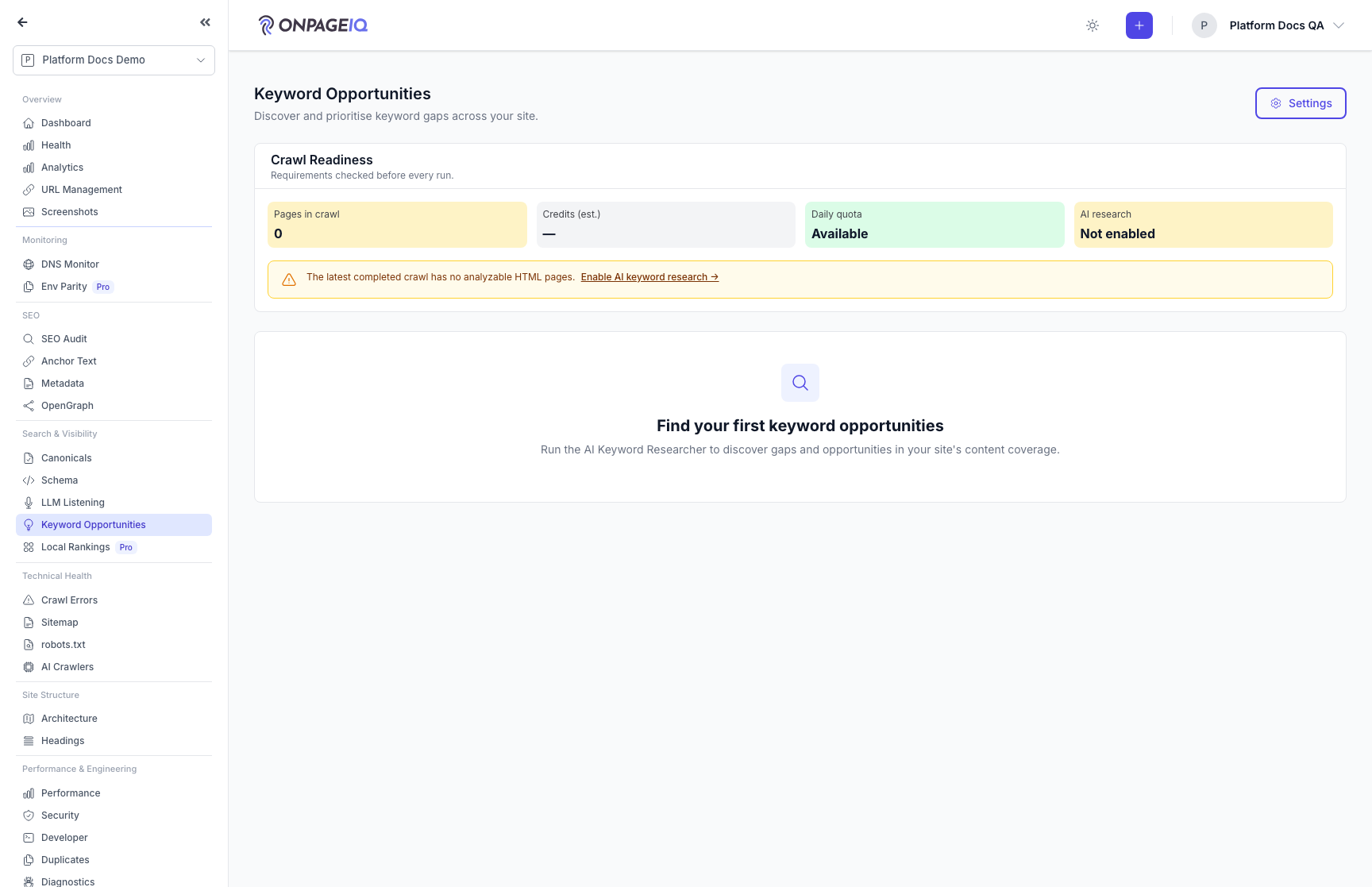
Expected (pass)
- Launcher fields prefilled from a ready profile
- Stale-profile nudge deep-links to refresh
Negative cases (must fail safely)
- No profile yet → launcher opens with empty/heuristic defaults
-
Step 2. Open keyword opportunities
Landing dashboard with opportunity cards or empty state.
What to do: Navigate to projects.seo-audit.keyword-opportunities
Where: projects.seo-audit.keyword-opportunities
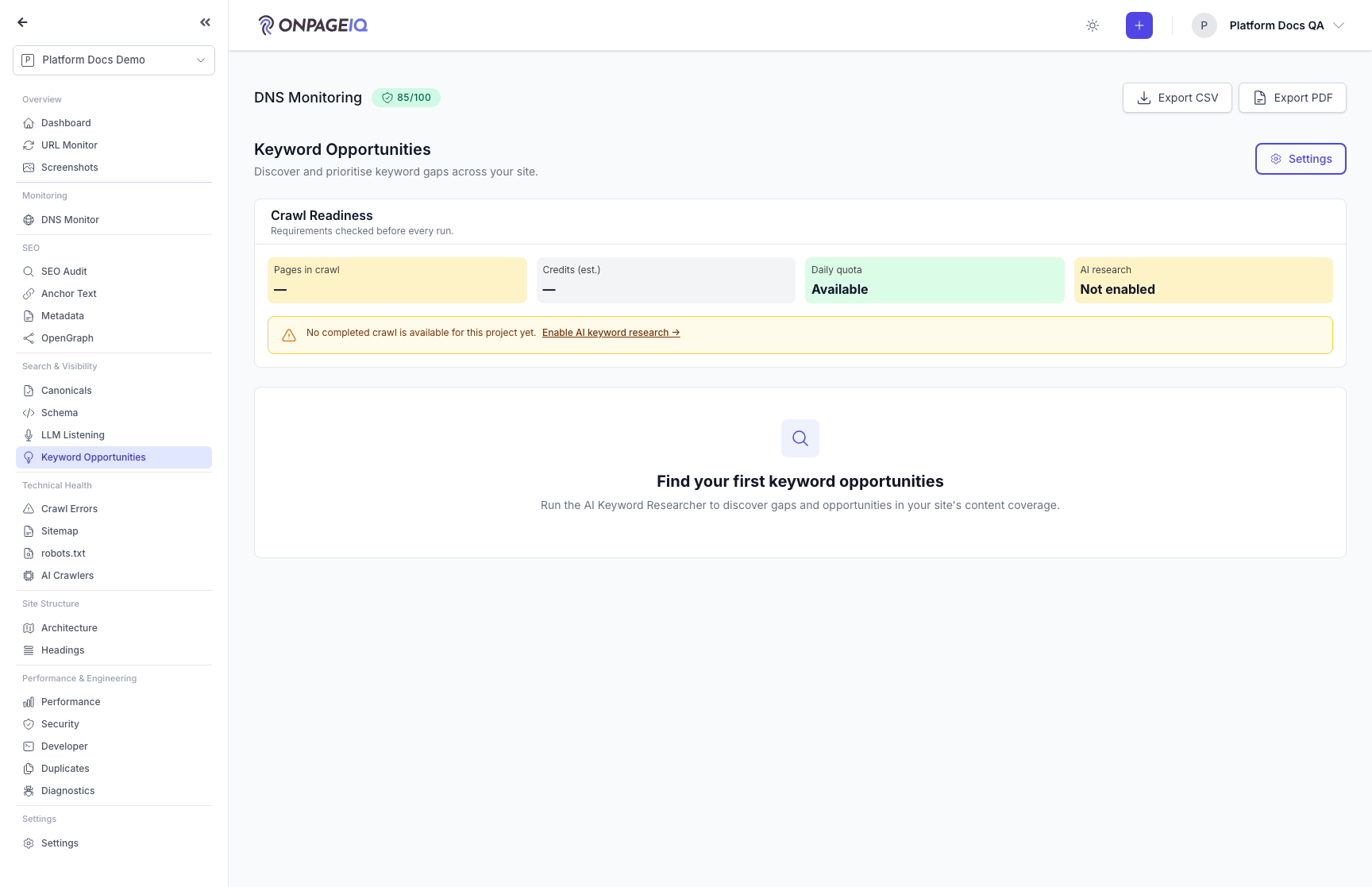
Expected (pass)
- Page loads 200 with addon
- Upgrade link when inactive
Negative cases (must fail safely)
- keyword-research.upgrade for ineligible org
-
Step 3. Run opportunity analysis
Start research run from UI action.
What to do: Click analyze/run; confirm credit estimate
Where: projects.seo-audit.keyword-opportunities
Expected (pass)
- Run queued in Horizon
- Results appear when complete
Negative cases (must fail safely)
- Without mutate entitlement → action blocked
-
Step 4. Review opportunities
Sort/filter opportunities; open detail for a keyword cluster.
What to do: Interact with table; export if available
Where: projects.seo-audit.keyword-opportunities
Expected (pass)
- Data scoped to project URLs
- GSC-connected org shows richer metrics
Negative cases (must fail safely)
- Cross-org project in URL → 403/404
Related guides
Integrations (GSC & GA4)
Connect Google Search Console and Google Analytics 4 per project.
SEO Audit
Site-wide SEO audit dashboard with crawl status, scores, and deep-dive sub-routes.
Intelligence Hub
Cross-source insights combining GSC, GA4, scans, and audits.
AI Business Profile & Keyword Assist
Let AI infer your market, audience, competitors, and priority keywords from your crawl — then reuse it in Keyword Research and AI Visibility (LLM Listening).