Navigation & Sidebar Map
Where every feature lives: org-level nav, project sidebar sections, gates, and route names.
User goal
Find any feature without guessing URLs; verify gated items show upgrade UX when inactive.
- Tier
- All users
- Nav label
- Sidebar
- Route
- /projects/{project}
- Gates
- —
Prerequisites
- At least one project in the current org
QA focus
- Sidebar highlights active route
- Gated items hidden or show Pro/upgrade badge
- Org-level vs project-level nav switches correctly
Overview
Navigation has two modes so you can find org-wide tools and project features without guessing URLs.
What you get
- Org-level sidebar (no project selected): Overview, Reports, Intelligence (Team+), Team (team tier), Developer (API), and credits
- Project sidebar with grouped sections once a project is selected
- Gated items that show an upgrade badge or upgrade page when a feature is inactive
How it works
- Without a project, the sidebar stays org-wide; select a project to switch into project-scoped sections
- Active routes highlight in the sidebar; the project switcher lists only your org’s projects
- Tier, Pennant, and add-on gates control visibility — inactive features should not 500
Common issues & false alarms
- Collapsed sidebar hides labels but icons remain — use title tooltips
- Feature off → item hidden or links to upgrade route (not 500)
- Legacy /projects/{id}/dictionary redirects to settings?tab=dictionary
Interactive guide
Step of
What to do
Where to find it
Expected (pass)
Negative cases
Tips
Screenshot pending capture
All steps (reference)
-
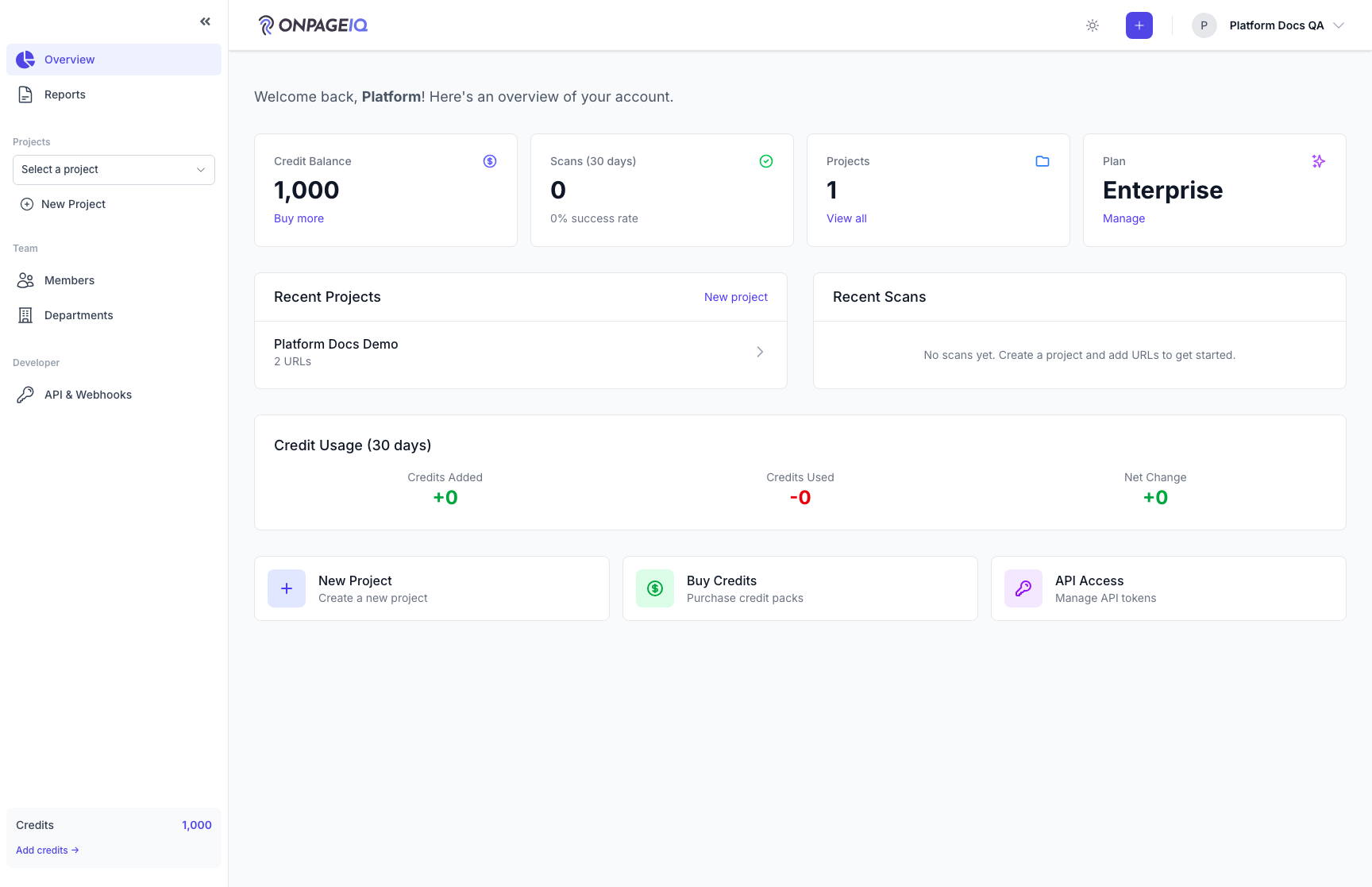
Step 1. Org-level sidebar (no project)
From /dashboard or /projects, confirm org-wide links: Overview, Reports, Intelligence, Team, API, credits.
What to do: Deselect project (go to /projects or /dashboard); expand sidebar if collapsed
Where: dashboard
Expected (pass)
- Overview and Reports links resolve 200
- Team section only on team_features tier
- API & Webhooks only when api_access tier
Negative cases (must fail safely)
- Free user should not see Team members link
-
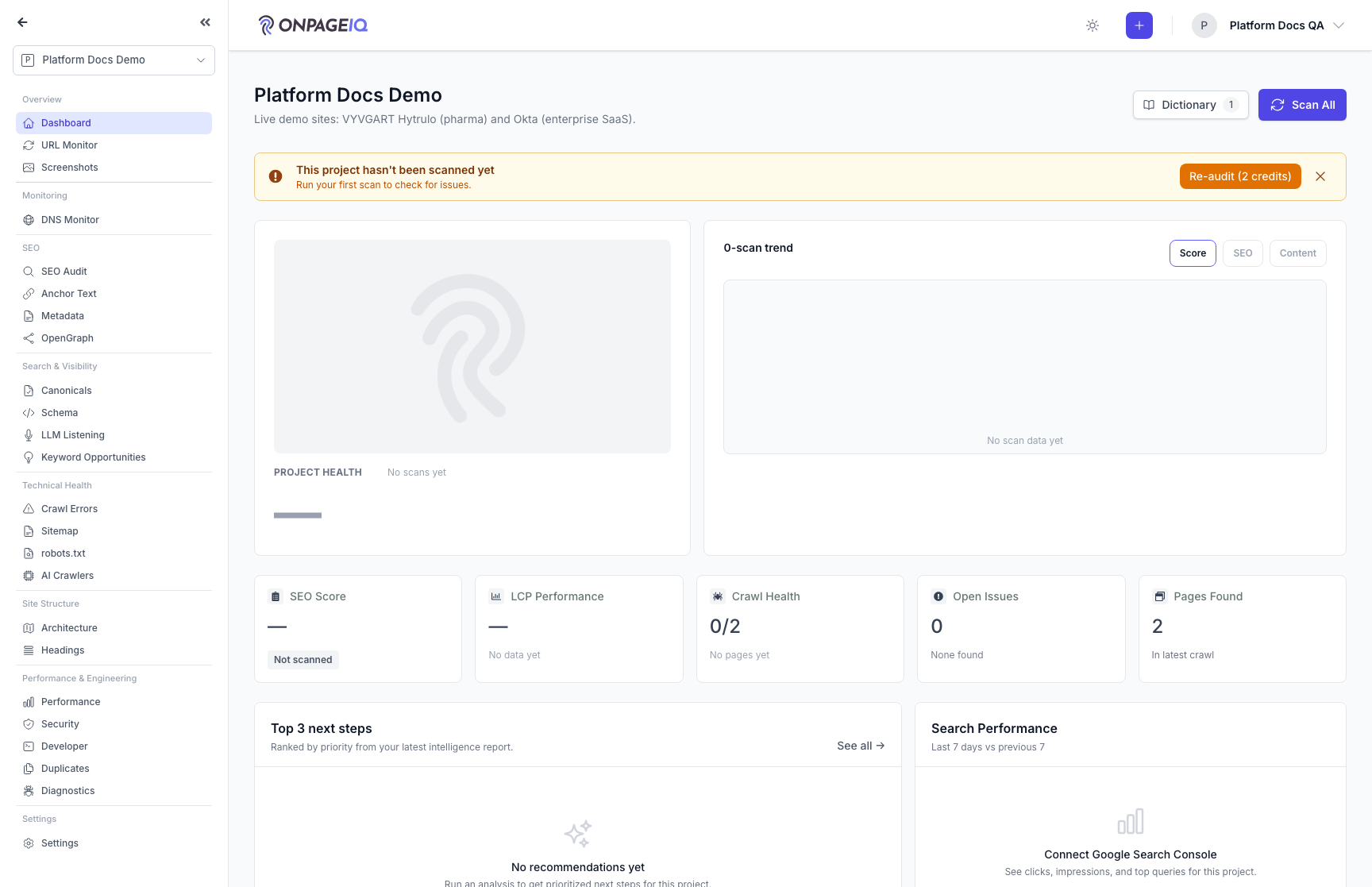
Step 2. Project sidebar sections
Open a project and verify grouped sections: Overview, Business (Business Profile + Local listings), Monitoring, SEO, Search & Visibility, Technical Health, Site Structure, Performance & Engineering, Settings.
What to do: Visit projects.show; scroll expanded sidebar; click each section’s first item
Where: projects.show
Expected (pass)
- Active link highlighted for current route
- Section headers match sidebar_map keys (including project_business)
- Project switcher lists only org projects
Negative cases (must fail safely)
- Switching to another org’s project via URL → 403/404
Tips
- Compare against sidebar_map in this guide programmatically during QA audits
-
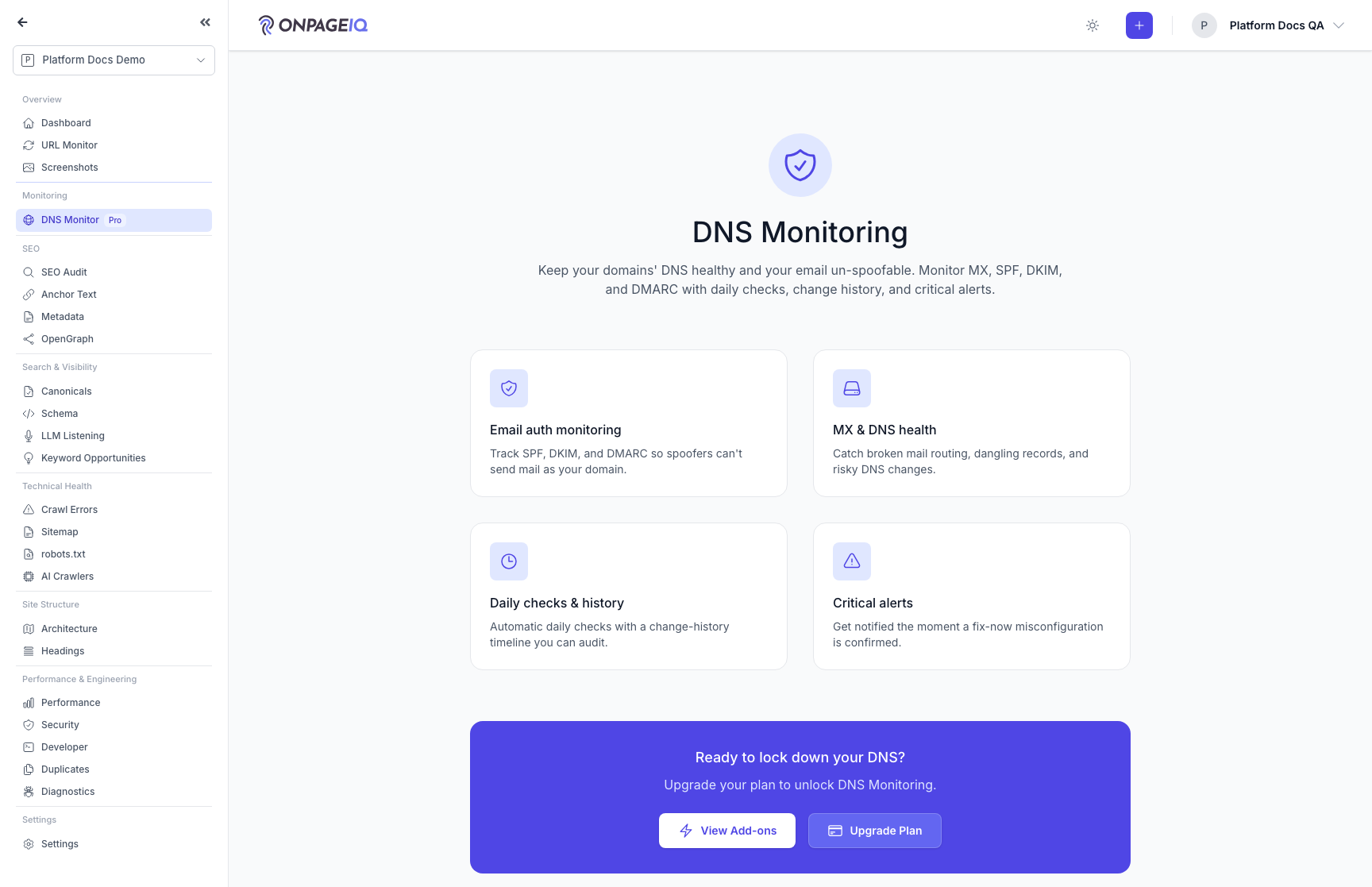
Step 3. Gated nav items
Items behind Pennant, addon, or tier show upgrade badge or route to upgrade page when inactive.
What to do: On Free org: attempt DNS Monitor, AI Visibility, Screenshots; note upsell vs 403
Where: dns-monitoring.upgrade / domain-reputation.upgrade / llm-listening.upgrade
Expected (pass)
- Inactive addon → upgrade page or hidden nav (product rule)
- Direct URL to gated route → 403 with message (not 500)
- Enterprise/demo org with flags on → full nav visible
Negative cases (must fail safely)
- Raw 404 without explanation on tier-gated feature (file bug if upgrade UX missing)
-
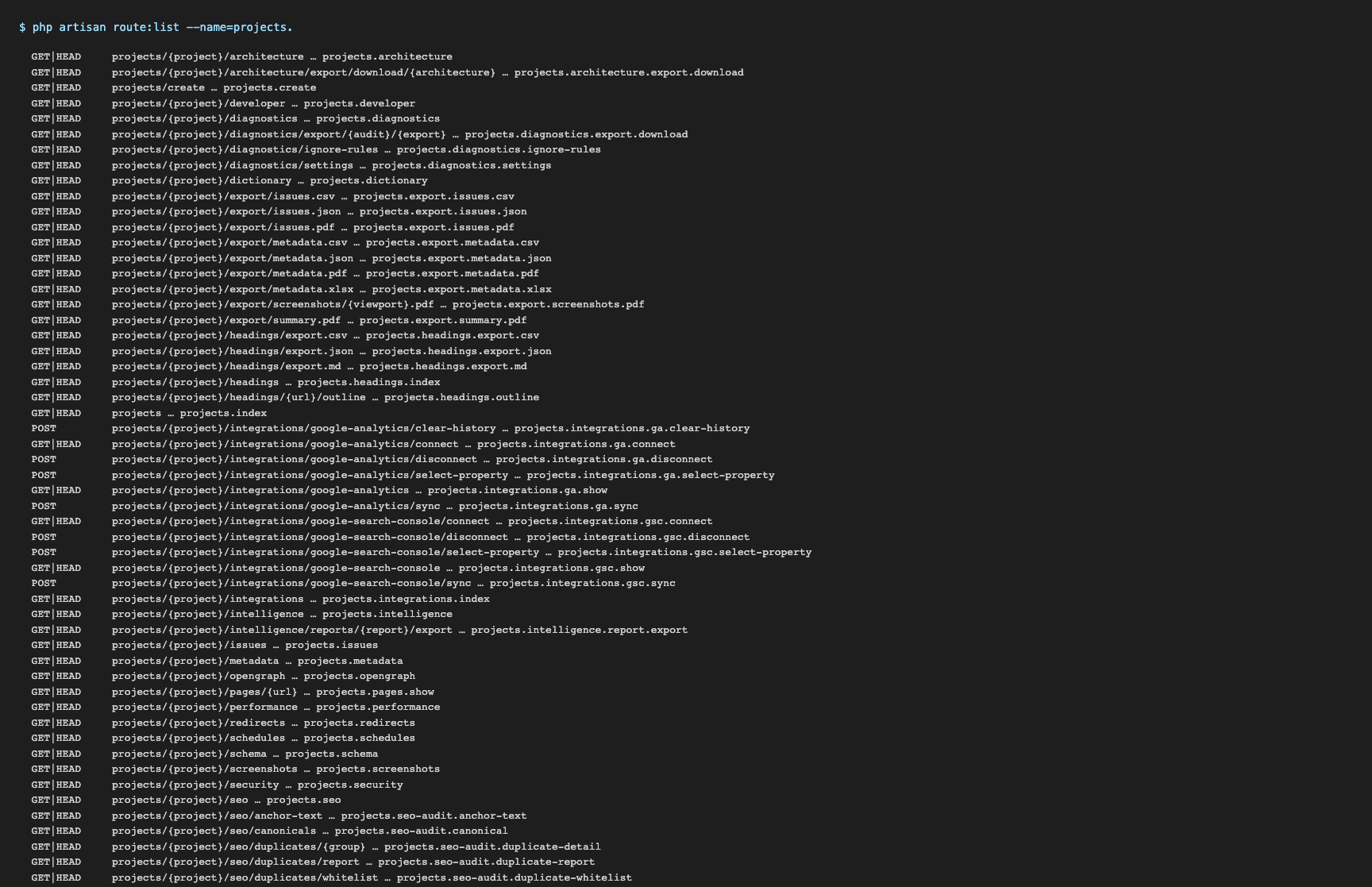
Step 4. Route name spot-check
Use php artisan route:list --name=projects. to verify docs route names match Laravel registration.
What to do: Run route:list; spot-check 5 random sidebar_map entries
Where: Terminal
Expected (pass)
- Every sidebar_map route name exists in route:list
- route_pattern matches URI column (parameter names may differ)
Negative cases (must fail safely)
- Stale doc route name after refactor — update sidebar_map