Security Dashboard
Updated · Aug 16, 2026One page for the security of a site: a graded score, a prioritised "what to fix" list, and continuous Google Safe Browsing monitoring.
What changed
Safe Browsing is now a card in the top row rather than a separate tab, and it says which of four things is true: no threats found, N URLs flagged, not checked yet, or checks are stale. A green badge is never shown for a project nothing has verified. "What to fix" moved up the page, and the check history opens in a side panel.
User goal
See how secure a site is right now, and know what to fix first.
- Tier
- Pro+
- Nav label
- Security
- Route
- /projects/{project}/security
- Gates
- —
Prerequisites
- A completed crawl, then a security scan (Run Security Scan)
QA focus
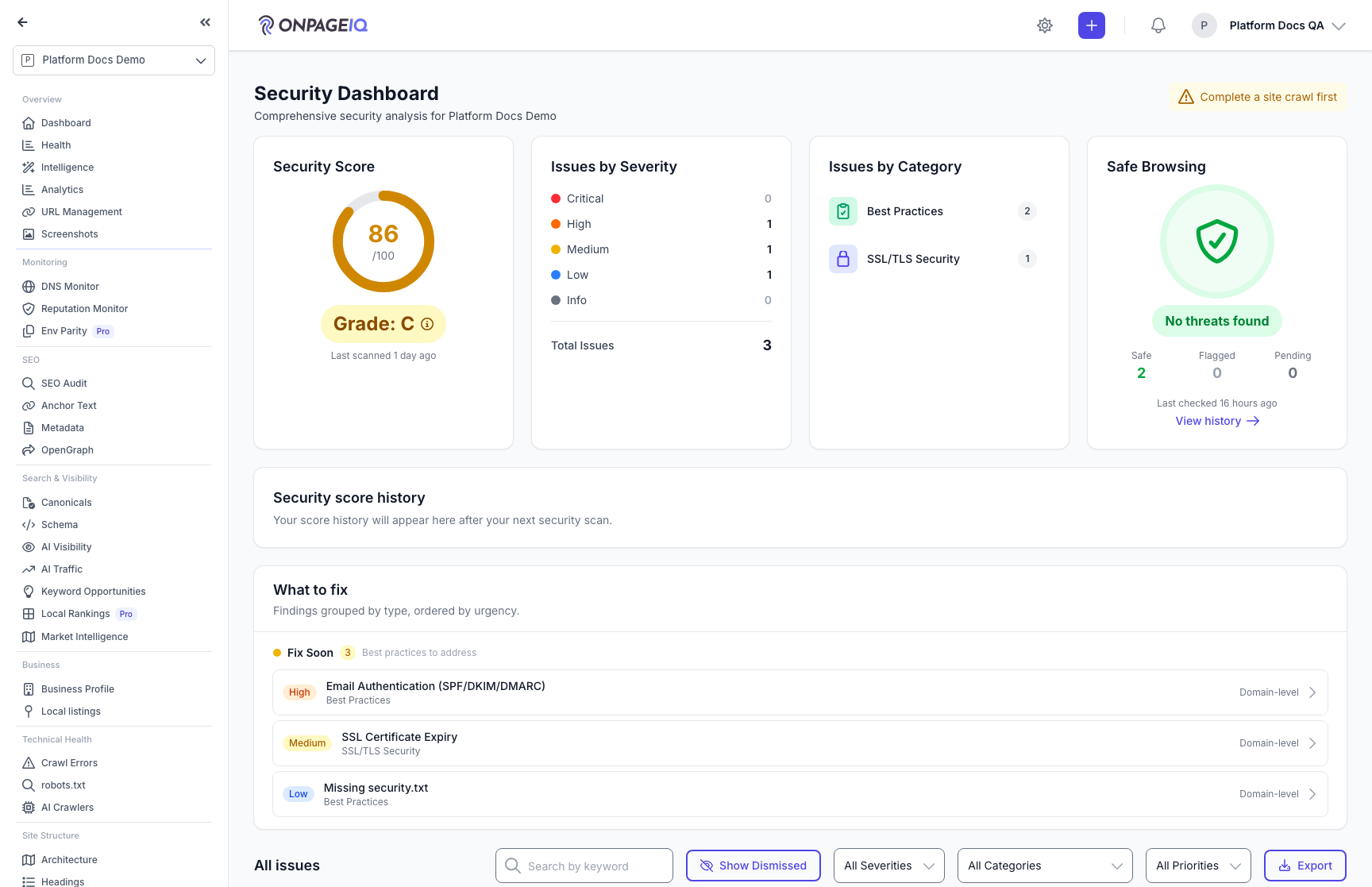
- Score and grade agree with the severity counts beside them
- Safe Browsing badge never reads green for a project with no verdicts
- A flagged URL stays visible on the card, not hidden behind the panel
- No cross-tenant data
Overview
The Security dashboard is the single page for a site's security posture: a graded score, findings from the audit grouped by what to do about them, and continuous Google Safe Browsing monitoring.
What you get
- A score and a letter grade. The grade is capped by the worst open finding, so a site with an open critical issue can never show a passing grade no matter how few issues it has in total.
- Issues by severity and by category. Clicking a category filters the issue table further down the page.
- A Safe Browsing card. Google's verdict on your URLs, refreshed daily — separate from the audit, which only runs when you ask for it.
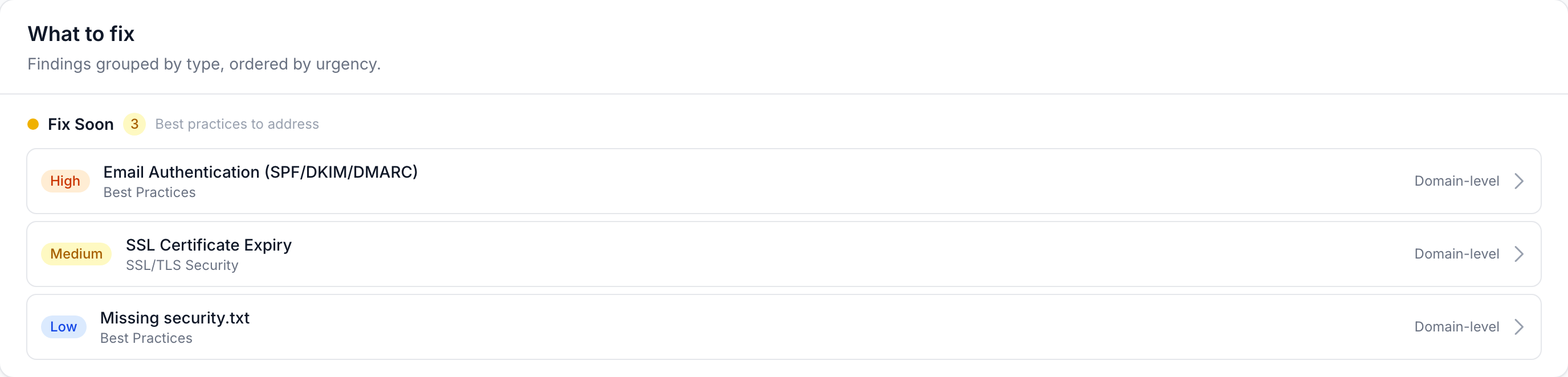
- "What to fix" — findings grouped by type and ordered by urgency, so the page opens on the work rather than on the diagnosis.
- Score history with the Security Monitoring add-on, and a Reputation Monitor summary when that add-on is entitled.
The Safe Browsing card says one of four things
This matters more than it looks, because three of the four are easy to confuse with each other:
| Badge | What it means |
|---|---|
| No threats found | Google checked your URLs and found nothing. |
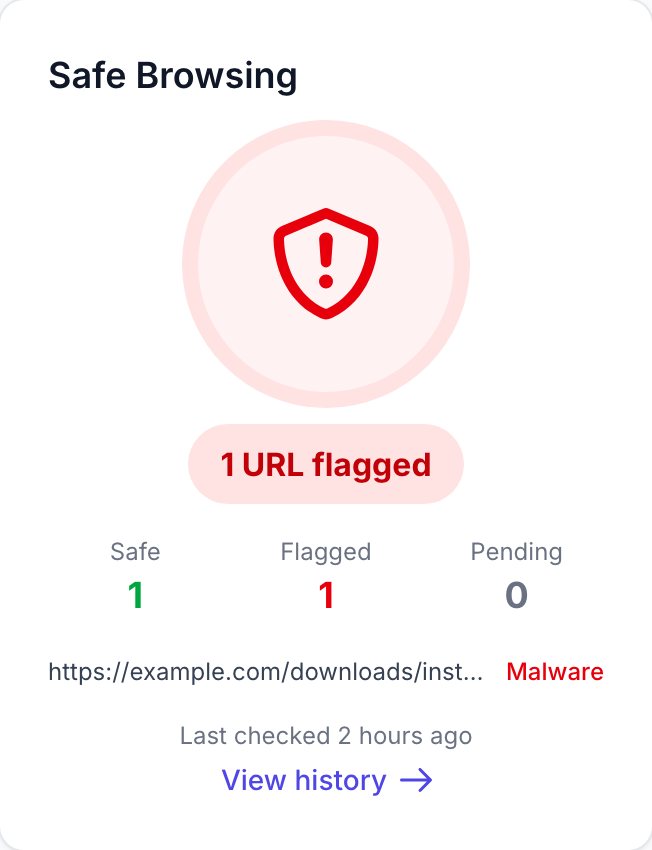
| N URLs flagged | Google currently flags them. The affected URLs are listed on the card itself, and the score drops to F. |
| Not checked yet | No verdict exists yet. This is not the same as clean — it means nobody has looked. |
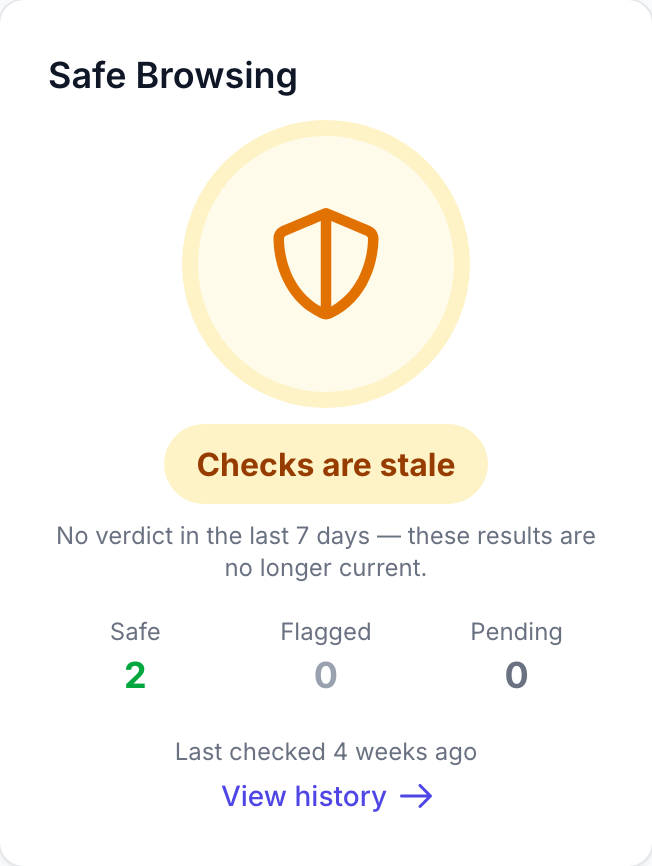
| Checks are stale | Verdicts exist but have aged past the freshness window, so they are no longer trusted either way. |
A green "No threats found" is never shown for a project that has no verdicts, and never for verdicts too old to trust. If checking is switched off (no API key), the card says so — but any URLs already flagged stay red and stay listed, because a recorded verdict is a fact regardless of whether monitoring is currently on.
How it works
- Run a crawl, then Run Security Scan — that produces the audit findings, the score and the grade
- Safe Browsing runs on its own daily schedule; it does not wait for a scan
- Work the What to fix list; each row opens a panel with the detail and a copy-paste remediation snippet
- View history on the Safe Browsing card opens the full check history, per-threat breakdown, and every flagged URL
- Mute a check you have accepted the risk on — muted checks leave the score and the findings list
Common issues & false alarms
- Missing HSTS on dev URLs expected
- "Not checked yet" on a new project is normal — Safe Browsing sweeps overnight, it does not run on demand
- A high score with a poor grade is correct: the grade is capped by the worst open finding
Interactive guide
Step of
What to do
Where to find it
Expected (pass)
Negative cases
Tips
Screenshot pending capture
All steps (reference)
-
Step 1. Open the security dashboard
Score and grade, severity and category breakdowns, and the Safe Browsing card — Google's current verdict on the site, with when it was last checked.
What to do: projects.security
Where: projects.security
Expected (pass)
- 200 response
- Severity counts sum correctly
- Safe Browsing badge matches the verdicts held on the URLs
Negative cases (must fail safely)
- Foreign project → 403
- No verdicts → "Not checked yet", never a green badge
-
Step 2. Work the "What to fix" list
Findings grouped by type and ordered by urgency. Each row opens a panel with the affected URLs, the explanation, and a copy-paste fix.
What to do: Review What to fix, then open a row
Where: projects.security
Expected (pass)
- Groups ordered worst-first
- Each row opens its detail panel
Negative cases (must fail safely)
- A muted check does not appear
-
Step 3. Review the Safe Browsing history
View history opens the full record: per-threat breakdown, every flagged URL, and the last ten checks with their verdicts.
What to do: Click View history on the Safe Browsing card
Where: projects.security
Screenshot pending capture
docs/platform/images/security/03-safe-browsing-history.png
Expected (pass)
- Recent checks listed newest-first
- Flagged URLs listed with their threat type
Negative cases (must fail safely)
- A project with no checks recorded offers no history link
-
Step 4. Recognise a flagged result
When Google currently flags a URL the badge turns red and names the count, the affected URLs are listed on the card itself, and the score drops to F. A threat is never something you have to open a panel to discover.
What to do: projects.security
Where: projects.security
Expected (pass)
- Badge names the flagged count
- Affected URLs listed with their threat type
- Grade capped at F
Negative cases (must fail safely)
- An out-of-window verdict is not counted as flagged
-
Step 5. Spot checks that have gone stale
Past the freshness window a verdict is treated as unknown — neither a threat nor a clean bill of health — so the badge turns amber and says so instead of showing green. The score does not move: an aged-out verdict is not evidence either way.
What to do: projects.security
Where: projects.security
Expected (pass)
- Amber "Checks are stale" badge
- Window named from config, not hardcoded
- History still reachable
Negative cases (must fail safely)
- Score and grade unchanged by staleness
-
Step 6. Drill into header and certificate findings
CSP, HSTS, X-Frame-Options, certificate expiry and mixed content, each linking to the affected URL.
What to do: Filter the issue table by category
Where: projects.security
Expected (pass)
- Each issue links to URL detail
- Category filter scrolls to and filters the table
Related guides
Threat Detection Add-on
Pattern-based compromise detection during crawls with AI verdict second opinion.
Security Monitoring
Turns the one-shot security audit into continuous monitoring — score history, regression alerts, and scheduled re-audits.
Reputation Monitor
Check what public blocklists and threat sources report about your domains and IPs — email/sending reputation, website threats, and infrastructure trust.
Runtime Diagnostics
Browser console errors, network failures, and CSP violations from audited pages.
Performance Insights
Core Web Vitals and performance metrics from crawled pages.