AI Business Profile & Keyword Assist
Updated · Aug 29, 2026Let AI infer your market, audience, competitors, and priority keywords from your crawl — then reuse it in Keyword Research and AI Visibility (LLM Listening).
What changed
The cost box now quotes the run the button will actually start. It used to price a REUSE of your existing profile while the button beside it always asked for a fresh one — so any time it read "Free, reusing your latest profile", confirming charged you the full amount. It also let Confirm stay clickable at zero credits, because the free-reuse quote made the check pass, and then failed with an error instead. Free reuse is real, but it belongs to automatic generation after a crawl, not to Regenerate: Regenerate is an explicit request for a fresh profile and always costs.
User goal
Stop guessing your inputs: build one shared, editable business profile and use its keyword/prompt suggestions across the SEO and LLM tools.
- Tier
- Any plan (billed in credits); suggestions require the Keyword Research or AI Visibility (LLM Listening) add-on
- Nav label
- Business Profile
- Route
- /projects/{project}/settings/business-profile
- Gates
- —
Prerequisites
- A project that has completed at least one crawl/scan (the profile is built from crawled pages)
- Credits available (one bundled total per generation; automatic generation after an unchanged crawl re-uses the existing profile for free)
- For the suggestion actions: the Keyword Research and/or AI Visibility (LLM Listening) add-on active
QA focus
- Generation charges one bundled total on success only; AUTOMATIC generation after an unchanged crawl re-uses for free, while Regenerate always starts a fresh paid run
- Manual edits are sticky and win over re-inferred values on refresh
- Profile reads/writes are org+project scoped; writes require edit_project
- AI Visibility "Suggest with AI" re-checks addon entitlement + set lock + tier cap server-side
Overview
The Business Profile is a single project-level record OnPageIQ infers from your latest crawl — market and service areas, audience, NAP, competitors, content types, and a prioritized list of SEO keywords plus LLM prompts — so you stop re-entering the same inputs across tools.
What you get
- An editable profile under Business → Business Profile (no longer nested under Settings)
- Prefill for the Keyword Opportunities launcher
- Suggest with AI on AI Visibility keyword sets (keywords, prompts, and brand terms)
- A Directory reputation strip on a ready profile when Local Listings is entitled
- Reversible suggestions (undo/restore) that the profile learns from on the next refresh
How it works
- Generate after at least one crawl; a modal shows one bundled credit total and your balance before you confirm
- Analysis runs in the background
What you pay, and when it is free
The cost box quotes the run the button is about to start, so the number you see is the number you are charged.
- Generate profile (no profile yet) — one bundled total.
- Regenerate — always a fresh paid run. You are explicitly asking for new analysis, so it never re-uses, and the modal prices it accordingly.
- Automatic generation after a crawl — if the crawl is unchanged and a ready profile already exists, it re-uses that profile and costs nothing. This is the free re-use path; it happens without you clicking anything.
- Edit sticky fields before accepting suggestions; refresh when the site was re-crawled after the profile was built
Common issues & false alarms
- No crawl yet → generation is blocked with a "run a scan first" prompt (no charge)
- Suggestion actions hidden → the relevant add-on (Keyword Research / AI Visibility) is not active for the org
- Stale nudge on the tools → the site was re-crawled after the profile was built; refresh the profile
- Looking under Settings → Business Profile → it moved to Business → Business Profile in the project sidenav
Interactive guide
Step of
What to do
Where to find it
Expected (pass)
Negative cases
Tips
Screenshot pending capture
All steps (reference)
-
Step 1. Generate your Business Profile
Open Business → Business Profile and generate. A modal shows one bundled credit total (AI + optional SERP verification + optional brand-visibility check) and your balance before you confirm — priced for the run that button will start, so Regenerate quotes a fresh paid run rather than a free re-use. Analysis runs in the background; you can leave the page and get a notification when it is ready.
What to do: Project sidenav → Business → Business Profile → Generate → confirm cost
Where: projects.settings.business-profile
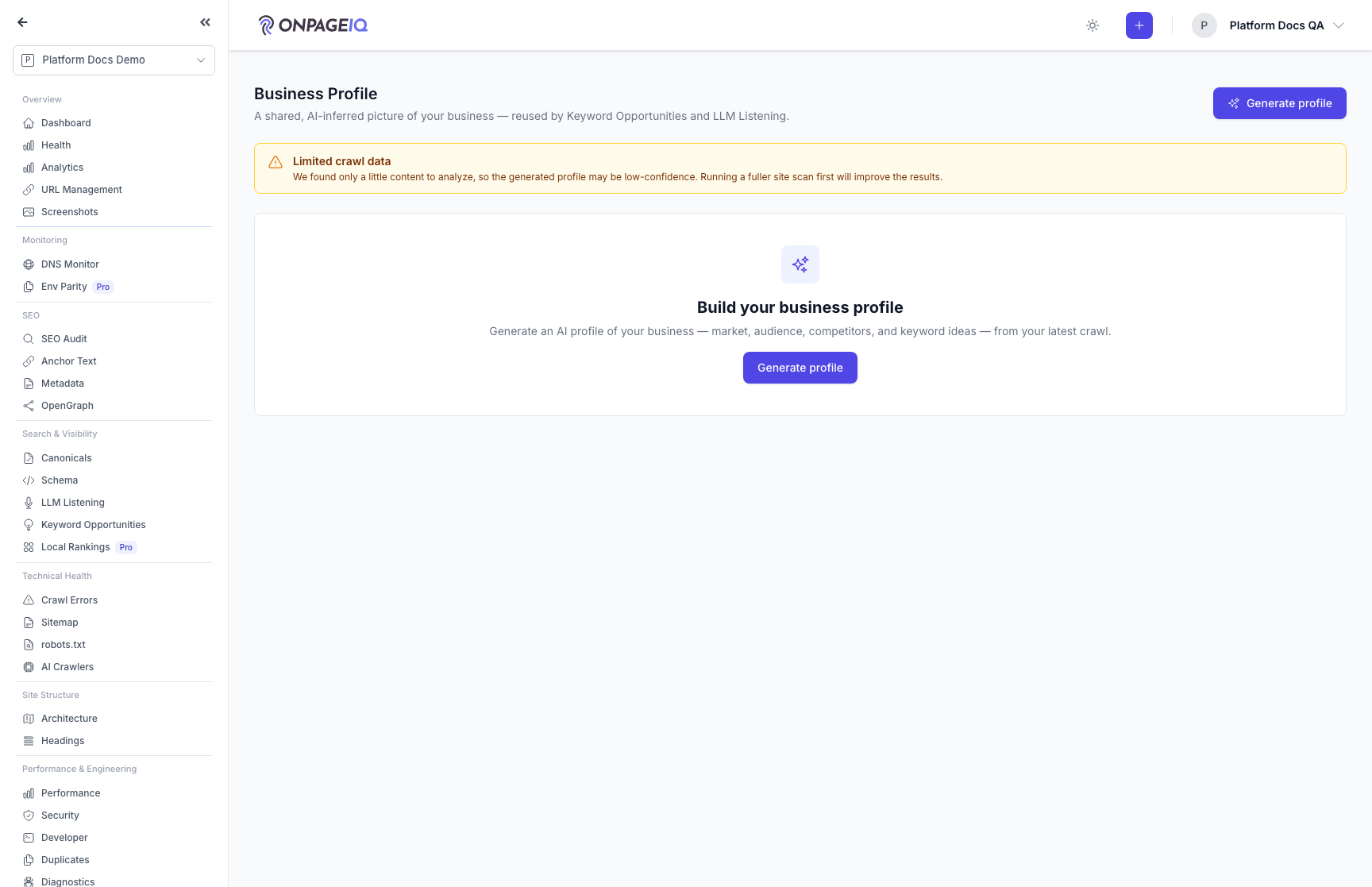
Expected (pass)
- Cost-confirm modal shows a single total + balance
- The quoted total matches what the confirm button starts — Regenerate is never quoted as free
- Row goes to "generating" then "ready"
- Automatic generation after an unchanged crawl re-uses the existing profile for free
Negative cases (must fail safely)
- No crawl → blocked with "run a scan first" (no charge)
- Insufficient credits → Confirm is disabled with a warning, not clickable-then-error
-
Step 2. Review and edit the profile
Read the plain-language "About this business" summary, then correct any field — market, audience, service areas, content types. Your edits are sticky: they always win over AI values and survive a refresh. A freshness line shows when it was built, by whom, and the credits spent. If Local Listings is active and a primary directory profile is linked, the Directory reputation strip appears above the editable sections.
What to do: Edit fields → Save
Where: projects.settings.business-profile
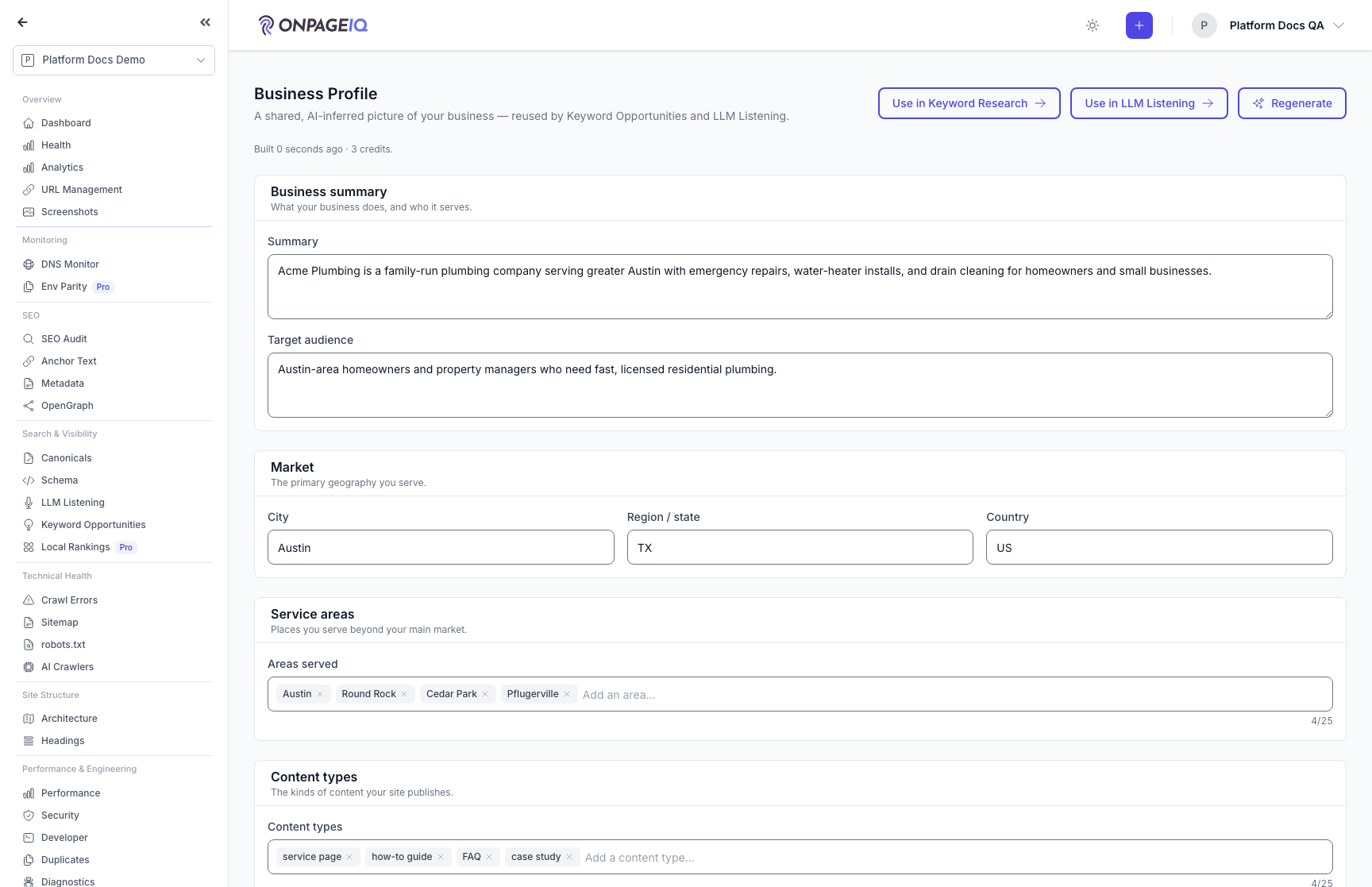
Expected (pass)
- Edits persist as a sticky overlay
- Editing requires the edit_project capability
Negative cases (must fail safely)
- Viewer without edit_project → fields are read-only
-
Step 3. Add the places you serve
Under Service areas, start typing a place in "Areas served" and pick from the suggestions — cities, counties, neighbourhoods and states, not just cities, because a service area is legitimately "St. Johns County, FL". A picked place is stored in the same "City, ST" form the AI uses, so a typed area and an inferred one match instead of appearing twice. You can still type anything: "North Florida" or a metro name commit as-is, since not every area is a place Google knows. A comma is part of the name here, not a separator — "Jacksonville, FL" stays one entry; use Enter, a semicolon or a new line to start the next one.
What to do: Business → Business Profile → Service areas → type a place → pick a suggestion (or press Enter for free text)
Where: projects.settings.business-profile
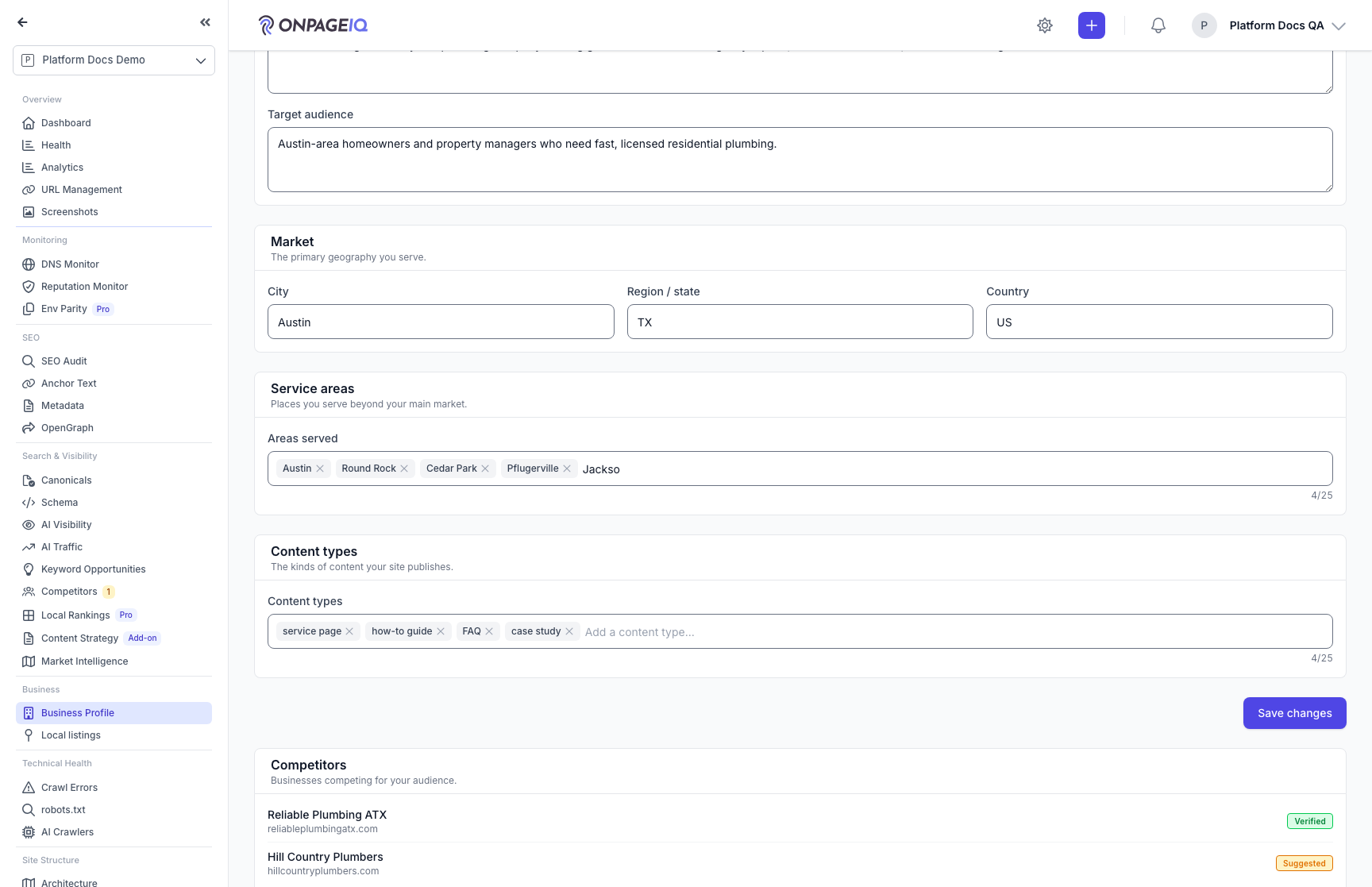
Expected (pass)
- A picked suggestion lands as ONE entry in "City, ST" form
- Free text commits unchanged on Enter
- A comma inside a name does not split the entry
Negative cases (must fail safely)
- Member without edit_project → no suggestions (the lookup needs the same permission as saving)
- Places unreachable → the list stays empty and the field still accepts typing
-
Step 4. Use it in Keyword Research
Open Keyword Opportunities; the run launcher is pre-filled from the profile (market, audience, service areas, content types). Adjust if needed and launch. A nudge appears if the site was re-crawled since the profile was built.
What to do: GET /projects/{project}/seo/keyword-opportunities → launch a run
Where: projects.seo-audit.keyword-opportunities
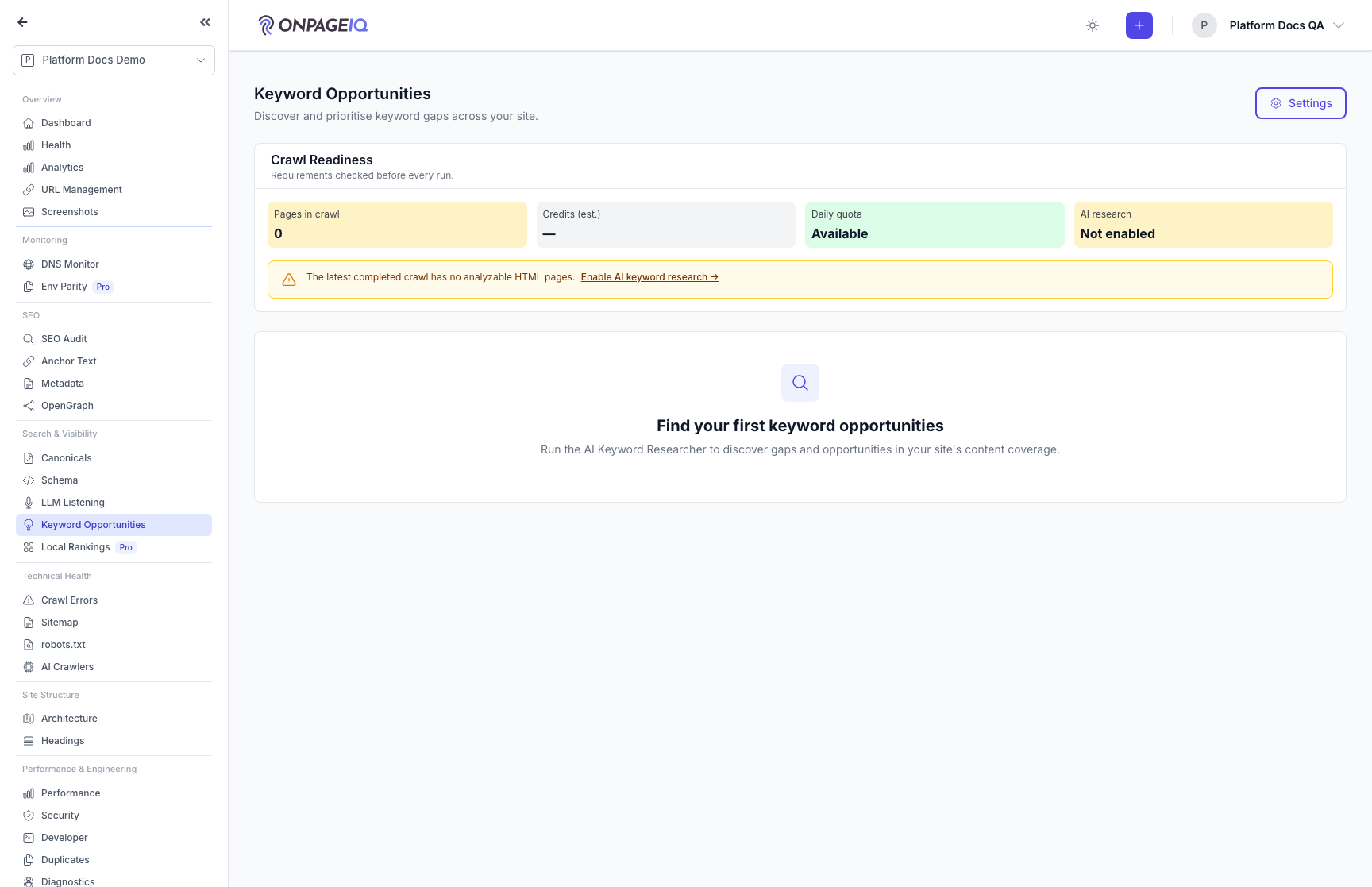
Expected (pass)
- Launcher fields are prefilled from the profile
- Stale-profile nudge deep-links to refresh
Negative cases (must fail safely)
- Keyword Research add-on inactive → prefill/CTA hidden
-
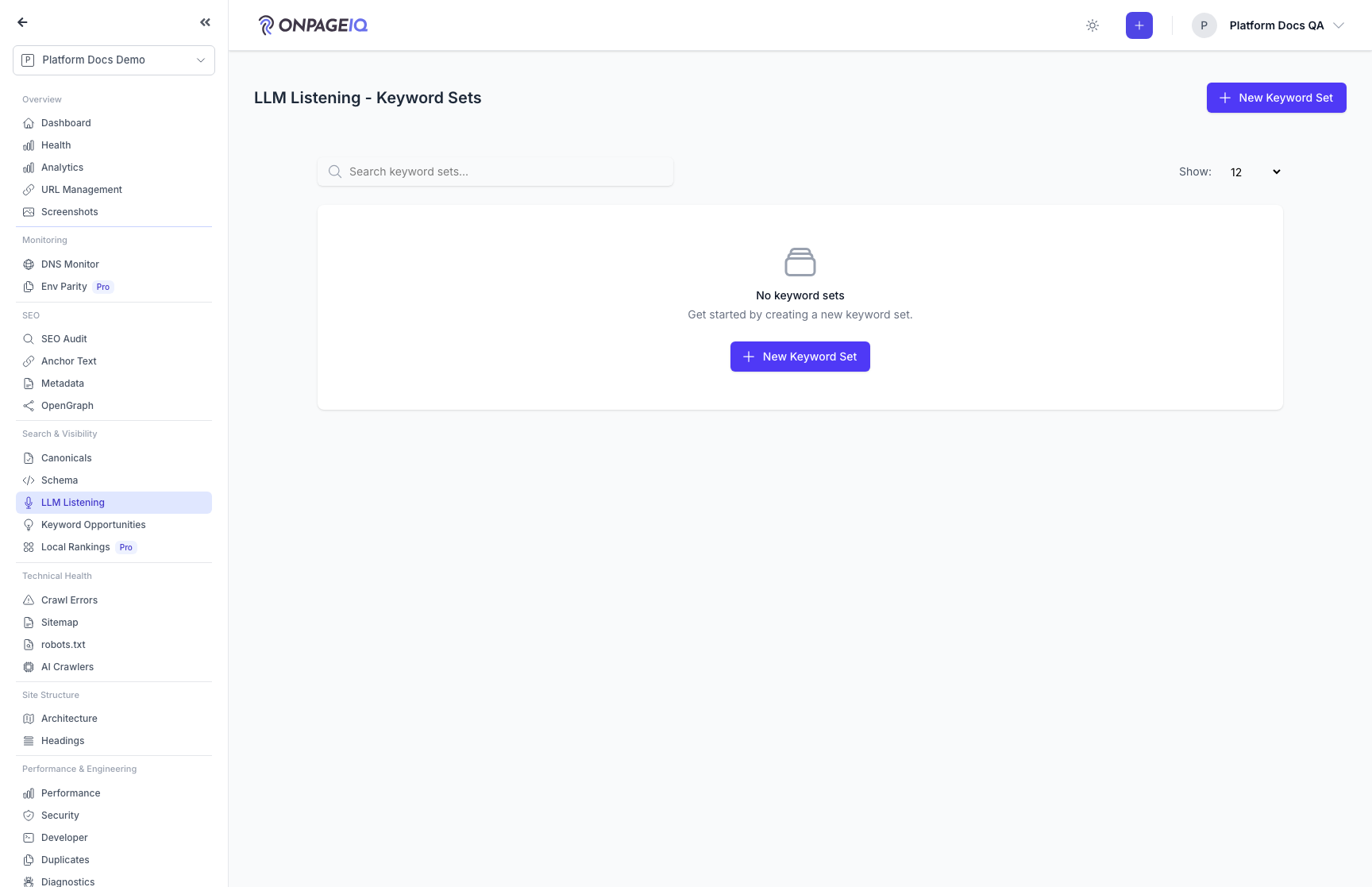
Step 5. Suggest keywords & prompts for AI Visibility
On a keyword set, open "Suggest with AI". Review the suggested SEO keywords, LLM prompts, and brand terms; edit a term inline before accepting (your edit is saved, the profile is untouched), select all high-confidence, or dismiss ones that do not fit. Accept to add them to the set, then optionally run them right away.
What to do: Open a keyword set → Suggest with AI → select/edit → Add selected
Where: llm-listening.keyword-sets.index
Expected (pass)
- Accepted terms are added respecting the set lock + tier cap
- Duplicate/over-cap items are reported honestly, not silently dropped
Negative cases (must fail safely)
- AI Visibility (LLM Listening) add-on inactive → the action is hidden/blocked
-
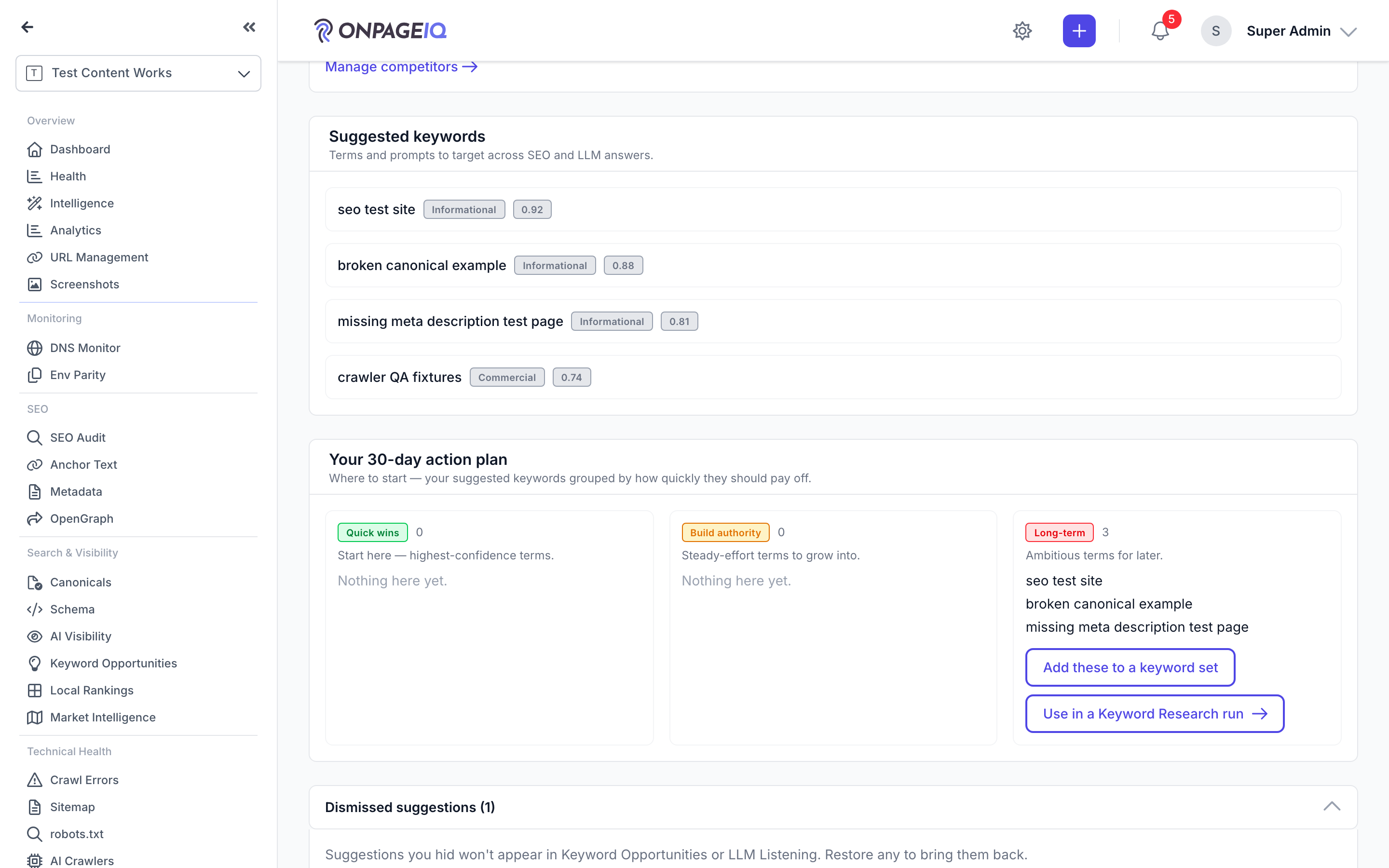
Step 6. Dismiss, undo, restore — and let it learn
Dismissing a suggestion shows an inline Undo; anything dismissed can be brought back later from the "Dismissed (N)" list on the profile. Use "Dismiss all low-confidence" to clear noise fast. On your next refresh the profile favors terms you accepted and avoids ones you dismissed.
What to do: Dismiss a suggestion → Undo, or restore from Business → Business Profile → refresh later
Where: projects.settings.business-profile
Expected (pass)
- Undo/restore round-trips the suggestion
- Refresh prompt reflects accepted/rejected feedback (capped per tier)
Negative cases (must fail safely)
- Restore requires edit_project; the list is hidden otherwise
Related guides
Content Scans
Run spelling, grammar, SEO, and readability checks against project URLs.
Intelligence Hub
Cross-source insights combining GSC, GA4, scans, and audits.
Keyword Research Add-on
Discover keyword opportunities from GSC data and AI analysis on project SEO surfaces.
AI Visibility (LLM Listening)
See how the answer engines describe your brand — overall, per engine, and per place you serve — with the evidence behind every number.
Local Listings
Match BBB, Yelp, Angi, Trustpilot, and G2 listings to a project (Google Business Profile sync planned), confirm the right business, and surface reputation proofs in Business Profile, Local SEO, and Intelligence.