Project Settings
Every per-project configuration surface in one tabbed page — crawl behaviour, schedules, integrations, environments, notifications, dictionary, writing style, local SEO, and deletion.
User goal
Change how this project scans, notifies, and integrates — without hunting across separate pages.
- Tier
- Any plan; some tabs are gated by role or addon
- Nav label
- Settings
- Route
- /projects/{project}/settings
- Gates
- —
Prerequisites
- A project you can view; write access on most tabs needs an appropriate role
QA focus
- Tab visibility is enforced server-side, not just hidden in the UI — a direct ?tab= link to a gated tab must be refused
- Environments is Member+ READ and Owner/Admin WRITE, and is hidden entirely for lesser roles
- Local SEO is manage_geogrid + GeoGrid entitlement, or Alignment-only Owner/Admin when listing-alignment Pennant is on without GeoGrid
- When listing-alignment is on, Local SEO Save confirms primary NAP for Owner/Admin (Managers save GeoGrid defaults only)
- Danger Zone actions are destructive and must confirm before acting
Overview
Project Settings collects every per-project configuration surface into one tabbed page so you can change how this project scans, notifies, and integrates without hunting across separate URLs.
What you get
- Tabs for General, Crawl, Schedules, Integrations, Environments, Notifications, Dictionary, Writing Style, Local SEO, and Danger Zone
- Direct links such as
?tab=dictionaryor?tab=local-seothat open a specific tab - Role- and addon-gated tabs enforced on the server, not only hidden in the UI
- Environments readable by members, writable by owners/admins, and hidden for roles below that
- Local SEO — Places pin + locale defaults for Local Rankings; when Pennant listing-alignment is on, also the Listing Alignment identity (confirmed NAP)
- Confirmed destructive actions in Danger Zone — both stop scheduled work immediately
How it works
- Open Settings and step through the tabs your role and entitlements allow
- Crawl setting changes apply to the next scan, not retroactively
- Requesting a gated tab directly is refused rather than silently redirected
Common issues & false alarms
- A tab you expected is missing → it is gated by role, tier, or an addon your org does not hold
- Changed a crawl setting and nothing happened → crawl settings apply to the next scan, not retroactively
- Looking for Alignment profile create → use Local SEO (Listing Alignment identity); hub Confirm profile deep-links there
- Archived a project and a scan still ran → an on-demand scan you start yourself is not affected; only scheduled work is paused
- Restored an archived project and expected the alerts it found while paused → they are kept for the retention window shown on the panel, not indefinitely
Interactive guide
Step of
What to do
Where to find it
Expected (pass)
Negative cases
Tips
Screenshot pending capture
All steps (reference)
-
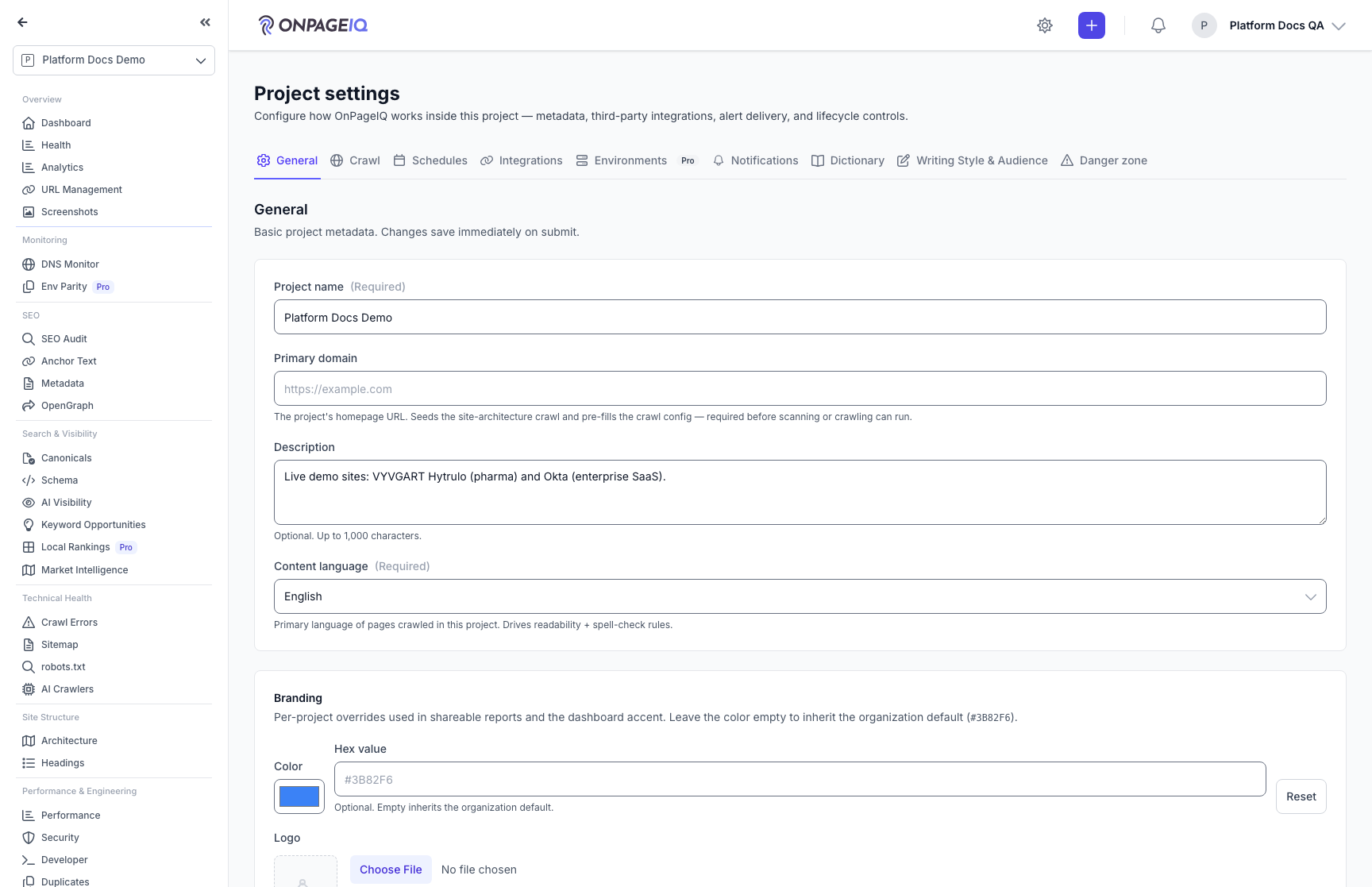
Step 1. Move between the settings tabs
Each concern has its own tab, and each tab is a direct link you can share. Which tabs you see depends on your role and what your org is entitled to.
What to do: Project → Settings → step through the tabs.
Where: projects.settings
Expected (pass)
- Tabs render for General, Crawl, Schedules, Integrations, Notifications, Dictionary, Writing Style, Local SEO, and Danger Zone
- Environments appears for Member and above
- A ?tab= link opens that tab directly
Negative cases (must fail safely)
- A role below Member requesting ?tab=environments → refused, not silently redirected to General
- Another org's project id → refused
-
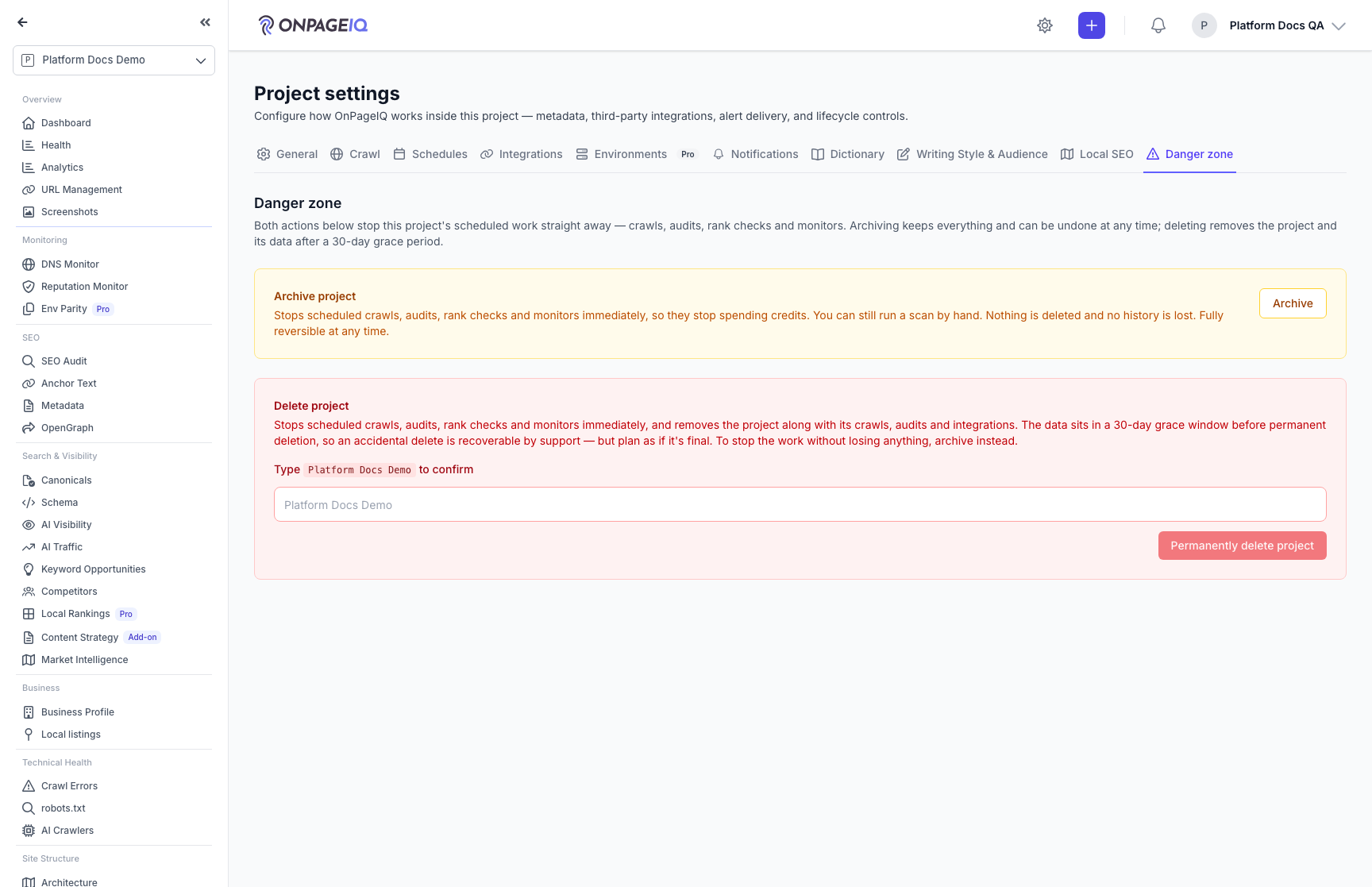
Step 2. Pause or delete a project, and know what stops
Both Danger Zone actions stop this project's scheduled work the moment you confirm — crawls, audits, rank checks and monitors — so it stops spending credits. Archiving keeps everything and is reversible; deleting removes the project after a 30-day grace window. You can still run a scan by hand on an archived project.
What to do: Project → Settings → Danger Zone.
Where: projects.settings?tab=danger-zone
Expected (pass)
- Both blurbs state that scheduled work stops immediately
- Archive is one click with a confirm; delete requires typing the project name
- Once archived, the panel says the work is paused and gives the retention window for held alerts
Negative cases (must fail safely)
- Scheduled work still running for an archived or deleted project → the copy is then a false promise, which is the bug class this panel is most prone to
- Delete enabled before the typed name matches exactly → confirmation is not doing its job
-
Step 3. Check a gated tab enforces server-side
Hiding a tab in the sidebar is not access control. Request a gated tab directly and confirm the server refuses it rather than rendering the content.
What to do: As a role without access, open /projects/{project}/settings?tab=environments.
Where: projects.settings?tab=environments
Expected (pass)
- The request is refused server-side
- The tab content is never rendered, even briefly
Negative cases (must fail safely)
- Content flashes before being hidden → a client-side-only gate, which is a bug
Related guides
Projects & URLs
Manage projects, URL inventory, tags, and page-level detail.
Scheduled Scans
Recurring scan schedules with credit reservation and refund on skip.
Integrations (GSC & GA4)
Connect Google Search Console and Google Analytics 4 per project.
Dictionaries
Org-wide and project-specific spelling dictionaries and conflict resolution.
Organization Settings
Org profile, org-wide dictionary, diagnostics patterns, and defaults.
File Parity
Compare the same artifact (PDF/HTML/JSON/CSV) across your dev, staging, UAT, and production environments, and surface drift with evidence.
DNS Monitoring Add-on
Watch MX, SPF, DKIM, DMARC, NS and DNSSEC for every domain — with a health score that shows its working, and alerts when a record changes.
Reputation Monitor
Check what public blocklists and threat sources report about your domains and IPs — email/sending reputation, website threats, and infrastructure trust.
Local Rankings (GeoGrid)
Track Google local-pack rankings across a geographic grid, with a square or radial (concentric-ring) layout, a rank heatmap, and PDF reports.
Listing Alignment
Confirm a location’s business identity on Project Settings → Local SEO, then audit name/address/phone/website alignment across website, schema, Google, directories, and Apple/Azure — with honest Not tested when a source is unavailable, plus findings and tasks when sources disagree.