Editorial Review
New · Aug 30, 2026 Needs testingCheck live pages against your own editorial, brand and legal rules.
Still to be tested
This guide and the Editorial Review feature shipped recently and still need QA walkthrough sign-off.
Use the QA focus checklist below; remove the needs_testing flag in
config/platform-docs/pages/addons.php after the team signs off.
User goal
Find the places where live pages break our own house rules, before someone outside notices.
- Tier
- Stripe add-on only — deliberately absent from every tier features map
- Nav label
- Editorial Review
- Route
- /projects/{project}/editorial
- Gates
- editorial-review-addon editorial-review-addon
Prerequisites
- editorial-review-addon active for the org (bought as a Stripe add-on or granted per-org — it is not part of any tier)
- A project with pages that have been scanned
- Nothing else — five platform rules ship switched on, so a review has something to check from the first run
QA focus
- Findings, rules and runs scoped to the project and org
- A published rule version cannot be edited — a change publishes a new version
- Preview rules stay out of counts, exports and notifications until promoted to live
- Editorial findings never move the project health score
- An empty result never reads as approval
Overview
Editorial Review runs your own editorial, brand and legal rules against your live pages, and reports what does not match. The rules are yours to write — house style, banned claims, required disclaimers, wording your legal team insists on — and they run on the pages as published, not on a draft.
What it is not
It does not compare a page against an approved brief. There is no document upload — no DOCX, PDF or Figma — and it does not know what your approved copy says. Reading a brief is a later phase.
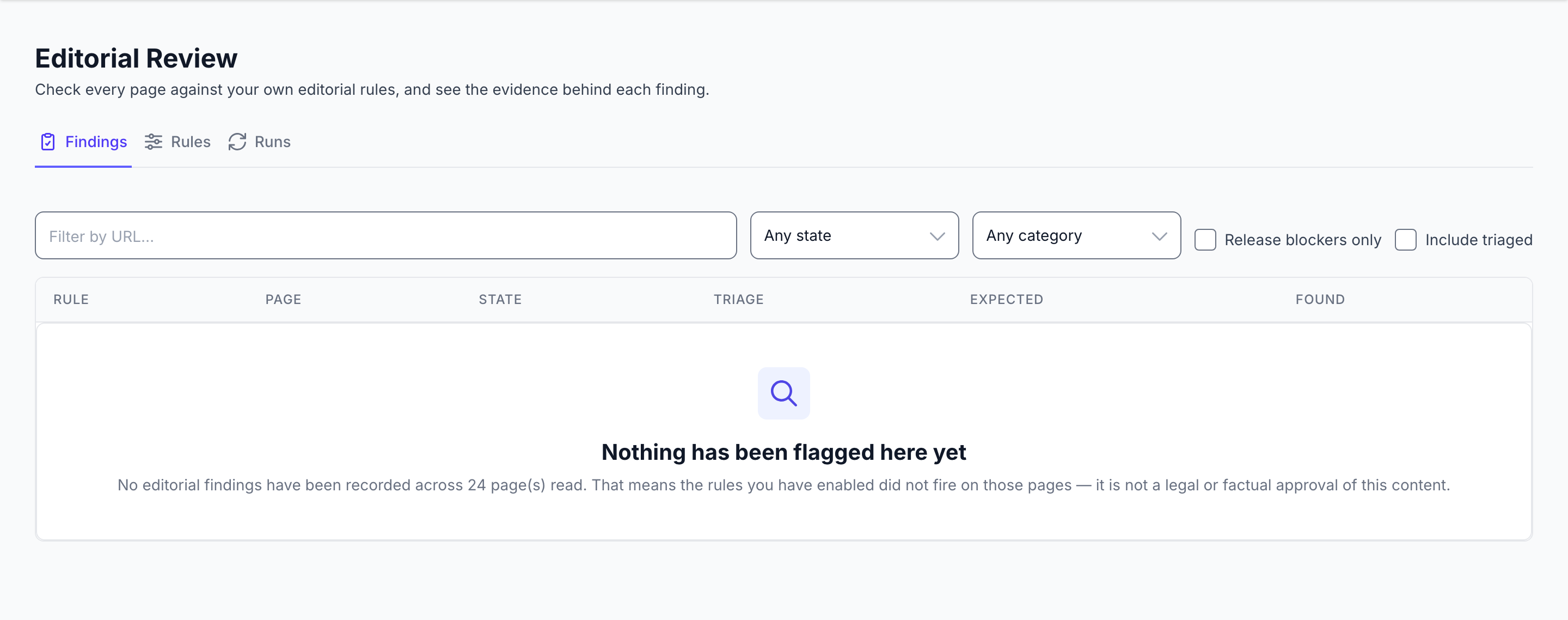
That matters for how you read a clean result: "no findings" means none of the rules you switched on fired on those pages. It is not legal or factual approval of the content, and the empty state says so rather than letting a green panel imply otherwise.
The three tabs
- Findings — what fired, with the same triage you already use elsewhere: assign, comment, resolve, dismiss, and a history of who did what. These findings live here only: they deliberately never appear in the ordinary SEO issue lists, because your own rules would otherwise move a number that is compared between clients.
- Rules — where you write and publish them, scoped to the whole org or to one project.
- Runs — each review you asked for, and which pages it covered.
Publish once, then publish again
A published rule version never changes. Editing a live rule creates a new version rather than rewriting the old one, and a version that findings already cite cannot be deleted. So a finding always tells you which wording of which rule produced it, months later.
Try a rule before it counts
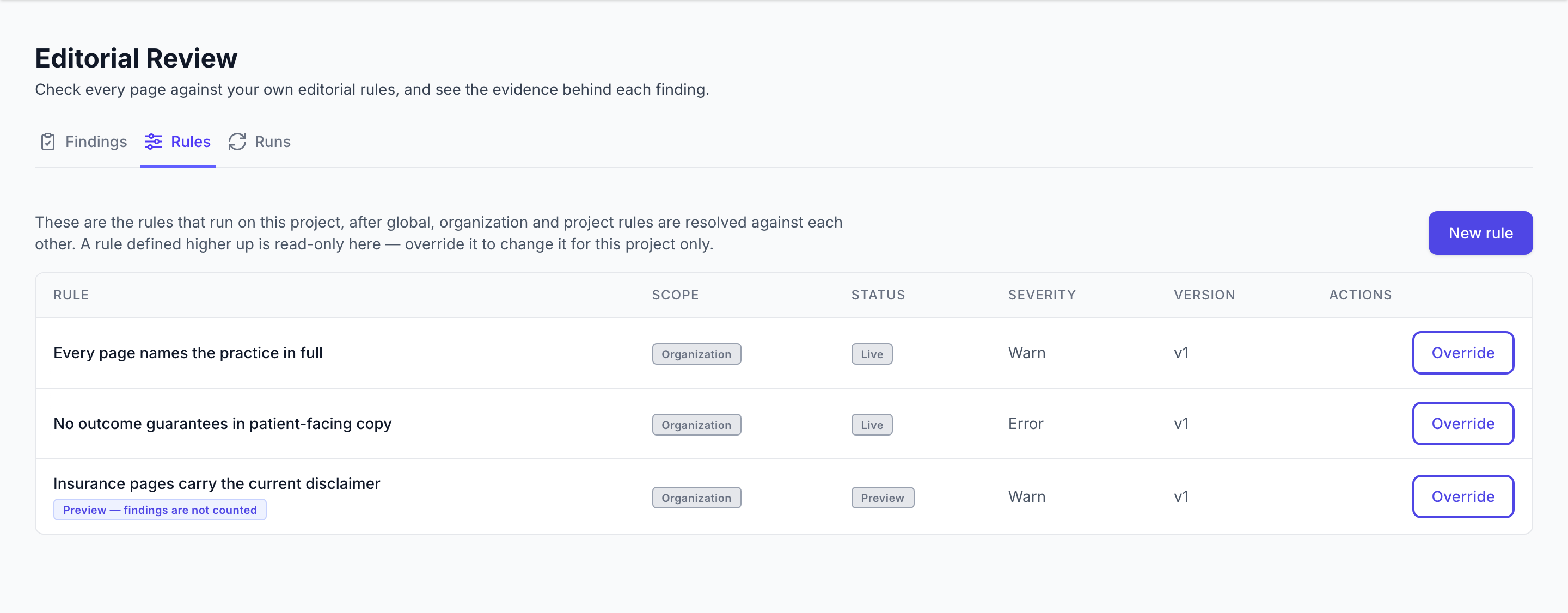
A rule set to preview runs and records what it would have found, but those findings stay out of your open counts, exports and notifications until you promote it to live. Write a rule, see what it catches on real pages, then turn it on for real.
Five rules are already on
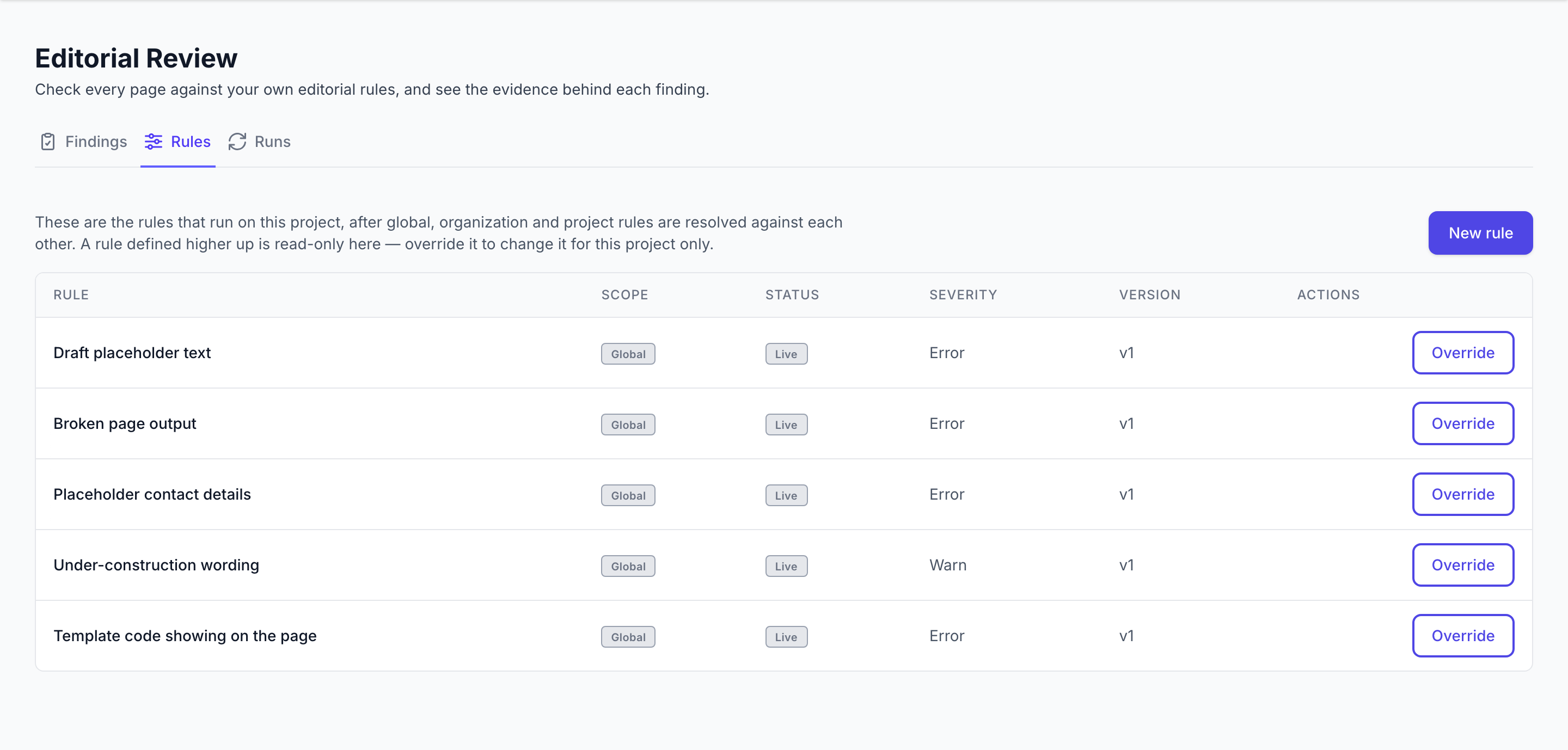
The platform ships its own rules, live from the start: draft placeholder text (lorem ipsum, TODO, [insert name]), broken page output ([object Object], $NaN), placeholder contact details (555 numbers, example.com addresses), under-construction wording, and template code showing on the page (PHP, ASP.NET, Razor, Twig, Liquid). They need nothing from you — every one of them is wrong on anybody's site.
They are marked as the platform's. We keep them up to date, and a release can improve one. Edit a platform rule and it becomes yours — permanently, and later releases stop updating it. The admin screen says so before you save.
Anything that needs to know your business — a required legal line, an approved link destination, your own phone number — is deliberately not shipped, because a rule that guesses those fires on everyone and teaches people to ignore findings.
Turning one off for one project
An inherited rule is read-only on the project's Rules tab, because other projects share it. Override it to change it for this project alone: turn it off, or keep it and change how loudly it speaks. Either way you write a reason, and it is recorded against the override.
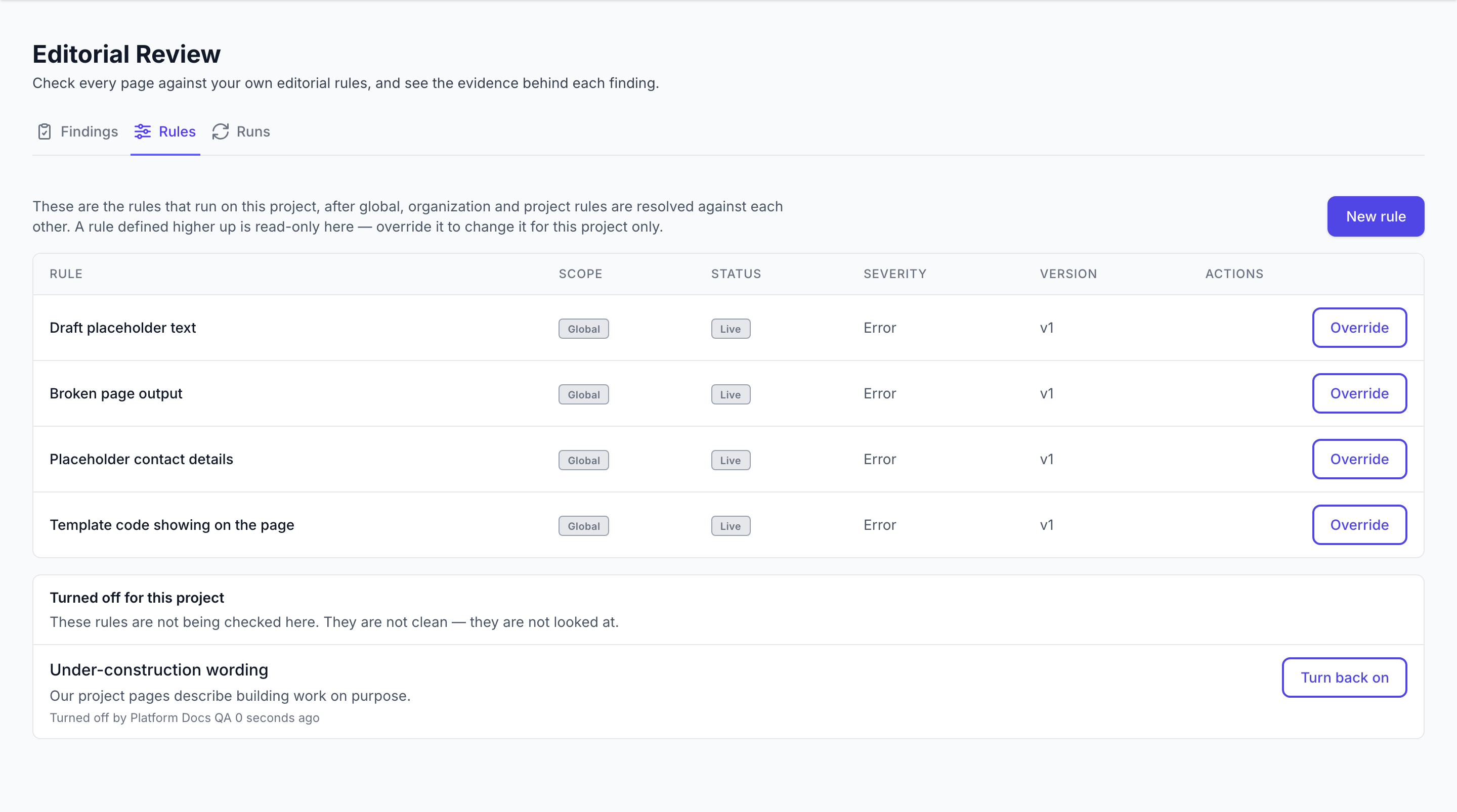
A rule you turn off leaves the table entirely — so it moves into a Turned off for this project panel underneath, with the reason, who did it, and a way to turn it back on. It never just disappears.
A page nobody could read is not a page that came back clean
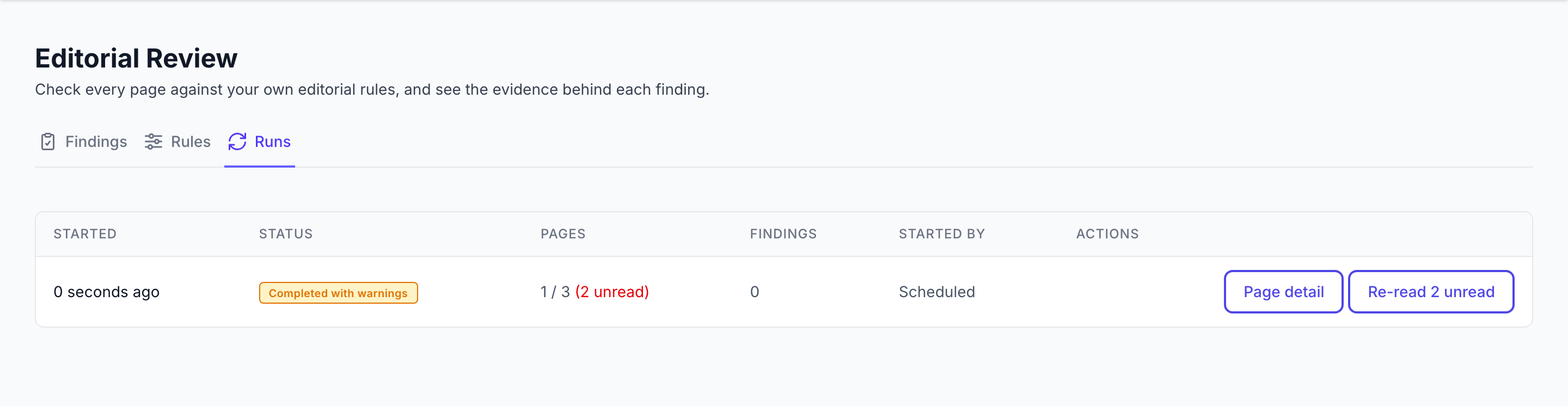
The Runs tab reports pages it could not check, not just pages it failed to fetch. A page whose rule errored after a successful fetch counts as unread too. Page detail on any run shows the HTTP status, any redirect it followed, whether only part of the page could be read, and the reason each page was missed — and Re-read retries exactly those.
It will not move your health score
Editorial findings are deliberately excluded from the project health score. The rules are yours, so they could otherwise move a number that is compared across different clients. They still show up in issue lists — they just do not change the score.
Common issues & false alarms
- A run finds nothing → check the Runs tab first. If pages are marked unread, nothing looked at them; that is not a clean result
- A run finds nothing and every page was read → check the rules are **live** rather than **preview**; preview findings are recorded but deliberately hidden from counts
- A platform rule stopped tracking releases → someone edited it, which hands it over permanently. That is by design and the admin screen warns before saving
- A rule is missing from the project Rules tab → look in **Turned off for this project** below the table; an override may have silenced it
- A rule cannot be edited → published versions are immutable by design; publish a new version instead
- Editorial findings missing from the health score → intended, not a bug (see the overview)
- The page redirects to an upgrade screen → the add-on is not active for the org; it is bought separately and is not included in any tier
Interactive guide
Step of
What to do
Where to find it
Expected (pass)
Negative cases
Tips
Screenshot pending capture
All steps (reference)
-
Step 1. Turn the add-on on
Editorial Review is sold on its own rather than bundled into a plan, so no tier includes it. Buy it as a Stripe add-on, or have it granted to the org directly. Until it is active the project route shows an upgrade screen rather than the workspace.
What to do: Billing → Add-ons → Editorial Review
Where: billing.add-ons
Expected (pass)
- Editorial Review appears in the project sidebar once active
- Before that, /projects/{project}/editorial shows the upgrade page
Negative cases (must fail safely)
- Another org's project → not reachable
-
Step 2. See what already runs
Five platform rules ship switched on, so a review has something to check before you write anything. They look for things that are wrong on anybody's site — leftover draft text, broken output like `[object Object]`, placeholder contact details, under-construction wording, and template code showing on the page. Each is marked **Global**: we maintain them, and a release can improve one.
What to do: Editorial Review → Rules
Where: editorial-review.index
Expected (pass)
- Five rules listed as Global and Live on a project that has authored none
- Each inherited rule offers Override rather than Edit
Negative cases (must fail safely)
- Editing a platform rule in admin → it becomes yours, and later releases stop updating it
-
Step 3. Turn a rule off for one project
An inherited rule is read-only here, because other projects share it. **Override** it to change it for this project alone — turn it off, or keep it and change how loudly it speaks. A written reason is required either way. A rule you turn off leaves the table, so it appears in **Turned off for this project** underneath, with the reason and a way to turn it back on.
What to do: Editorial Review → Rules → Override
Where: editorial-review.index
Expected (pass)
- The rule stops being evaluated for this project only
- It is listed under "Turned off for this project" with the reason and who set it
- Other projects in the same organization are unaffected
Negative cases (must fail safely)
- A rule turned off for the whole organization → shown here, but not liftable from one project
- A blank reason → refused
-
Step 4. Write a rule, and watch it before it counts
Open **Rules** and author one. Scope it to the whole organisation when it is house style, or to a single project when it only applies there. Set it to **preview** first: it runs against real pages and records what it would have flagged, without touching your open counts, exports or notifications. When the results look right, promote it to **live**.
What to do: Editorial Review → Rules → new rule → publish as preview
Where: editorial-review.index
Expected (pass)
- A preview rule produces findings that do not appear in open counts
- Promoting to live brings its findings into the counts
- Editing a published rule creates a new version rather than changing the old one
Negative cases (must fail safely)
- Deleting a rule version that findings already cite → refused
-
Step 5. Run a review and triage what it found
Ask for a run from the **Runs** tab; it fetches the pages and evaluates every live rule against them. Results land in **Findings**, where they behave like any other issue — assign, comment, resolve or dismiss, with the history kept. Re-running later tells you what is fixed, what is still there and what is new.
What to do: Editorial Review → Runs → start a run → Findings
Where: editorial-review.index
Expected (pass)
- Each finding names the rule version that produced it
- A re-run distinguishes fixed, still-present and new findings
- An empty result is worded as "your rules did not fire", never as approval
Negative cases (must fail safely)
- No live rules → the run completes and finds nothing, which is not the same as a pass
-
Step 6. Check what the run could not read
A page nobody could read is not a page that came back clean, so the Runs tab counts it separately. That includes a page fetched successfully where a rule then errored — it looks completed, but nothing checked it. **Page detail** shows the HTTP status, any redirect followed, whether only part of the page was read, and why each page was missed. **Re-read** retries exactly those pages.
What to do: Editorial Review → Runs → Page detail
Where: editorial-review.index
Expected (pass)
- Unread pages are counted and marked, never folded into the completed total
- A run with unread pages is "Completed with warnings", not "Completed"
- Every page reported unread can be re-read
Negative cases (must fail safely)
- A page that returned no readable content at all → recorded as a failure, not as a clean page
-
Step 7. Admin: author and publish the platform rules
Staff author the global rules under **Content Quality → Global Editorial Rules**, without a deploy. The list marks which rules are still the platform's; opening one says plainly that saving any change makes it yours and stops future releases updating it. A rule's code is locked after creation, because an organization or project rule sharing that code is how an override finds it. Publishing never rewrites a version — it adds one.
What to do: Admin → Content Quality → Global Editorial Rules
Where: filament.admin.resources.editorial-rules.index
Expected (pass)
- Only global rules are listed — a customer's own rules are never shown here
- A new rule publishes as preview, and is promoted to live deliberately
- Editing a platform rule releases it from platform updates, with a warning shown first
- A rule type with no handler surfaces as a rule error, never as a pass
Negative cases (must fail safely)
- A non-super-admin → both the list and the edit URL are refused
- A duplicate code → rejected on the field, not a 500
Related guides
Content Scans
Run spelling, grammar, SEO, and readability checks against project URLs.
Content Strategy
Find what competitors publish, which buyer questions nobody owns, and what to change when an AI answer cites someone else.
Billing & Subscriptions
Manage subscription tier, purchase credits, add-ons, and view billing history.