Getting Started
First-run orientation: log in, create a project, run a content scan, and read results.
User goal
Complete the core loop — project → URL → scan → issues — within 15 minutes.
- Tier
- All users
- Nav label
- Overview
- Route
- /dashboard
- Gates
- —
Prerequisites
- Verified account (email or OAuth)
- At least one credit available (Free tier: 5 one-time credits)
QA focus
- Credit balance decrements on scan start
- Scan reaches completed state with issues or clean pass
- Project and scan scoped to logged-in org only
Overview
OnPageIQ is org-scoped: every project belongs to your organization. Start here to complete the core loop — project → URL → scan → issues — in about 15 minutes.
What you get
- An org dashboard with credit balance, recent activity, and project entry points
- Projects that group URLs, scans, and related tools for one site or brand
- Content scans for spelling, grammar, and (on Pro+) SEO/readability
- Issue triage from scan results or the project dashboard
How it works
- Log in, land on the org Overview, then create a project with a name and base URL
- Add URLs and run a content scan (credits decrement when the scan starts)
- When the scan completes, review per-URL results and issues; open the project for the fuller workspace
Common issues & false alarms
- Queue not running → scan stuck in queued/processing
- Insufficient credits → scan blocked with upgrade or purchase prompt
- Invalid URL → validation error before job dispatch
Interactive guide
Step of
What to do
Where to find it
Expected (pass)
Negative cases
Tips
Screenshot pending capture
All steps (reference)
-
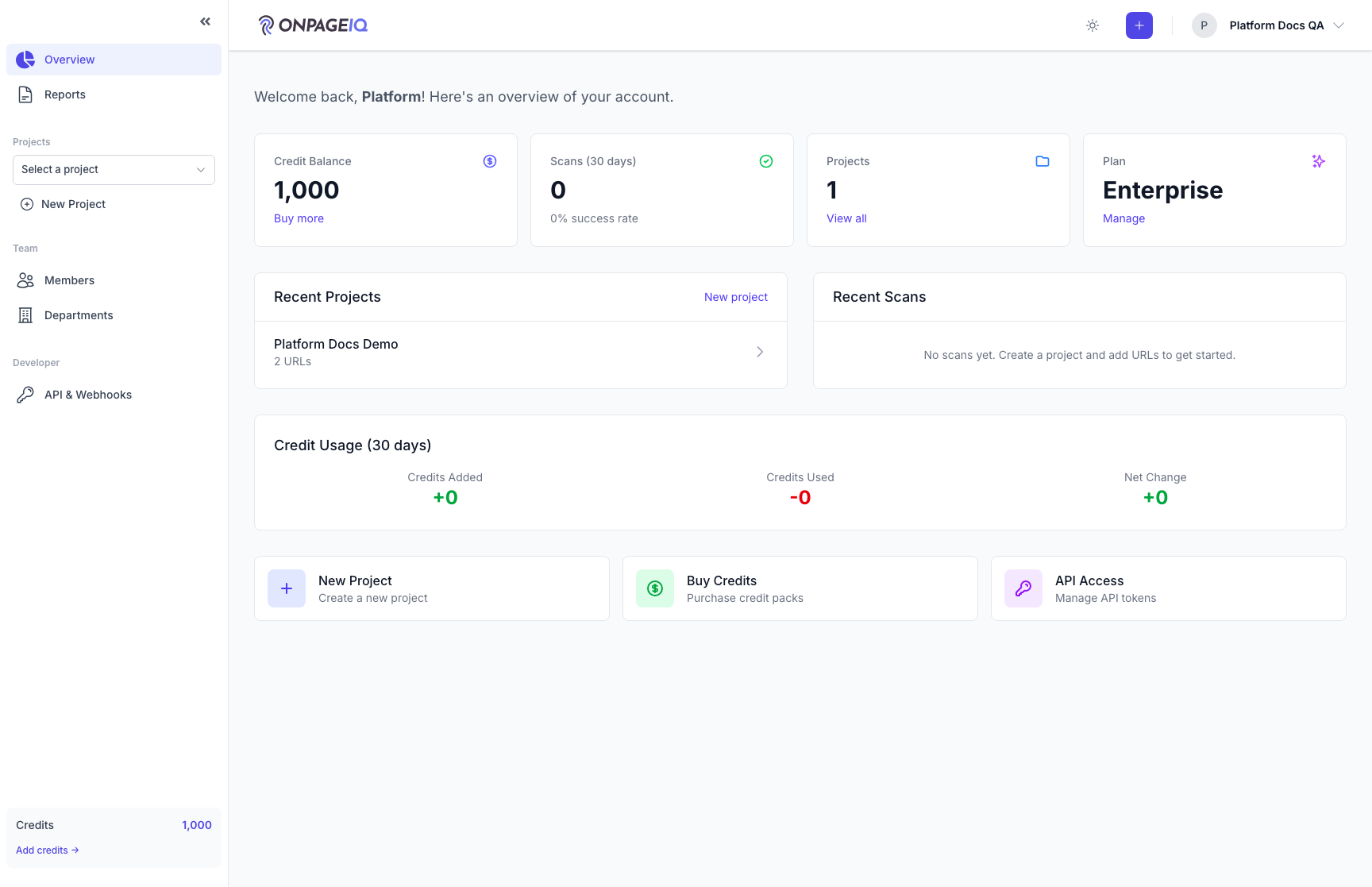
Step 1. Land on the org dashboard
After login you arrive at the org Overview with credit balance, recent activity, and project list entry points.
What to do: Log in as platform-docs@onpageiq.test / password (or your test user)
Where: dashboard
Expected (pass)
- Page title or heading shows Dashboard / Overview
- Credit balance visible in sidebar or header
- No 500 errors; sidebar renders
Negative cases (must fail safely)
- Unverified email user blocked from dashboard (if email verification enforced)
Tips
- Seed with PlatformDocsDemoSeeder for a predictable starting state
-
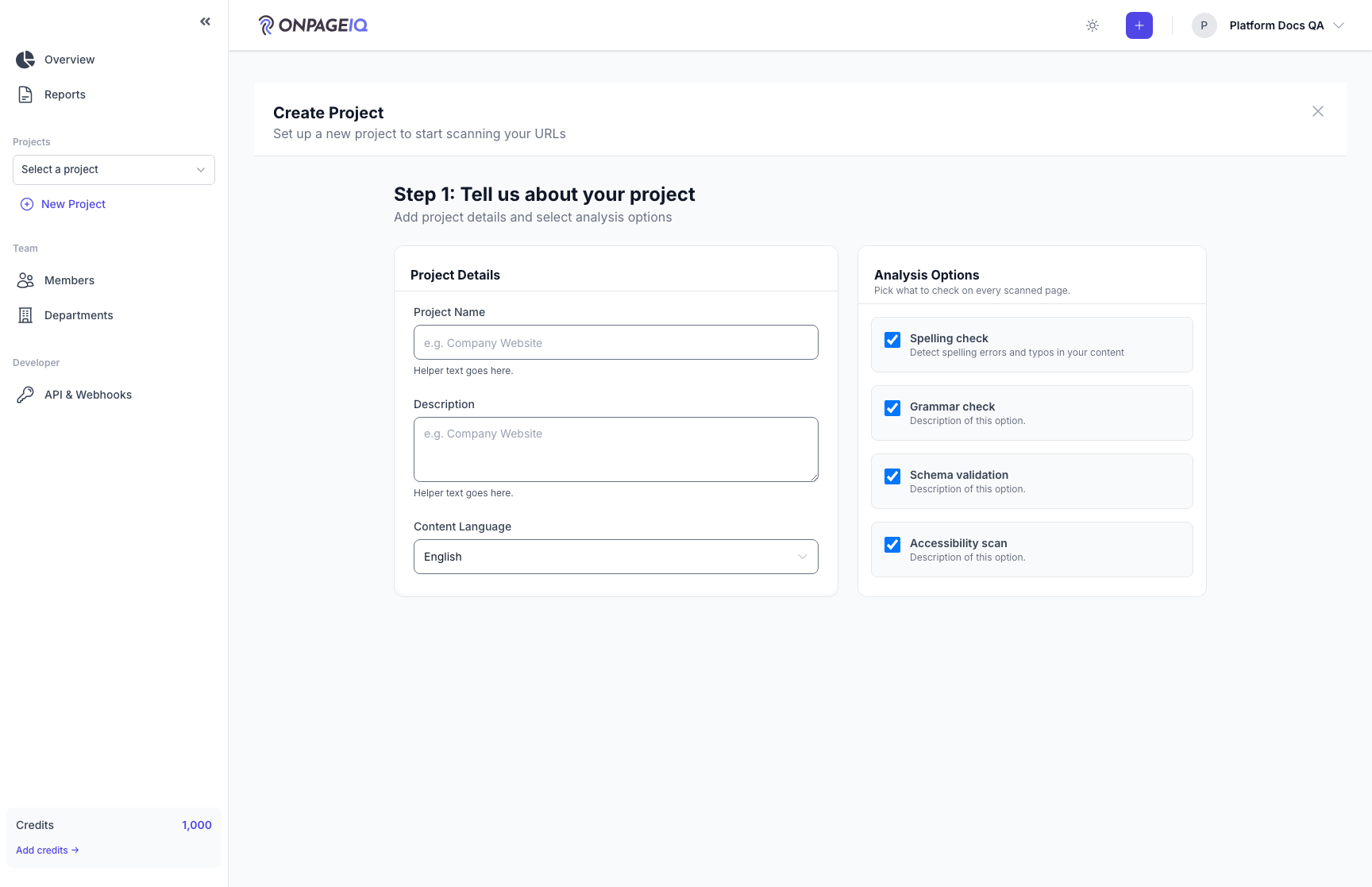
Step 2. Create a project
Projects group URLs, scans, SEO audits, and integrations for one site or brand.
What to do: Click New Project → fill name and base URL → submit
Where: projects.create
Expected (pass)
- Validation passes for valid name + URL
- Redirect to project dashboard or URL list
- Project appears in sidebar project switcher
Negative cases (must fail safely)
- Duplicate slug within org handled gracefully
- Malformed base URL rejected with field error
-
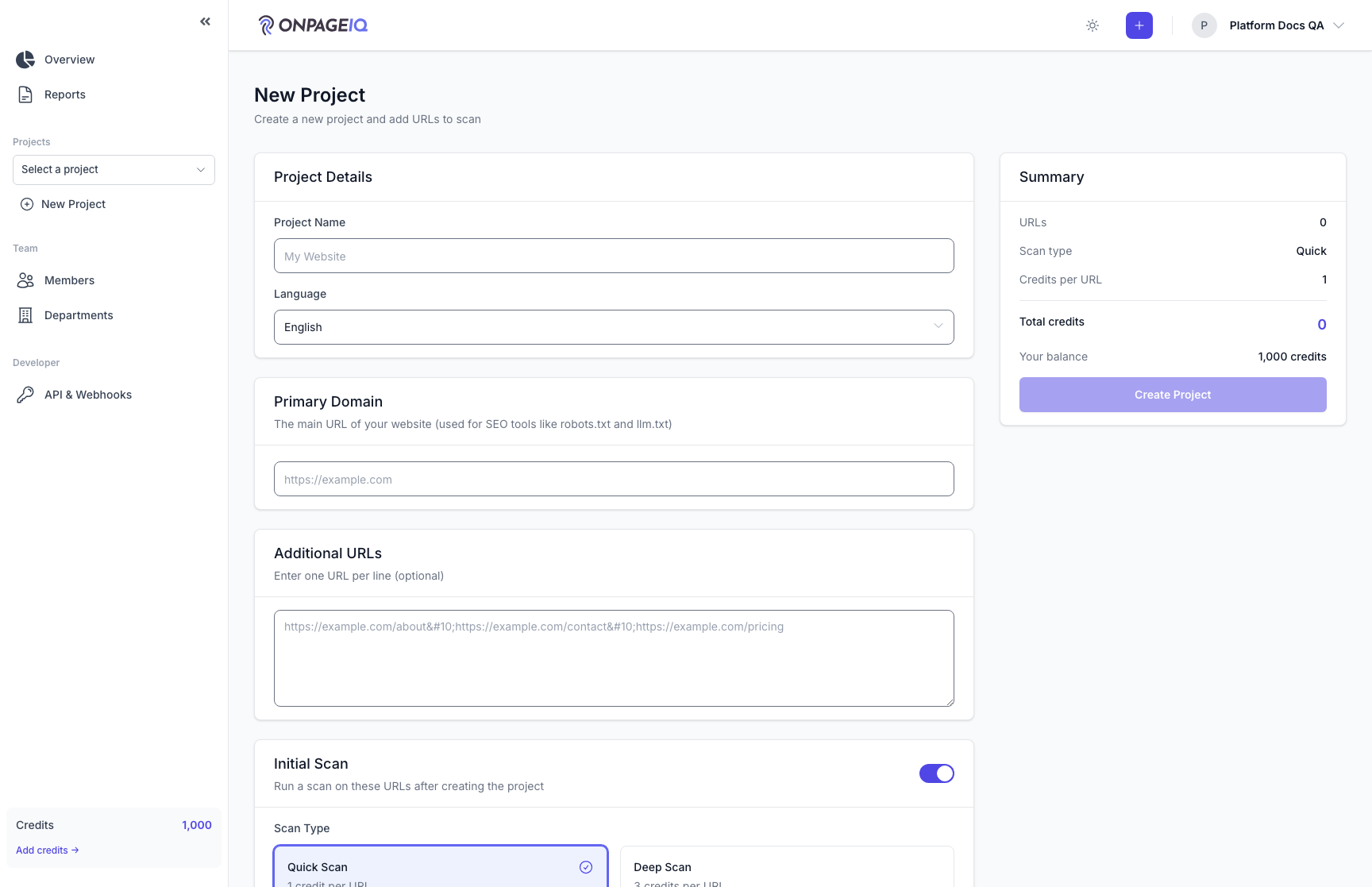
Step 3. Start a content scan
Scans fetch page content and run spelling, grammar, and (on Pro+) SEO/readability checks per URL.
What to do: Open /scans/new → select project + URL(s) → choose check types → Run scan
Where: scans.create
Expected (pass)
- Credit estimate shown before confirm
- Scan record created with status queued or processing
- Horizon/job queue receives ScanUrlJob (or equivalent)
Negative cases (must fail safely)
- Zero credits → blocked with clear message
- Cross-org project ID in form → 403/404
-
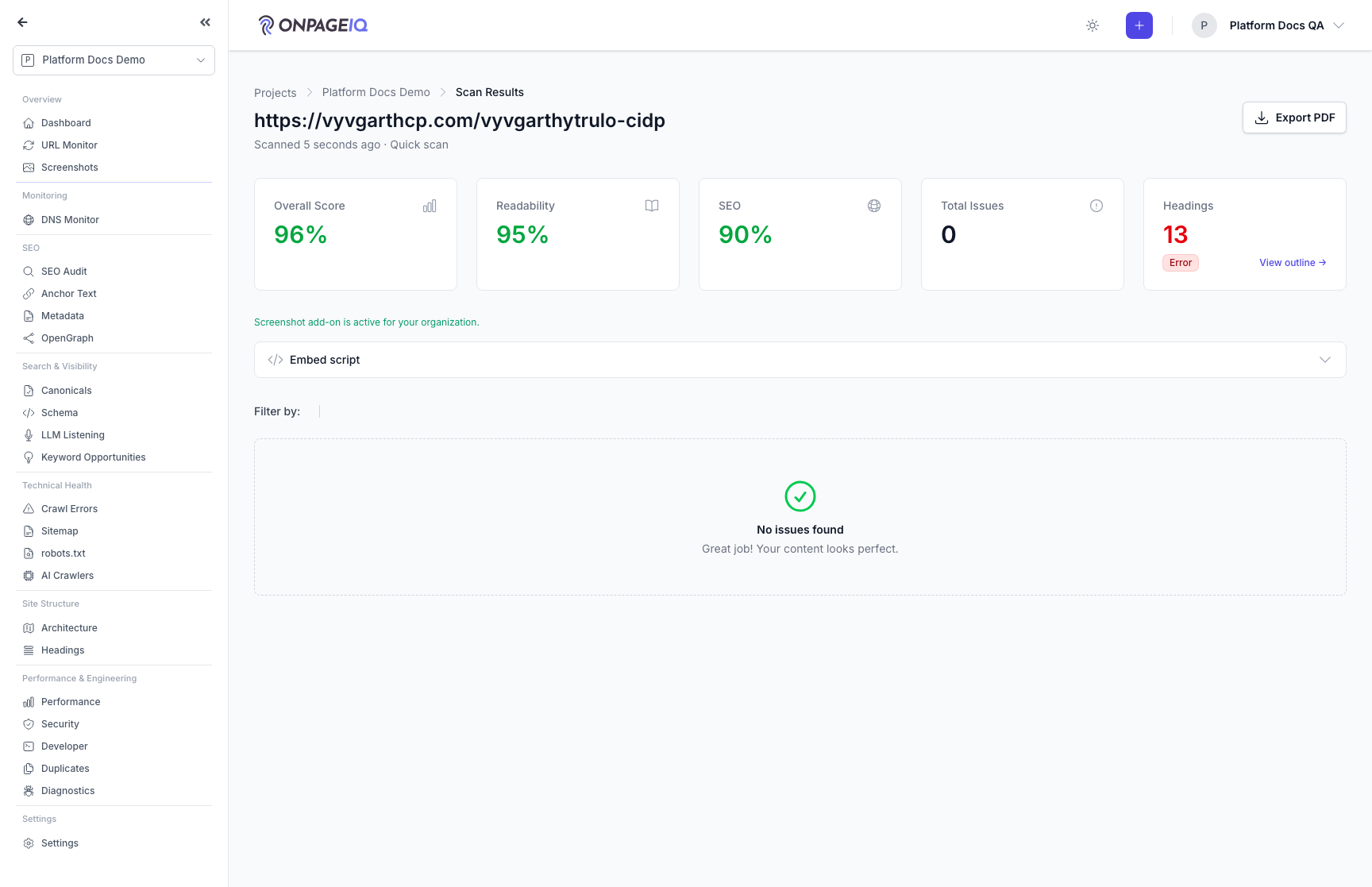
Step 4. Review scan results
Completed scans show per-URL results, issue list, filters, and export actions.
What to do: Open /scans/{scan} after job completes; expand a URL row; open an issue
Where: scans.show
Expected (pass)
- Status badge shows Completed (not stuck Processing)
- Issues list matches seeded or live content
- PDF/CSV export links visible when tier allows
Negative cases (must fail safely)
- Another org’s scan ID → 403/404
- Refresh during processing shows progress, not empty state
-
Step 5. Open project context
Project dashboard aggregates URLs, recent scans, issues workflow, and schedules.
What to do: Navigate to /projects/{project} from sidebar or project list
Where: projects.show
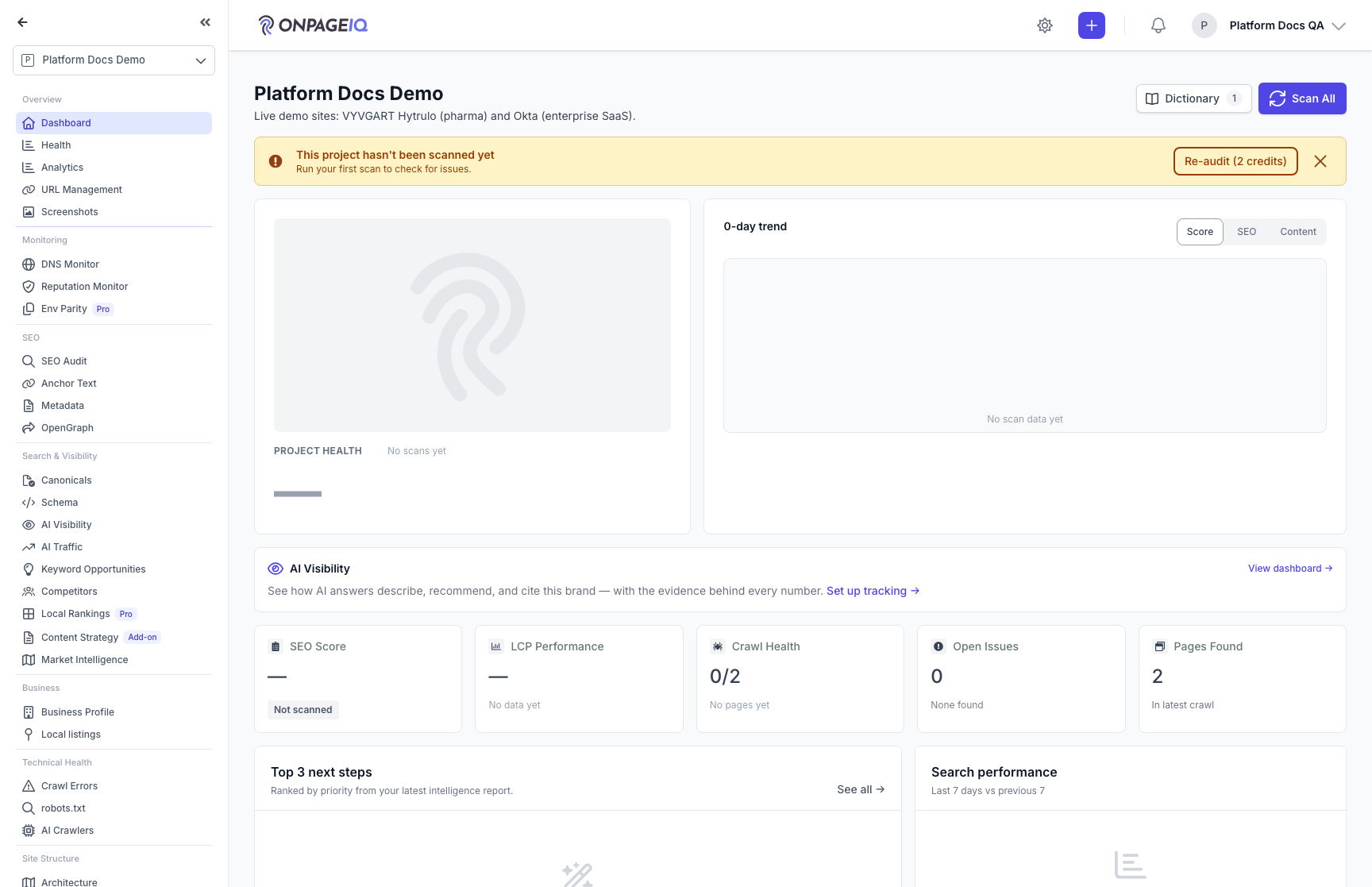
Expected (pass)
- Project name and URL count visible
- Links to Issues, Schedules, Settings tabs or sections work
- Sidebar switches to project-scoped navigation
Negative cases (must fail safely)
- Foreign project ID → 403/404
Related guides
Navigation & Sidebar Map
Where every feature lives: org-level nav, project sidebar sections, gates, and route names.
Content Scans
Run spelling, grammar, SEO, and readability checks against project URLs.
Projects & URLs
Manage projects, URL inventory, tags, and page-level detail.
Project Health
One composite health score for the project, its four domain sub-scores, what changed since last time, and what to fix next.
Test Environment & Accounts
Seeders, demo credentials, and commands to reset local QA data.