Projects & URLs
Updated · Aug 15, 2026Manage projects, URL inventory, tags, and page-level detail.
What changed
Searching the URL inventory now matches regardless of capitalisation — typing "okta" finds a page stored as "OKTA". Previously the search was case-sensitive in production, so a lower-case search silently returned nothing for a mixed-case address. Page detail also links its performance measurements reliably now, including pages that were measured before they were added to the inventory, or whose address carried a tracking parameter.
User goal
Organize site URLs and drill into per-page SEO and quality data.
- Tier
- All users
- Nav label
- Dashboard
- Route
- /projects/{project}
- Gates
- —
Prerequisites
- At least one project
QA focus
- URL CRUD org-scoped
- Page detail shows latest scan/audit
- Tags via url-tags routes
- URL search is case-insensitive AND still org/project scoped
- Page detail shows measurements for a page added after it was measured
Overview
Projects & URLs is where you manage your site inventory — list projects, open a project dashboard, and drill into individual page detail with tags.
What you get
- An org-scoped project list with create controls (subject to plan project limits)
- A project dashboard with summary metrics, URL table, and recent scans
- Per-URL page detail from the latest scan or audit
- URL tags to organize and filter the inventory
How it works
- Open Projects to browse or create a project
- Add or import URLs on the project; duplicates are handled by validation rules
- Open a URL row for page-level SEO and quality detail, then return via breadcrumbs
Common issues & false alarms
- Project limit on Free tier
Interactive guide
Step of
What to do
Where to find it
Expected (pass)
Negative cases
Tips
Screenshot pending capture
All steps (reference)
-
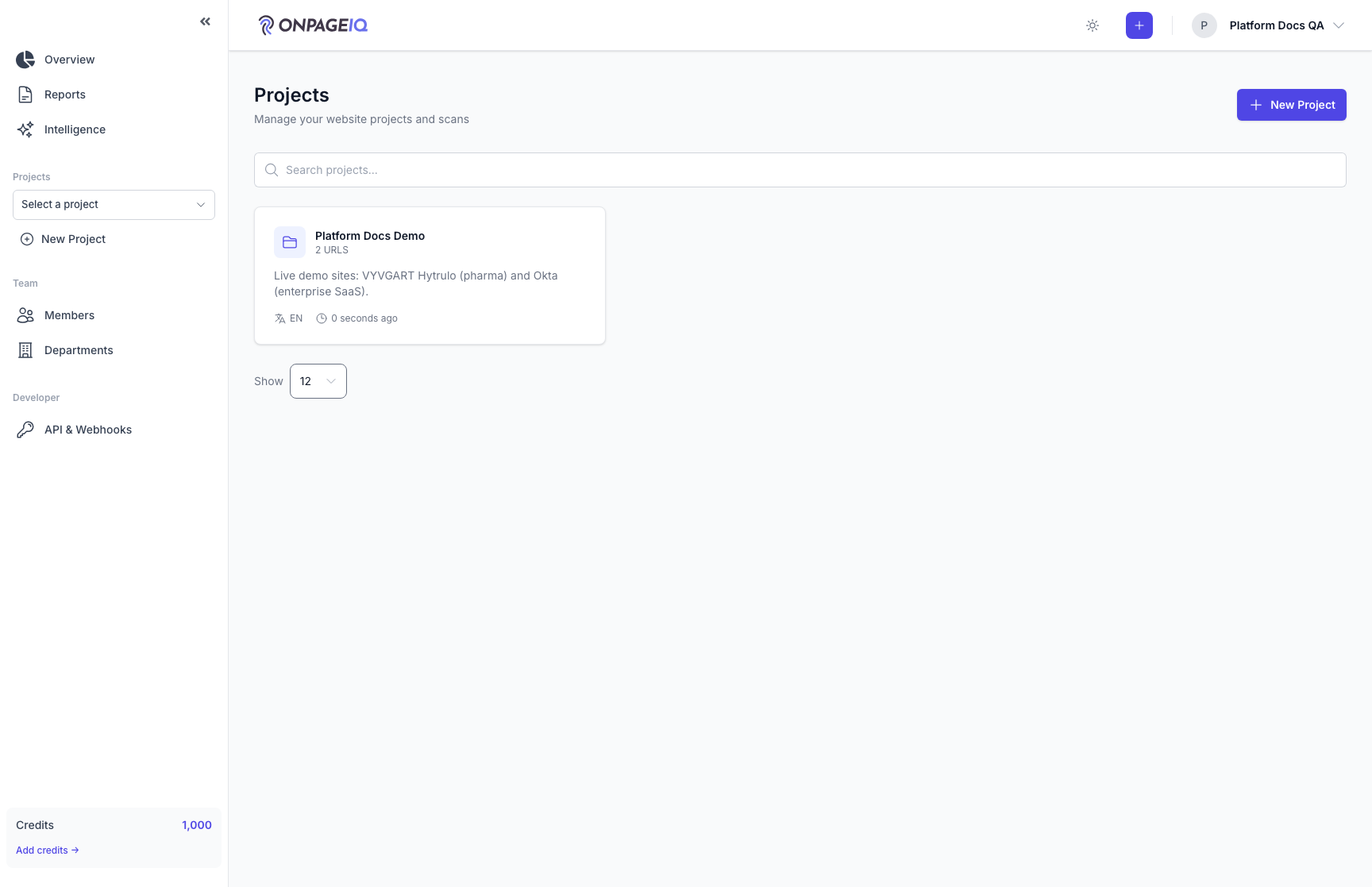
Step 1. Project list
All projects in org with create CTA.
What to do: Open /projects
Where: projects.index
Expected (pass)
- Only org projects listed
Negative cases (must fail safely)
- Create blocked at project limit
-
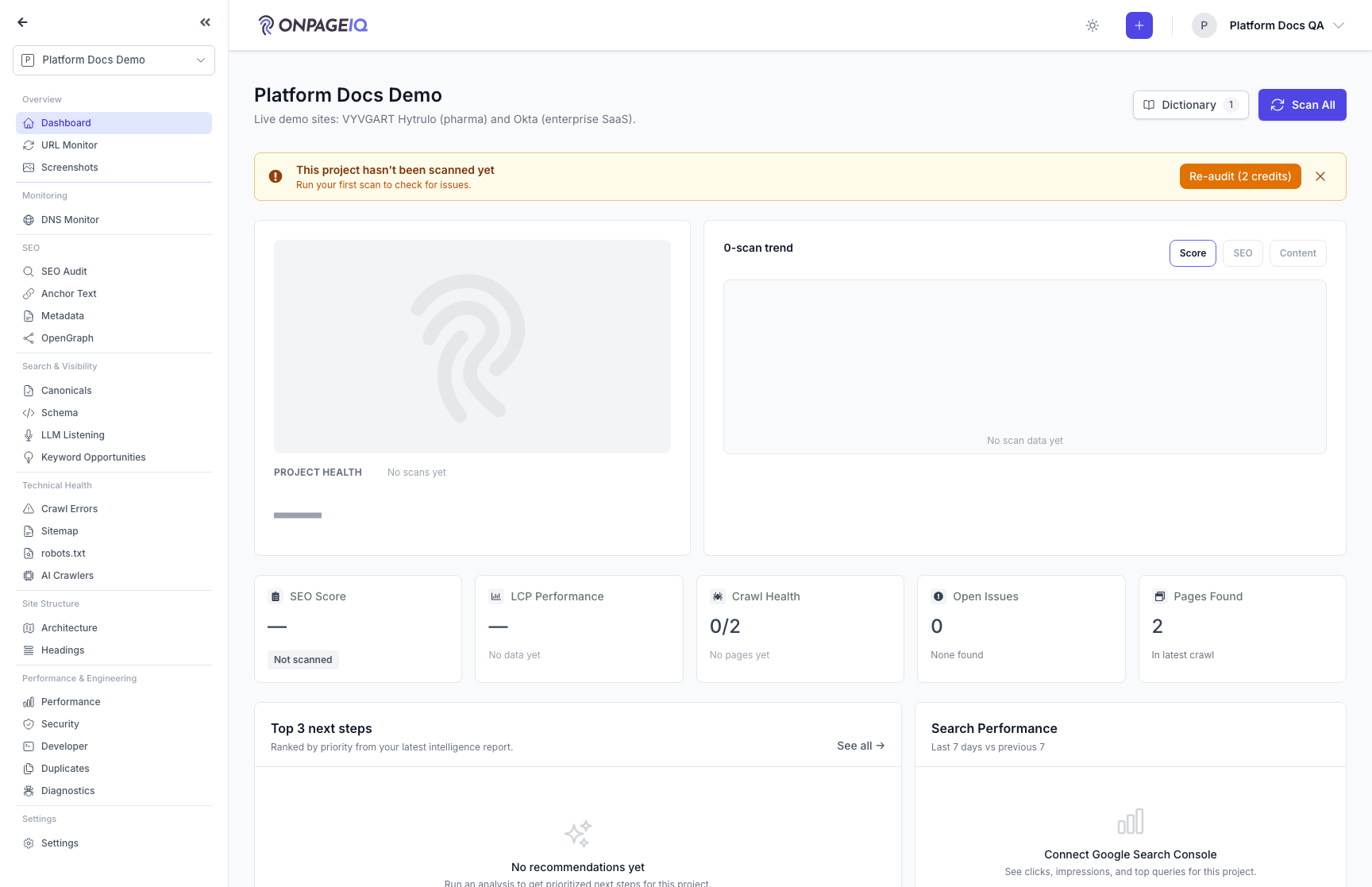
Step 2. Project dashboard
Summary metrics, URL table, recent scans, and the 12-day health trend. Each bar in that trend is a link — clicking one reopens the Health page as it stood on that day. See the Project Health guide for what a past day shows.
What to do: Open projects.show
Where: projects.show
Expected (pass)
- URL count accurate
- Quick links to scans/issues
- Trend bars link to that day on the Health page
Negative cases (must fail safely)
- Cross-org project → 403/404
-
Step 3. Add URLs
Import or add URLs individually/sitemap.
What to do: Use add URL action on dashboard
Where: projects.show
Expected (pass)
- URLs validated and saved
- Duplicates handled per rules
Negative cases (must fail safely)
- Off-domain URL rejected if enforced
-
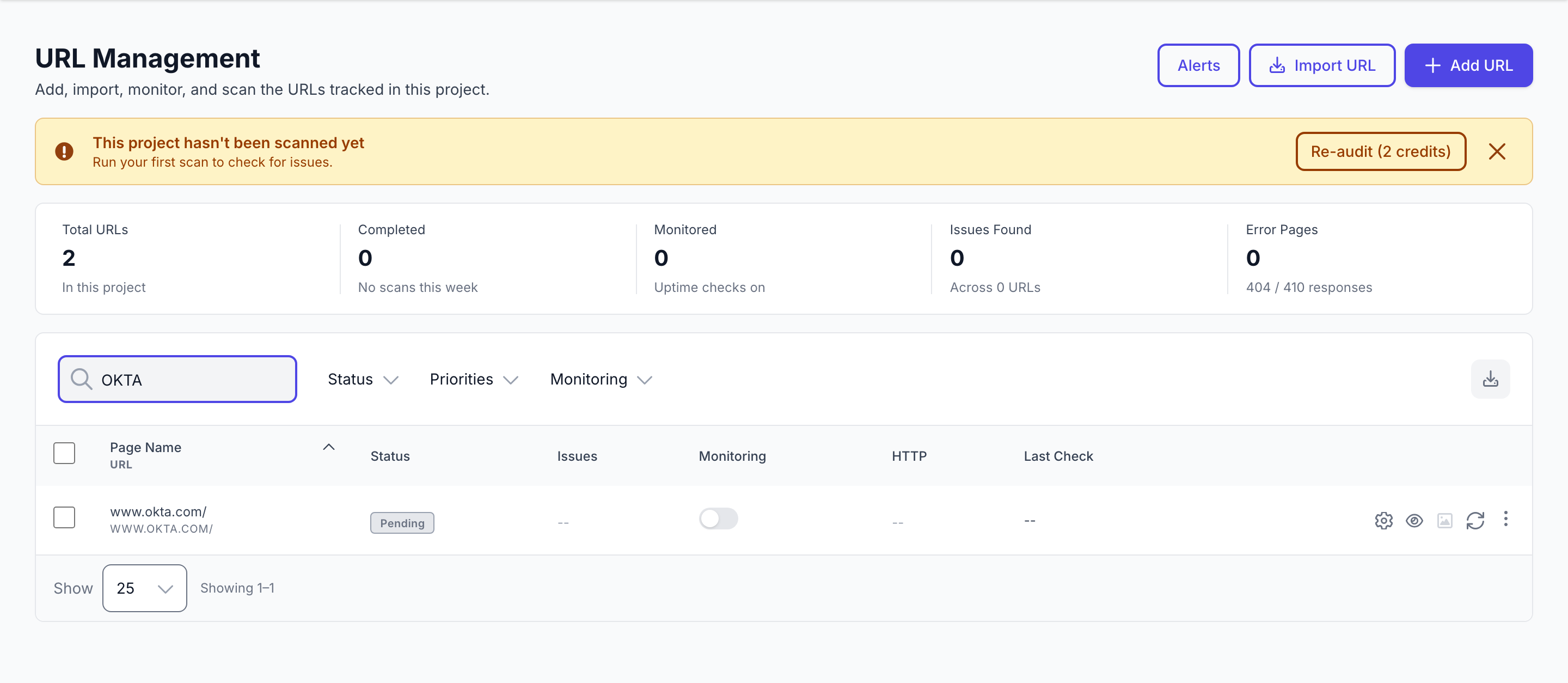
Step 4. Find a URL in the inventory
Search the URL inventory by address or page title. Matching ignores capitalisation, so you do not have to remember how an address was stored — searching "okta" finds a page saved as "OKTA".
What to do: Open projects.urls and type part of an address into Search
Where: projects.urls
Expected (pass)
- A lower-case search matches a mixed-case address, and vice versa
- The row count reflects the filter (Showing 1–1, not the full inventory)
Negative cases (must fail safely)
- A term matching nothing shows the empty state, not the unfiltered list
- Search is scoped to the current project — another project's URLs never appear
-
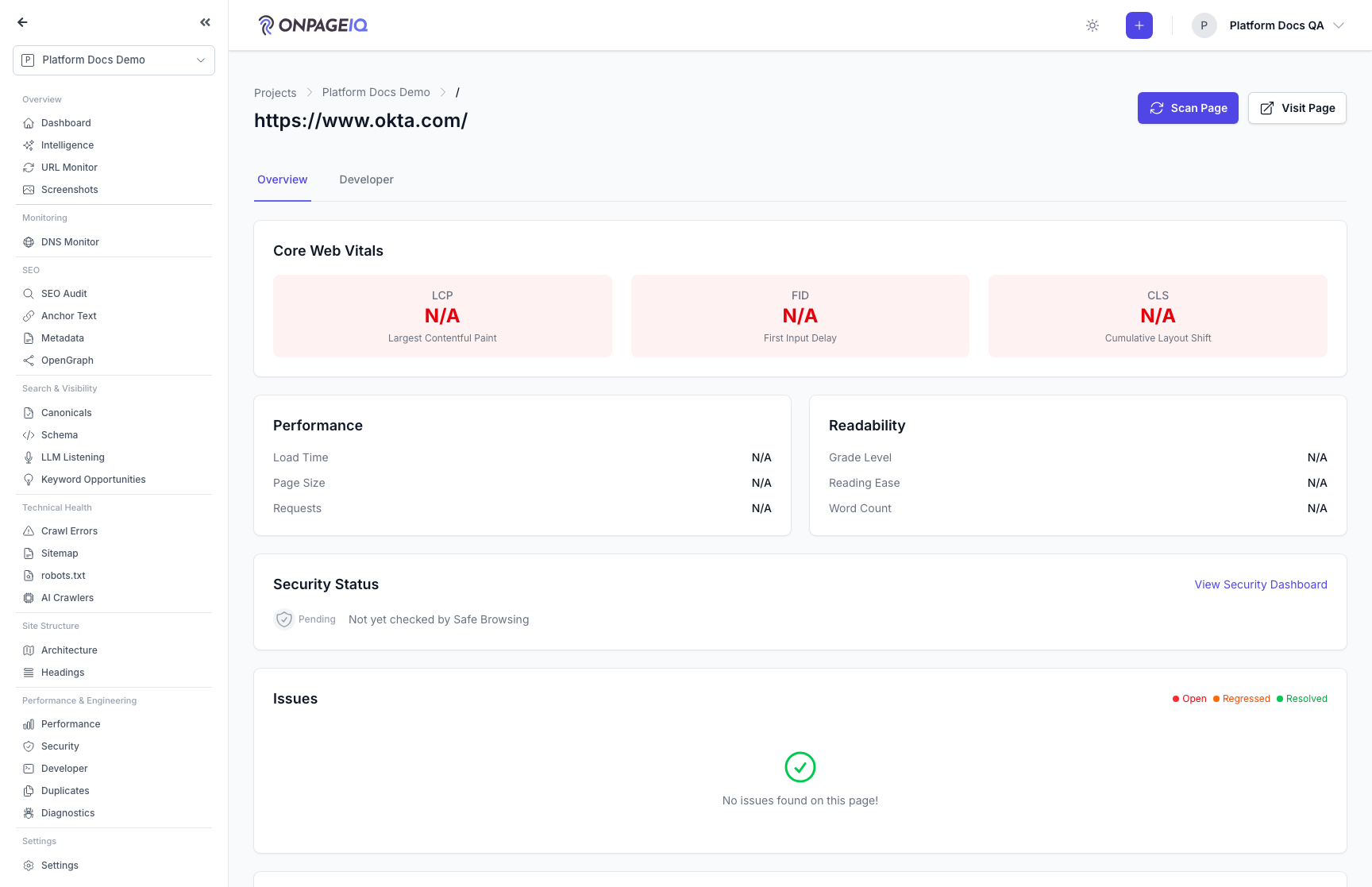
Step 5. Page detail
Single URL hub: issues, metadata, scan history, and the latest performance measurements for the page.
What to do: projects.pages.show for a URL
Where: projects.pages.show
Expected (pass)
- Latest scan issues visible
- Breadcrumb back to project
- Performance measurements shown for a page that was measured before it was added, or whose address carried a tracking parameter
Negative cases (must fail safely)
- Foreign url id → 404
Related guides
Getting Started
First-run orientation: log in, create a project, run a content scan, and read results.
Project Health
One composite health score for the project, its four domain sub-scores, what changed since last time, and what to fix next.
Project Settings
Every per-project configuration surface in one tabbed page — crawl behaviour, schedules, integrations, environments, notifications, dictionary, writing style, local SEO, and deletion.
Content Scans
Run spelling, grammar, SEO, and readability checks against project URLs.
Navigation & Sidebar Map
Where every feature lives: org-level nav, project sidebar sections, gates, and route names.