Market Intelligence
Discover nearby areas with Census demographics, Fit & Opportunity scoring, and a numbered map that matches the table — then send included areas to Keyword Research and AI Visibility.
User goal
Find and prioritize the local areas worth targeting, backed by public data, and feed them into your SEO and LLM tools.
- Tier
- Any plan (billed in credits per discovery run); free re-use when the inputs are unchanged
- Nav label
- Market Intelligence
- Route
- /projects/{project}/market-intelligence
- Gates
- —
Prerequisites
- A project with a resolvable business address (from Local SEO or the Business Profile)
- Credits available (one bundled total per discovery run; unchanged inputs re-use the prior result for free)
- For the localized suggestion actions: the Keyword Research and/or AI Visibility (LLM Listening) add-on active
QA focus
- Discovery charges one bundled total on success only; unchanged inputs (same address + radius) re-use for free
- Runs, service-area selections, and settings are org+project scoped; writes require edit_project
- Cached market areas are public reference data (Census + OSM) — cross-tenant by design, never tenant-specific
- Localized "Send to" menu re-checks the relevant add-on entitlement server-side
- Map pin numbers match the visible table order after sort/filter; row/pin/chevron click opens the slide-over
- Page header shows Refresh only; Add custom, Compare, and Send to sit above the table
- When Fit & Opportunity v2 is on (visible/default): insufficient data shows as pending / em dash — never a silent Fit of 0; Competitive Gap copy must say observed local-search competition, never complete market supply
- Guided nudges and org custom scoring matrices stay behind their flags and never leak proprietary system weight matrices into HTML
Overview
Market Intelligence turns a business address and radius into a ranked list of nearby areas — places, neighborhoods, counties, and ZIP codes — each enriched with public Census demographics (population, median income, median age) and OpenStreetMap amenity counts.
What you see after discovery
- A compact map above a full-width sortable table
- Numbered pins that match the numbers beside each area name (they follow the current sort/filter order)
- Hover a pin or row to highlight the pair; click the row, pin, or trailing chevron for the slide-over (demographics and a “Why this Fit?” breakdown)
- Refresh in the page header; Add custom area, Compare areas, and Send to (Keyword Research / AI Visibility) above the table
- The star in each row's Actions column shortlists an area for Compare areas; the button shows how many you have shortlisted so far
Scores at a glance
Every area gets Fit, Opportunity, and optional signal tags. When Fit & Opportunity v2 is on for your org, Fit comes from a published scoring run on the active Market Study (Demand Fit, Competitive Gap, and Local Opportunity drivers), with dense rank and closely-matched peers when reliability allows. Open How these scores work on the page for the full methodology — definitions for each number are also listed below.
After you curate
Include the areas worth targeting. Owners/Admins can open Guided nudges (study-level driver tilts within clamps) and, when entitled, org custom scoring profiles (draft weight edits + pin to the study). Location reports and PDFs bind to the same published scoring run so scores stay consistent with the table.
Data and billing
Heavy market data is cached globally and reused across tenants; discovery mostly pays for enrichment / fit-scoring. Every metric shows its source and vintage so you can trust and cite the numbers.
What each number means
- Fit
- Business-specific composite (0–100) for how well an area matches your business. With Fit & Opportunity v2, Fit comes from an immutable published scoring run on the active Market Study — Demand Fit, Competitive Gap, and Local Opportunity drivers — not a live recalculation of proprietary weights in the browser.
- Insufficient data shows as pending or an em dash — never a silent Fit of 0. After hard cutover, “Pending v2” means a scoring run has not published for this study yet.
- Opportunity
- Business-agnostic attractiveness of the area from income, population, and amenities. It answers “is this place generally attractive?”, not “is it a good fit for my business?”.
- Signals
- Tags such as High Income or Family-Friendly that annotate Opportunity. They help explain why an area looks attractive; they are not Fit drivers.
- Competitive Gap
- A Fit driver (when v2 is on) measuring observed local-search competition for the profile’s queries — businesses that show up in local-search results — not a complete census of every competitor in the market.
- A low count or empty successful result does not prove the market has no competitors; it only reflects what Approach B saw in local search for those queries.
- Rank and peers
- When reliability allows, areas get a dense rank among the study cohort and can show closely-matched peers so you can compare similar places, not just sort by raw Fit.
Common issues & false alarms
- No resolvable address → discovery is blocked with a prompt to set the business address first (no charge)
- Non-US address → demographics degrade gracefully to AI-estimated values, clearly labeled
- "Send to" menu hidden → no included areas yet, or the Keyword Research / AI Visibility add-on is not active for the org
- Pin numbers look “wrong” after sorting → they always follow the current table order; sort again or clear filters to reset
- Fit shows “Pending v2” / em dash after hard cutover → a Fit & Opportunity scoring run has not published for this study yet (not a Fit of 0)
- Competitive Gap looks “too low” with few listings → Approach B only counts businesses visible in local-search results for the profile’s queries; empty success ≠ proof the market has no competitors
- Compare areas says “pin at least two” → shortlisting is the star in each row’s Actions column, and only INCLUDED areas count (an area pinned then excluded is not compared)
- A competitor search that found nothing → the panel says when it last searched, so “we looked and found none” is distinguishable from “this was never run”; searching again inside the cooldown re-uses the cached result for free
Interactive guide
Step of
What to do
Where to find it
Expected (pass)
Negative cases
Tips
Screenshot pending capture
All steps (reference)
-
Step 1. Run market discovery
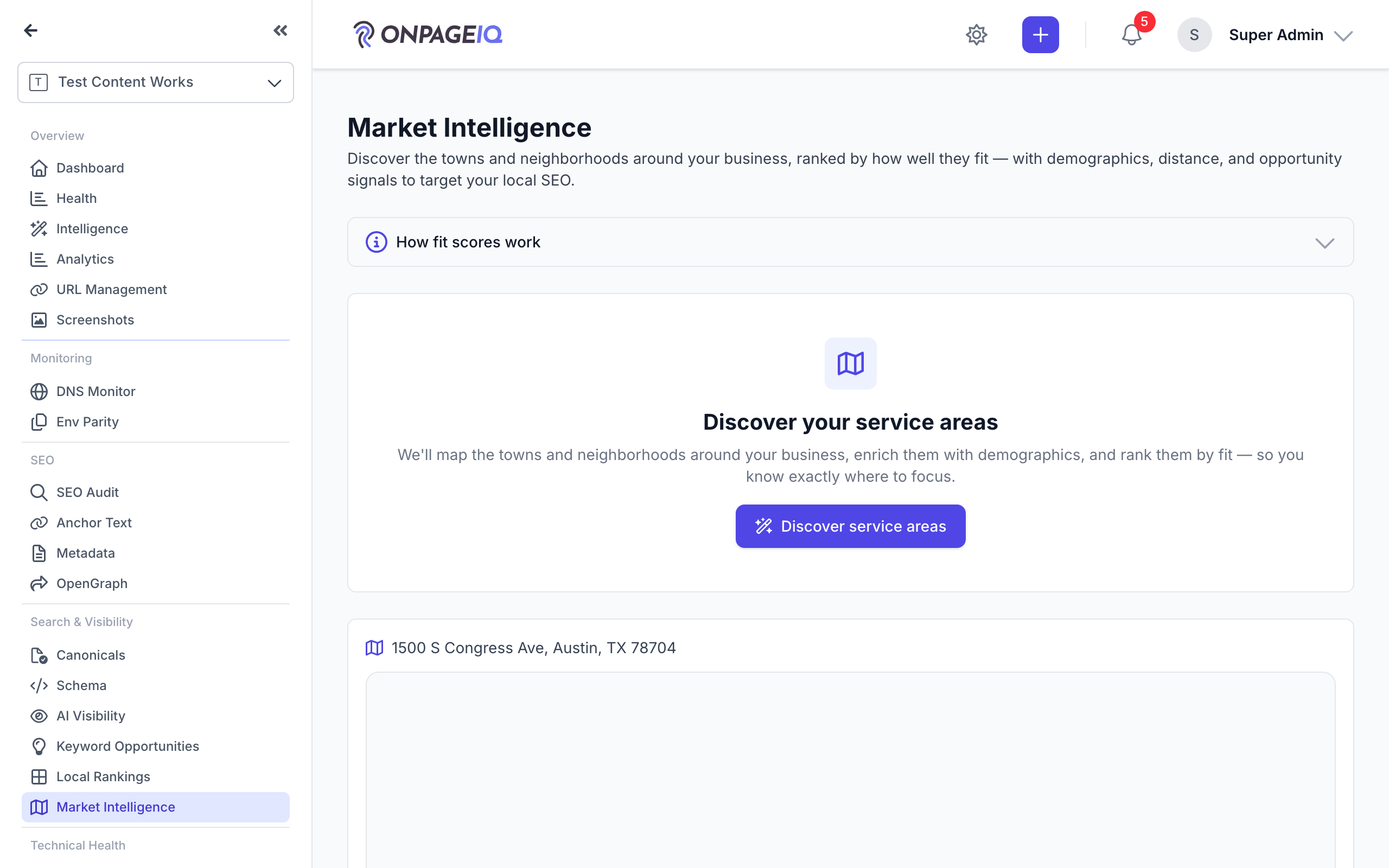
Open Market Intelligence and start a discovery run (or Refresh after the first run). A modal shows one bundled credit total (mostly the AI fit-scoring step; the Census/OSM data is free) and your balance before you confirm. Discovery runs in the background; you can leave the page and come back when it is ready.
What to do: GET /projects/{project}/market-intelligence → Discover / Refresh → confirm cost
Where: projects.market-intelligence
Expected (pass)
- Cost-confirm modal shows a single total + balance
- Run goes to "running" then "ready"
- Unchanged inputs (same address + radius) re-use the prior result for free
- Refresh is the only primary action in the page header
Negative cases (must fail safely)
- No resolvable address → blocked with a "set your address first" prompt (no charge)
- Insufficient credits → blocked with a top-up prompt
-
Step 2. Review the map and sortable table
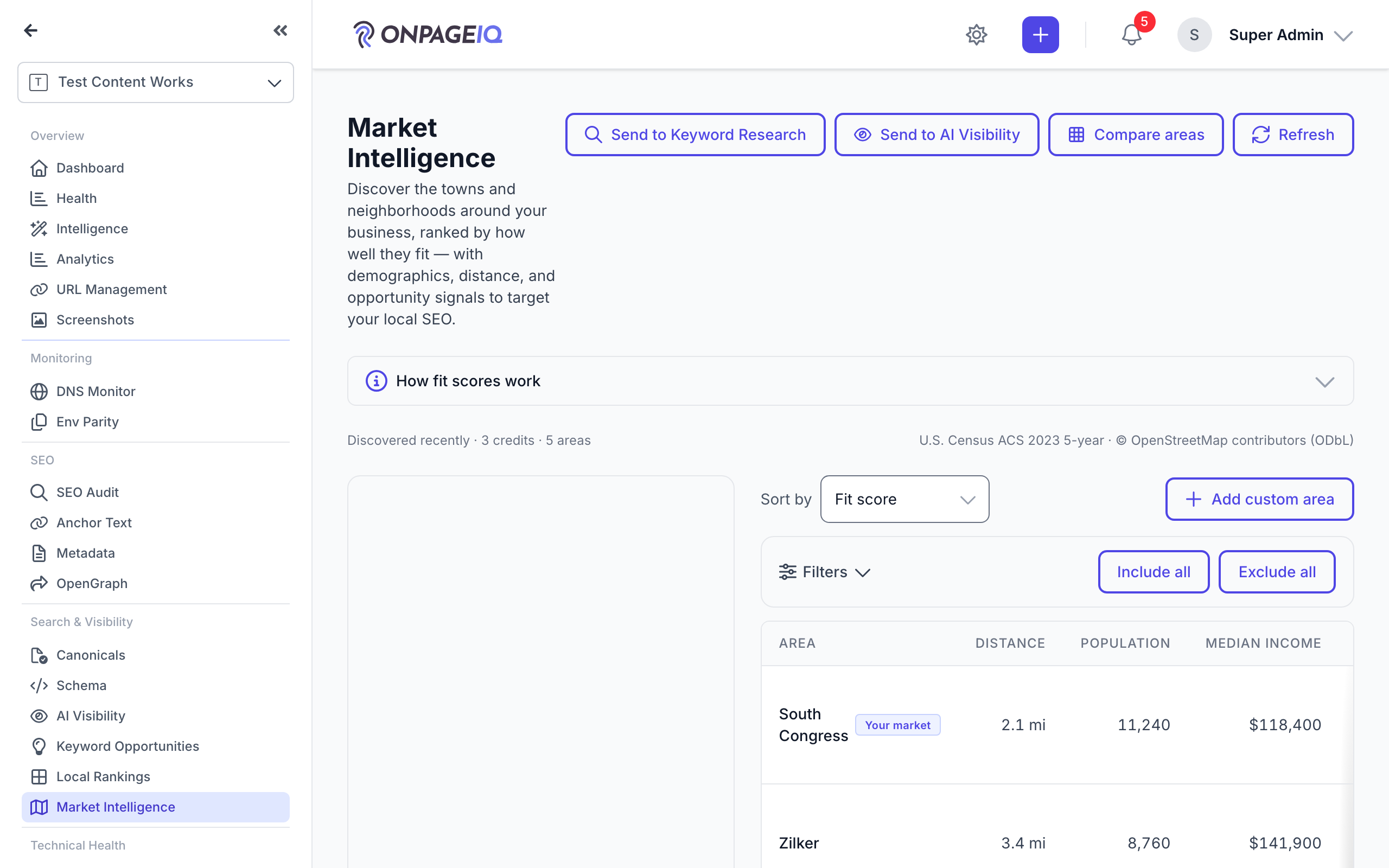
The map sits above a full-width table (Area, Distance, Population, Median income, Median age, Fit, Opportunity). Numbered pins match the numbers beside each area name and follow the current sort/filter order. Hover a pin or row to highlight the pair; click the row, pin, or trailing chevron for the slide-over (Report / Include / Exclude / Pin stay on their own controls). Open “How these scores work” for Fit (Demand / Competitive Gap / Local Opportunity when v2 is on) vs Opportunity vs Signals. Insufficient Fit data shows as pending or an em dash — never a silent 0.
What to do: Sort columns → hover pin/row → click row or chevron → review slide-over
Where: projects.market-intelligence
Expected (pass)
- Map above table; pin numbers match Area-column numbers
- Table sorts by Fit, Opportunity, median age, and other columns
- Methodology panel explains Fit vs Opportunity vs Signals
- Slide-over shows demographics and a Why this Fit? breakdown
- Source + vintage shown per metric
- When v2 is on, Competitive Gap language uses observed local-search competition
Negative cases (must fail safely)
- Viewer without edit_project → include/exclude and Add custom stay read-only / hidden
-
Step 3. Include, exclude, and add areas
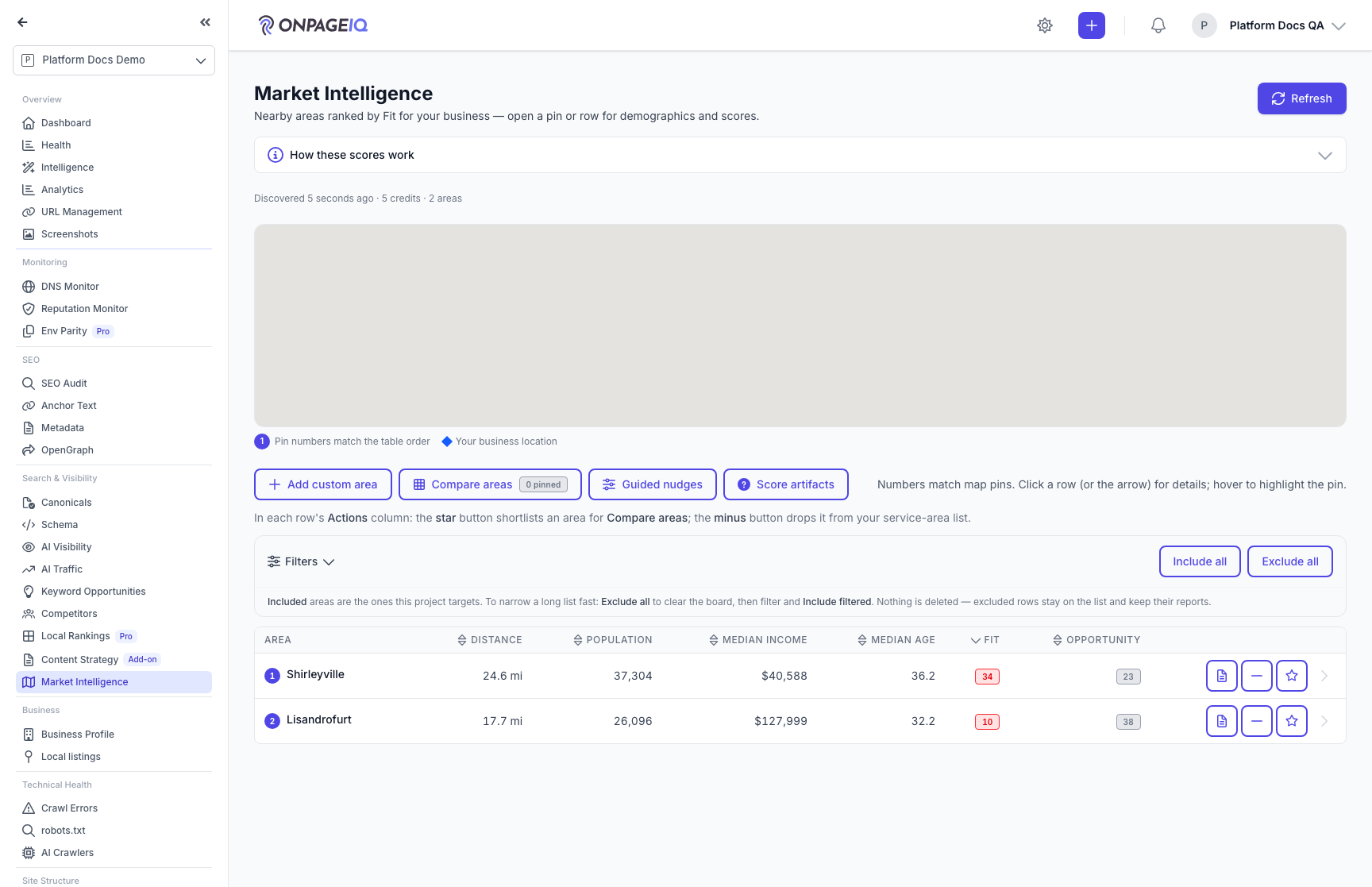
Use the row actions to choose which areas you will target: the minus drops an area from your list, the star shortlists it for Compare areas, and Report opens its Location Intelligence report. To narrow a long list quickly, use Exclude all to clear the board, then filter and Include filtered — nothing is deleted, so excluded rows stay on the list and keep their reports. Exclude all asks you to confirm and names how many areas it will drop; your home area is never bulk-excluded. Add custom area and Compare areas live in the toolbar above the table — not in the page header.
What to do: Toolbar → Add custom area / Compare → row Report|Exclude|Star
Where: projects.market-intelligence
Expected (pass)
- Add custom and Compare appear above the table
- Compare areas shows a live "N pinned" count, matching what Compare will actually render
- Exclude all confirms first and states the real number of areas affected
- Include/exclude and add-custom require edit_project
- Report opens the per-area Location Intelligence report
Negative cases (must fail safely)
- Viewer without edit_project → curation controls hidden or forbidden
- Fewer than two shortlisted areas → Compare explains that the star in the Actions column is how you shortlist
- An area pinned and then excluded → not counted and not compared; only included areas are comparable
-
Step 4. Tune Fit with guided nudges (optional)
From Market Intelligence navigation, open Guided nudges to tilt Demand / Competitive / Local drivers within profile clamps. Nudges bump the study settings revision so the next scoring run recompiles — they never expose proprietary system weight matrices.
What to do: Market Intelligence → Guided nudges → adjust deltas → save
Where: projects.market-intelligence
Expected (pass)
- Clamped deltas persist on the active study
- HTML/state never include driver_weights or resolved_signal_weights JSON
Negative cases (must fail safely)
- Viewer without edit_project → page forbidden
- Feature off → link hidden
-
Step 5. Send localized keywords to Keyword Research
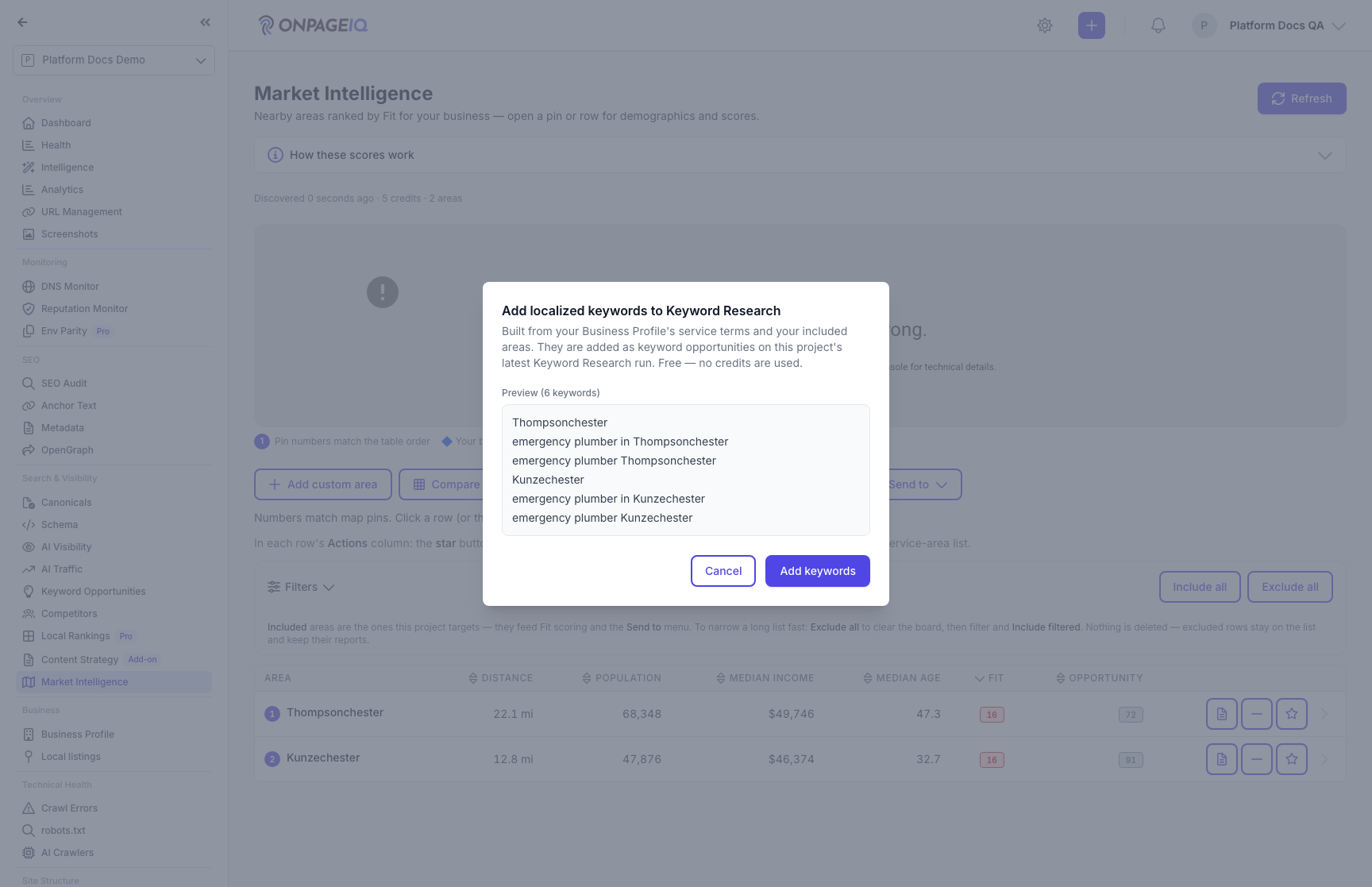
From included areas, open Send to → Keyword Research above the table. This pairs your Business Profile's service terms with each included area's name. A confirm step previews the exact keywords before any are written, and the run respects your tier cap and de-duplicates against existing opportunities. It is free — no credits are used. When Fit & Opportunity v2 dispositions apply, KR may require a product decision before replacing legacy local-fit boosts.
What to do: Market Intelligence → Send to → Keyword Research → review → add
Where: projects.seo-audit.keyword-opportunities
Expected (pass)
- Send to menu lists Keyword Research when the add-on is entitled and areas are included
- A preview lists the exact keywords before anything is written — nothing is sent straight off the menu
- Localized opportunities are added respecting the tier cap + dedup
- Duplicate/over-cap items reported honestly, not silently dropped
Negative cases (must fail safely)
- No included areas or Keyword Research inactive → Send to / Keyword Research hidden or blocked
-
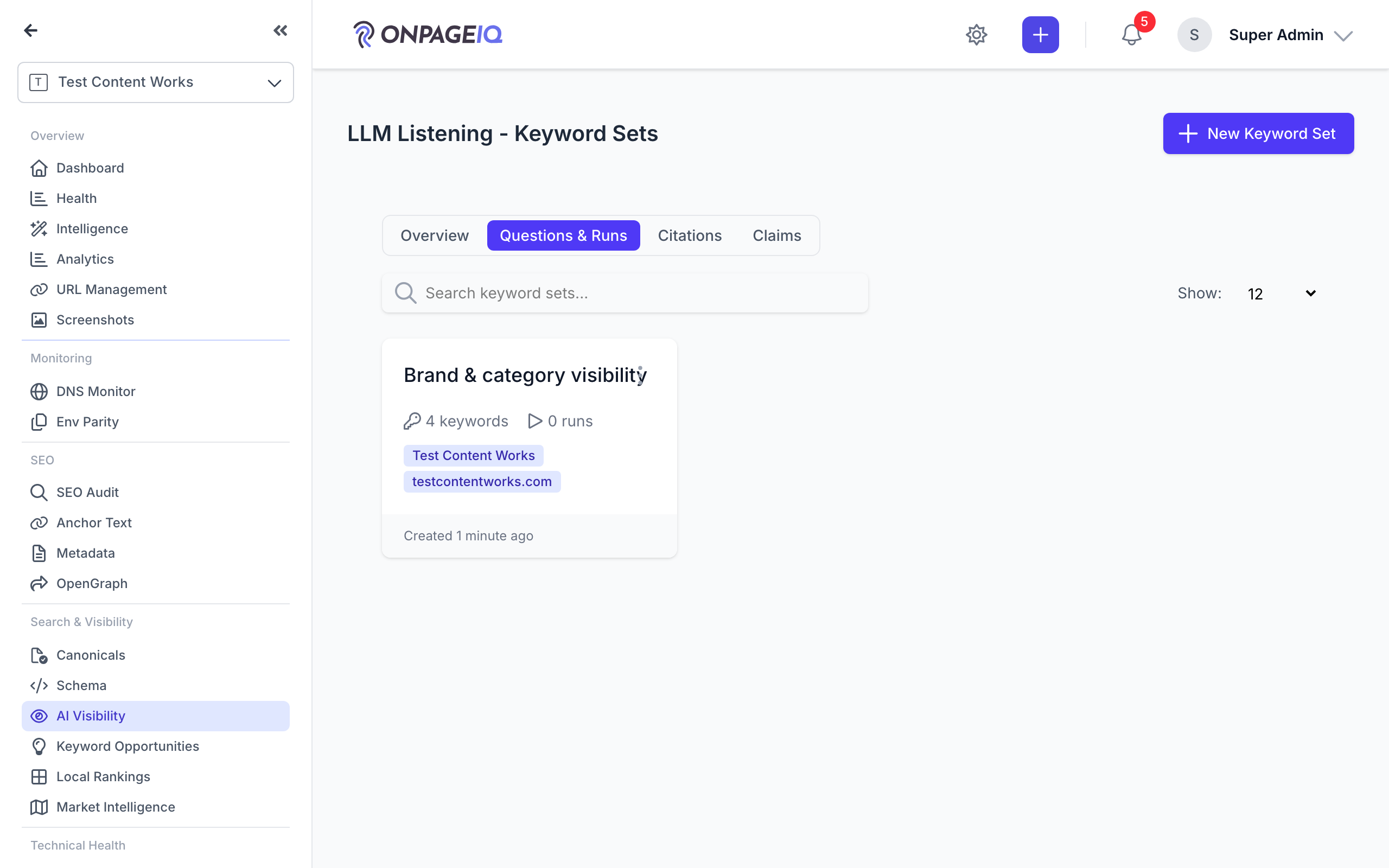
Step 6. Send localized prompts to AI Visibility
From Send to → AI Visibility, turn included areas into localized prompts and brand terms for an AI Visibility (LLM Listening) keyword set — so you can track how AI assistants answer location-specific questions about your business. Review before writing; the set lock and tier cap are enforced.
What to do: Market Intelligence → Send to → AI Visibility → review → add
Where: llm-listening.keyword-sets.index
Expected (pass)
- Send to menu lists AI Visibility when entitled and areas are included
- Localized prompts/terms added respecting the set lock + tier cap
- Server-side add-on entitlement re-checked
Negative cases (must fail safely)
- No included areas or AI Visibility inactive → Send to / AI Visibility hidden or blocked
Related guides
AI Business Profile & Keyword Assist
Let AI infer your market, audience, competitors, and priority keywords from your crawl — then reuse it in Keyword Research and AI Visibility (LLM Listening).
Location Intelligence Reports
Turn any discovered area into a sourced, per-area report — demographics, income, housing, growth, and hazard data with provenance — plus a grounded AI narrative and one-click localized SEO targets.
Company Intelligence
Look up firmographic detail for a list of company domains and keep it in a shared, org-level library.
Keyword Research Add-on
Discover keyword opportunities from GSC data and AI analysis on project SEO surfaces.
AI Visibility (LLM Listening)
See how the answer engines describe your brand — overall, per engine, and per place you serve — with the evidence behind every number.
Local Rankings (GeoGrid)
Track Google local-pack rankings across a geographic grid, with a square or radial (concentric-ring) layout, a rank heatmap, and PDF reports.