DNS Monitoring Add-on
Updated · Aug 31, 2026 Needs testingWatch MX, SPF, DKIM, DMARC, NS and DNSSEC for every domain — with a health score that shows its working, and alerts when a record changes.
What changed
Dangling-record checks now cover subdomains your own pages load, not just records your zone publishes — the commonest way a site is taken over. On as of 31 Aug 2026. Only your own subdomains: third-party CDNs are left alone. Earlier rebuild notes: per-domain health page with a findings triage list, an explained score, and honest "unconfirmed" labelling when a record could not be re-read; checks reserve their own DNS budget so later checks are never starved; on-demand DKIM selector discovery runs in the background rather than holding the page.
Still to be tested
This guide and the DNS Monitoring Add-on feature shipped recently and still need QA walkthrough sign-off.
Use the QA focus checklist below; remove the needs_testing flag in
config/platform-docs/pages/addons.php after the team signs off.
User goal
Know that your email authentication and DNS are correct — and hear about it early when they are not.
- Tier
- Pro+ (dns_monitoring_addon)
- Nav label
- DNS Monitor
- Route
- /projects/{project}/dns-monitoring
- Gates
- dns-monitoring-addon dns-monitoring-addon
Prerequisites
- dns-monitoring-addon active for org
- Domain added to project (the root domain is added for you)
QA focus
- Domains scoped to project
- Cloudflare OAuth state binds project
- Upgrade page reachable when addon inactive
- A single-domain project skips the list and opens that domain
- A record that could not be re-read shows "Unconfirmed", never a green tick
Overview
DNS Monitoring checks the records that decide whether your email is trusted and your domain behaves — and tells you which one to fix first.
What it checks
- MX — where your mail is delivered, and whether those hosts still exist
- SPF — who may send as you, including the 10-lookup limit that silently breaks delivery
- DKIM — signing keys, read straight from your DNS provider when it is connected, and searched for on demand when it is not
- DMARC — your policy, and whether it is actually enforcing
- NS / SOA / DNSSEC — delegation and signing
- Dangling records — a CNAME, MX or NS pointing at a host that no longer exists, which is how subdomains get hijacked
- Subdomains your pages load — the same check, pointed at addresses your own site uses rather than only at records your zone publishes
The health score
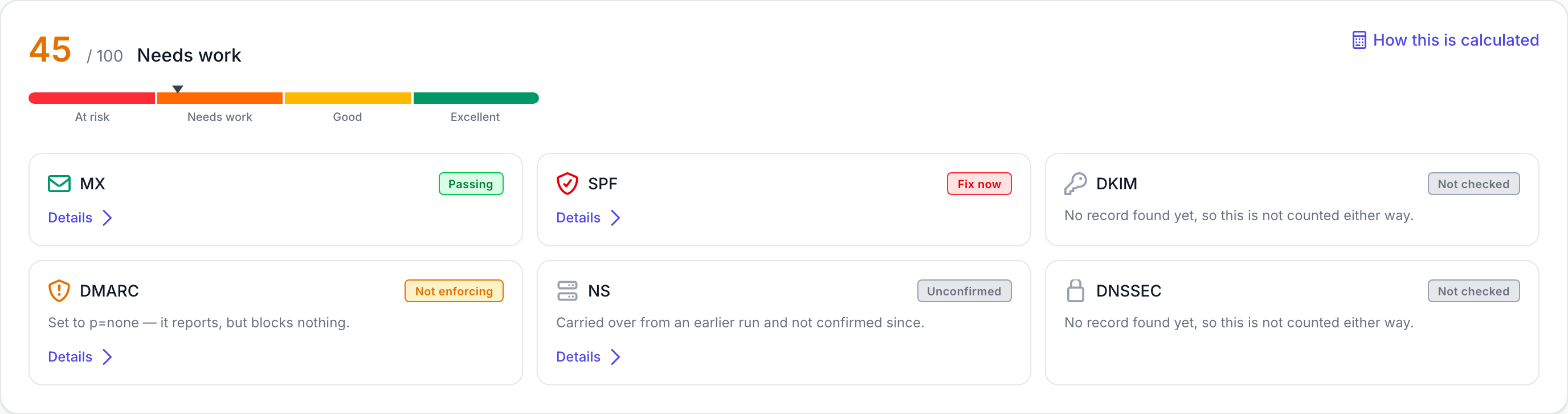
Every domain starts at 100 and loses points per problem, weighted by urgency. The score always shows its working: open How this is calculated to see each finding, what it cost, and — the part people actually come for — which findings cost nothing and why (muted, not a sending domain, or unreadable).
Reading the findings list
Findings are grouped by what you need to do, worst first:
- Start here — the single most urgent live problem, with a direct route to its fix
- Needs attention — everything else that is costing you points
- Could not confirm — we could not read these; the last known result is shown, not a guess
- Muted — you marked these "won't fix", so they no longer affect the score
- Passing — collapsed, because a healthy record does not need your attention
Selecting any finding opens a panel with the record itself, what it means, and how to fix it. That panel has its own link, so you can send someone straight to one finding.
"Unconfirmed" is not "fine"
If a record cannot be read for several checks in a row, its last known result stays visible but is labelled Unconfirmed rather than shown as verified. A problem in that state keeps counting against your score — a monitoring outage should never look like a fix.
Alerts
A record turning critical arms an alert and re-checks a few minutes later before anything is sent, so a momentary blip does not page you. You can acknowledge, snooze, or mute any finding.
Common issues & false alarms
- Cloudflare callback requires registered redirect URI
- A project with one domain opens that domain directly — use "All domains" to see the list
- A finding marked "Unconfirmed" means the record could not be read, not that it is broken
- Email records are only scored when the domain is marked as sending email (detected automatically from SPF)
Interactive guide
Step of
What to do
Where to find it
Expected (pass)
Negative cases
Tips
Screenshot pending capture
All steps (reference)
-
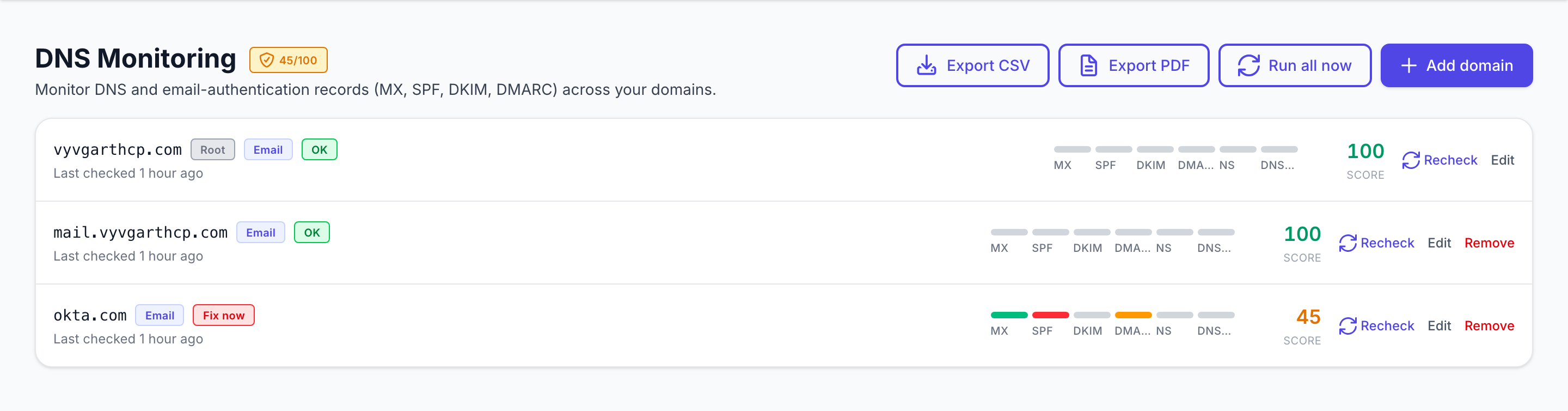
Step 1. Open DNS dashboard
Every monitored domain with its health score and last check. A project with only one domain skips this list and opens that domain directly — use "All domains" to come back.
What to do: Navigate to dns-monitoring.index
Where: dns-monitoring.index
Expected (pass)
- Empty state or domain cards render
- Add domain CTA visible
Negative cases (must fail safely)
- Inactive addon → upgrade page or 403
- Single-domain project → redirects to that domain (all=1 shows the list)
-
Step 2. Read a domain's health
The score with its working shown, a record-by-record strip, and the findings list — worst first, with the most urgent one promoted to "Start here". Selecting a finding opens its own linkable panel with the record and the fix.
What to do: Open a domain from the dashboard
Where: dns-monitoring.domains.show
Expected (pass)
- Score, grade and scale render
- "Start here" names the most urgent live finding
- Passing findings are collapsed; problems are expanded
- A record that could not be re-read shows "Unconfirmed", not a green tick
Negative cases (must fail safely)
- Domain from another project → 404
- No checks yet → "No checks have run yet" rather than a fake score
-
Step 3. Find your DKIM selectors
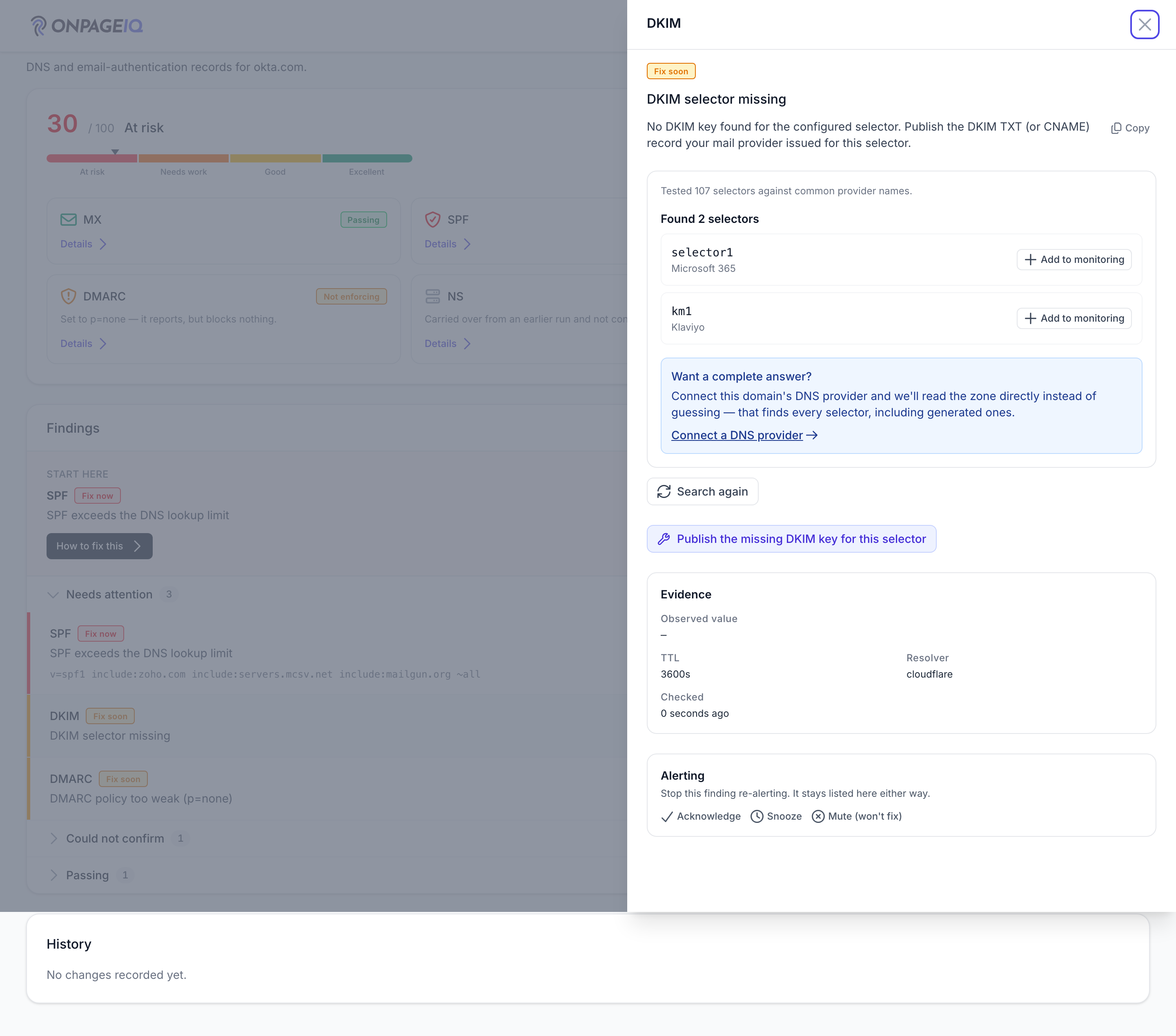
DKIM lets a provider pick any name it likes for your signing key, so a fixed list of guesses can never rule one out. Open a "we cannot find your key" finding and press **Find my DKIM selectors**: if your DNS provider is connected we read the zone directly and the answer is complete — including generated names like Amazon SES's random tokens, which no guess list reaches. Otherwise we test around a hundred common names, and say so, because finding nothing that way is not proof there is nothing there. The search runs in the background; you can leave the page and come back. Anything it finds can be added to monitoring in one press, and the recurring check picks it up from then on.
What to do: Open a DKIM finding on a domain → Find my DKIM selectors
Where: dns-monitoring.domains.show
Expected (pass)
- A zone read is labelled as read from your provider; a guessed sweep says how many names it tried
- An empty result is only stated as "this domain publishes no DKIM records" after a zone read
- A finished search is still there after a reload, with "Search again" to re-run it
Negative cases (must fail safely)
- Repeated searches in quick succession → "Too many searches right now"
- A search already running for that domain → the second press joins it rather than starting another
- Viewer without edit rights → results are shown, "Add to monitoring" is not
-
Step 4. Spot a subdomain of your own that has gone dangling
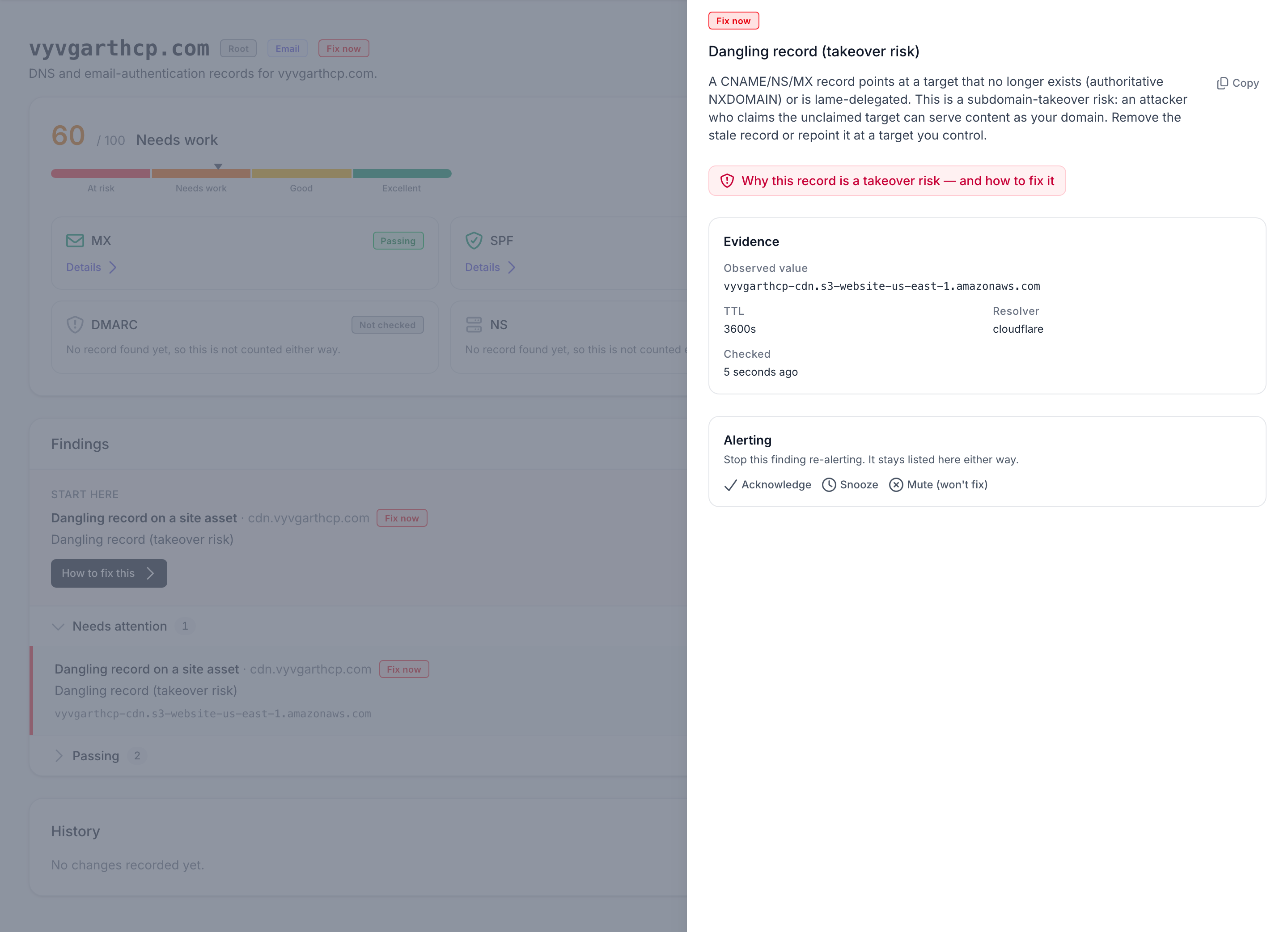
A subdomain you set up and later stopped using is one of the commonest ways a site gets taken over: the address still points at a service you cancelled, so whoever claims that service next serves pages under your name. Your scans already notice which subdomains your pages load — `cdn.`, `secure.`, `assets.` — and this check asks whether any of them now points nowhere. A finding names the subdomain itself rather than your main domain, and says the page still loads it, because that changes the fix: deleting the record alone would break the page, so it leads with repointing and offers removal only in the safe order.\n\nOnly your own subdomains are checked. A script from Cloudflare, jsDelivr or Stripe is somebody else's address and is left alone — you could not repoint it anyway. A subdomain of yours that *points* at one of those is still yours, and is checked, because that is exactly the name that dangles when you stop paying.\n\nWhere a site has more of its own subdomains than one check can cover, the check works through them oldest-first across runs rather than re-checking the same few.
What to do: Enable discovery.observed_assets.enabled → run a scan, then a DNS check → open the finding
Where: dns-monitoring.domains.show
Expected (pass)
- The finding names the subdomain your pages load, not the monitored domain
- The alert email names that same subdomain
- A risk is only reported when two independent resolvers agree the address is gone — a network blip never reads as "hijackable"
Negative cases (must fail safely)
- A third-party CDN your pages load → never treated as one of your subdomains
- A subdomain your pages stopped loading → dropped after 90 days and no longer checked
- Threat Detection inactive for the org → no subdomains are recorded, so there is nothing to check
-
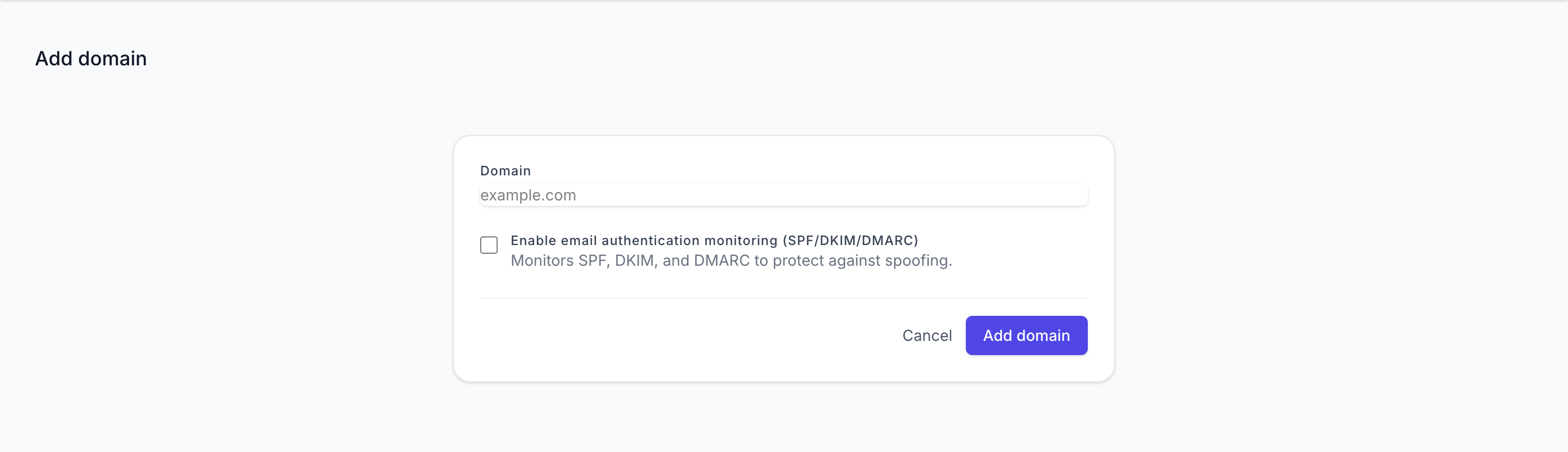
Step 5. Add a domain
Add any domain or subdomain to monitor. Whether it sends email is detected from its SPF record, so email findings are only scored where they apply.
What to do: dns-monitoring.domains.create → submit form
Where: dns-monitoring.domains.create
Expected (pass)
- Domain saved under project
- Initial check queued or completed
Negative cases (must fail safely)
- Invalid hostname → validation error
- At the plan's domain limit → upgrade prompt
-
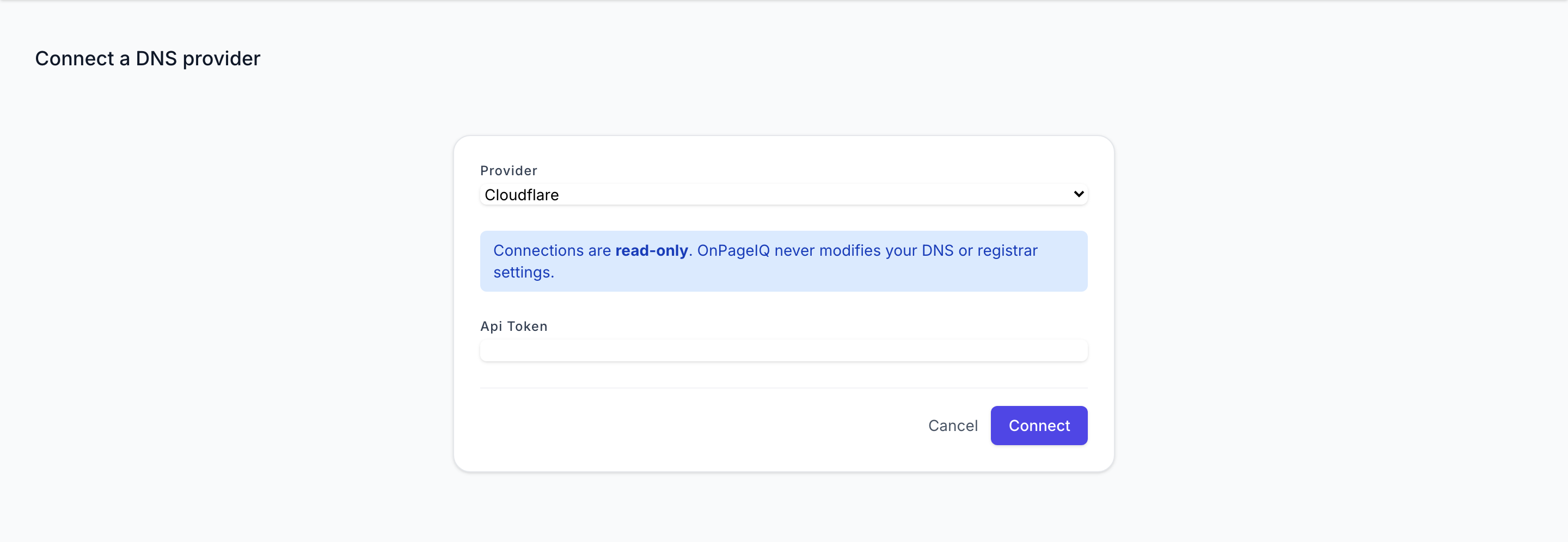
Step 6. Connect Cloudflare
OAuth BYOK flow to import zones.
What to do: dns-monitoring.providers.cloudflare.connect → complete OAuth
Where: dns-monitoring.providers.cloudflare.connect
Expected (pass)
- Callback dns-monitoring.providers.cloudflare.callback succeeds
- Token stored org-scoped
Negative cases (must fail safely)
- Tampered OAuth state → rejected
-
Step 7. Record change alert
A record turning critical arms an alert and is re-checked a few minutes later before anything is sent, so a momentary blip does not page anyone. Nameserver changes are treated as urgent, because they can mean a hijack.
What to do: Change DNS in test fixture; run check job
Where: dns-monitoring.index
Expected (pass)
- History shows the before/after values
- Alert sends only after the confirm re-check still finds the problem
Negative cases (must fail safely)
- Problem clears before the confirm → no alert sent
- Finding acknowledged, snoozed or muted → alert suppressed
-
Step 8. Tune the outbound DNS throttle (staff)
DNS lookups run on their own queue under a declared rate limit — global, plus a per-organization fairness cap so one bulk recheck cannot starve everyone else. Both are editable from the admin panel, because a resolver starting to throttle us is exactly when you cannot wait for a deploy.
What to do: Admin → Monitoring → DNS Throttle Settings
Where: filament.admin.pages.dns-monitoring/settings
Expected (pass)
- Changes take effect without a deploy
- A per-org cap above the global cap is clamped
Negative cases (must fail safely)
- Non-staff user → page not reachable
Related guides
Security Dashboard
One page for the security of a site: a graded score, a prioritised "what to fix" list, and continuous Google Safe Browsing monitoring.
URL Management (URLs, scanning & monitoring)
Manage project URLs; toggle redirect/uptime monitoring, status codes, and alert channels per URL.
Billing & Subscriptions
Manage subscription tier, purchase credits, add-ons, and view billing history.