AI Visibility (LLM Listening)
Updated · Aug 19, 2026See how the answer engines describe your brand — overall, per engine, and per place you serve — with the evidence behind every number.
What changed
Local AEO Visibility was retired into this add-on rather than shipped as a second product. New here: a per-project local mode with its own Locations tab; the Overview and Citations split by place; opportunities that feed the existing Intelligence recommendations instead of a second inbox; AI-crawler activity read from your own Cloudflare zone (a leading indicator, kept apart from visibility); and a shareable report, on screen and as a co-branded PDF.
User goal
Compare how ChatGPT, Claude, Gemini, and others answer prompts about your brand.
- Tier
- Enterprise default or Stripe add-on
- Nav label
- AI Visibility
- Route
- /projects/{project}/llm-listening/keyword-sets
- Gates
- llm-listening-addon llm-listening-addon
Prerequisites
- llm-listening-addon active
- Provider keys or org BYOK configured
- Credits for run execution
QA focus
- Runs scoped to project keyword sets
- Progress tracker updates via broadcast
- Results master-detail shows all providers
- Citations lists rows after a run that cited sources — an empty Citations page alongside a populated Overview means the roll-up did not record them
Overview
AI Visibility tracks how ChatGPT, Claude, Gemini, Grok, and other models answer prompts about your brand — side by side, with extracted mentions and run history.
What you get
- Keyword sets for prompts, brand terms, and run history
- Parallel runs across the models you select, with a live cost estimate before launch
- Real-time progress while queries finish
- Master-detail results to compare answers and brand mentions
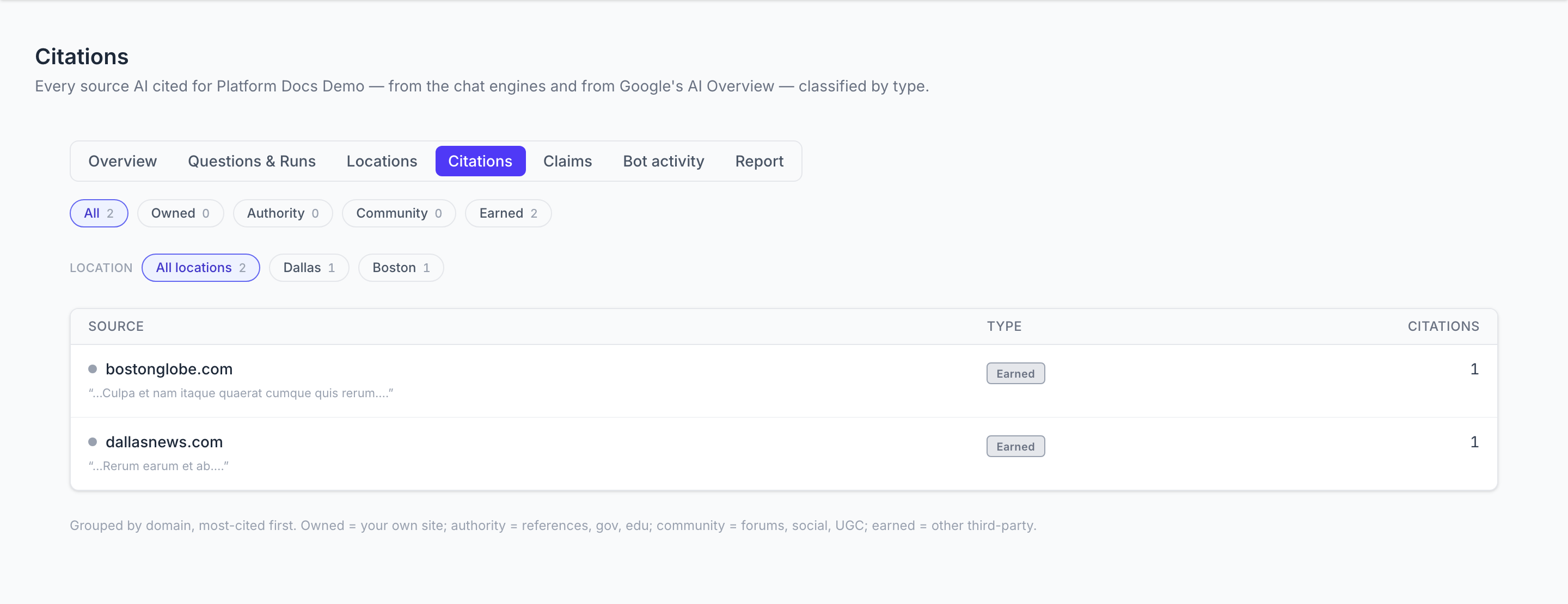
- Citations — every source the models cited, grouped by domain and classified as your own site, an authority reference, a community forum, or other third-party coverage
- Claims — the factual statements models make about you, including ones they cite no source for
- Optional Suggest with AI from the project Business Profile
- Provider keys and usage under AI Visibility settings
If you serve particular places
Turn on local mode and the same questions get measured from each place you list:
- A Locations tab for the cities you serve, with a cap on how many are measured per run
- The Overview and Citations split by place, so "we are invisible in Boston" becomes a number rather than a hunch
- Locations that no search can be aimed at are called out rather than shown as zero visibility
What to do about it
- What to fix — questions the engines answer without naming you, questions where you are named but never the pick, and places measurably behind your own average. These land in Intelligence alongside your search and analytics recommendations, not in a second list
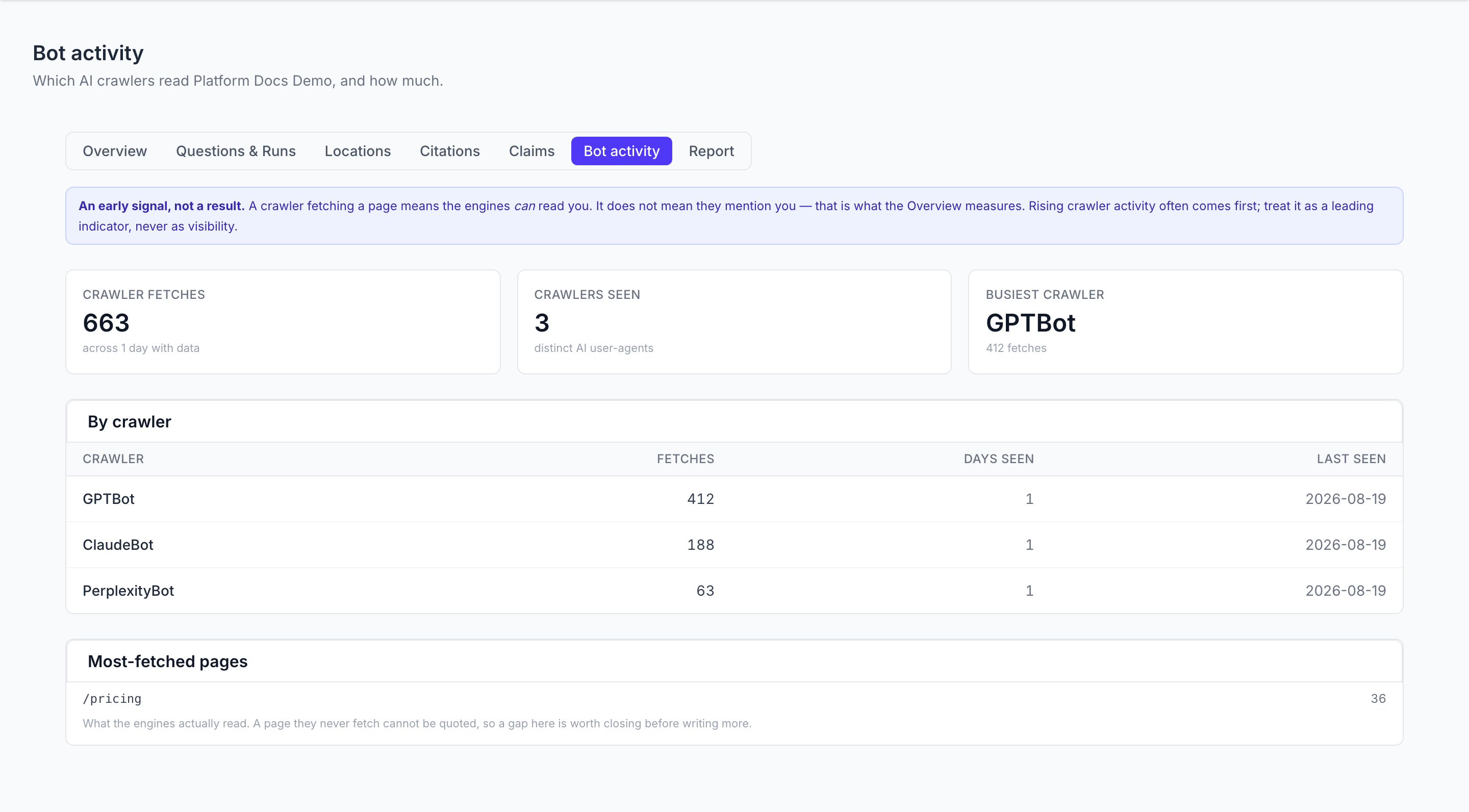
- Bot activity — how often GPTBot, ClaudeBot and the rest fetch your pages, read from your own Cloudflare account. A leading indicator: it shows the engines can read you, never that they mention you
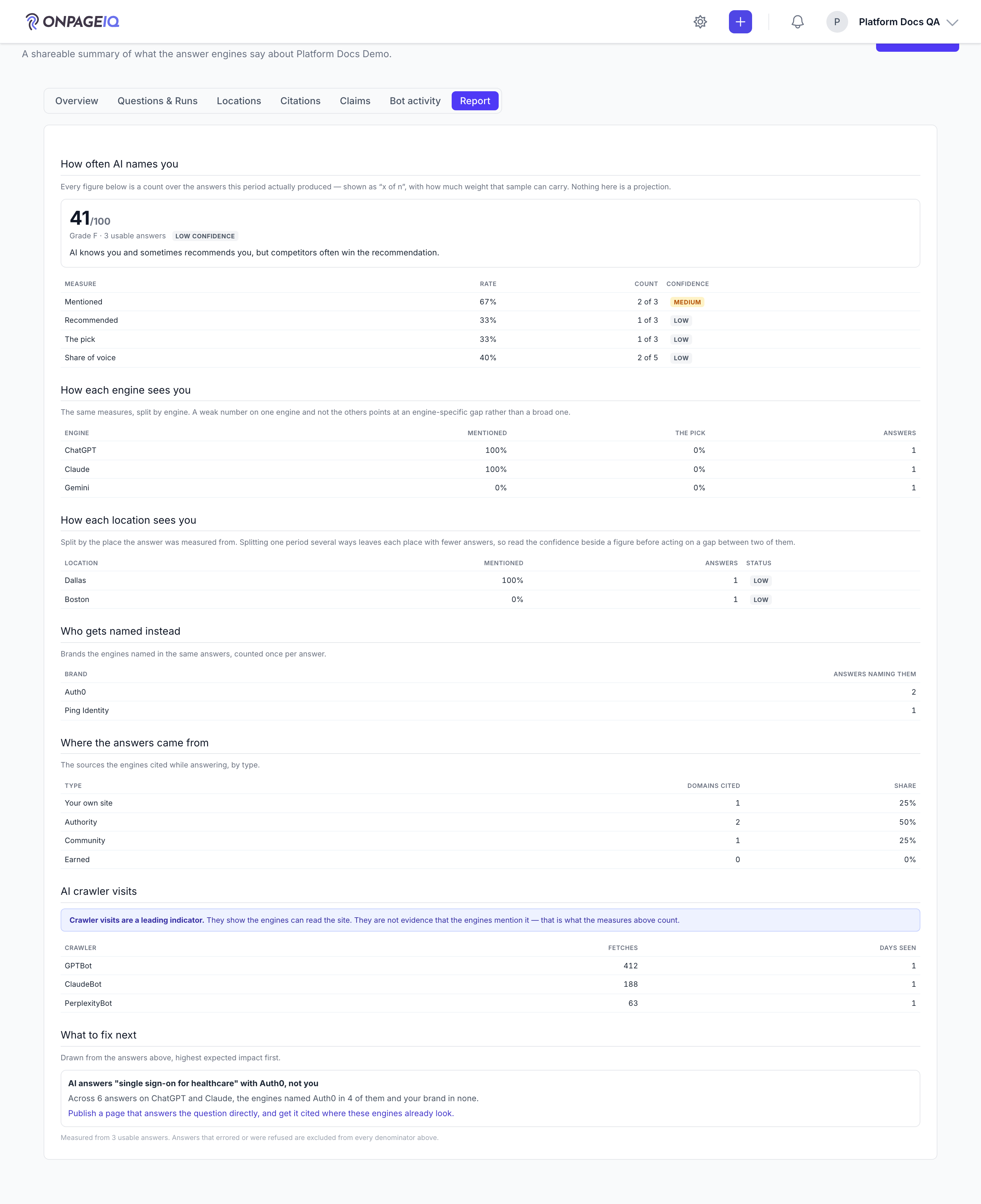
- Report — a shareable summary of all of the above, on screen and as a PDF carrying your agency's branding
How it works
- Create a keyword set, add prompts (or accept AI suggestions), then launch a run
- Snapshots store each keyword × model answer and extracted mentions
- When a run finishes, its answers are rolled up: the sources they cited become the Citations list, so that page reflects the most recent run that actually cited anything
- Export results when you need an offline copy; budget and daily run limits can block a launch with a clear message
- Every figure is reported as a count with its confidence ("mentioned in 3 of 12 answers"), never a bare score. Answers that errored or were refused are excluded from every denominator
Common issues & false alarms
- Horizon must be running to execute the queries; live progress streams over Reverb and falls back to a periodic refresh if Reverb is unavailable (no manual reload needed)
- Budget exceeded → run blocked with message
- Citations empty after a run that clearly cited sources → the run roll-up has not recorded them; runs that finished before the fix do not backfill themselves, so re-roll them with `php artisan llm-listening:backfill-citations`
- Brand terms are capped at 100 per set, 100 characters each — pasting a longer list adds only what fits
- Local mode on with no locations added → runs fall back to a single national measurement, and the Overview says so rather than showing an empty chart
- A location with no city and no coordinates cannot be aimed at, so runs record a skip for it — the Locations tab flags it as "Cannot be measured" rather than reporting zero
- Only the Google AI Overview capture carries a location; the chat engines answer the raw question, so the location breakdown reads from the AI Overview roll-up
- A Cloudflare token that has expired shows as "Failing" with the reason, never as a week with no crawler visits
Interactive guide
Step of
What to do
Where to find it
Expected (pass)
Negative cases
Tips
Screenshot pending capture
All steps (reference)
-
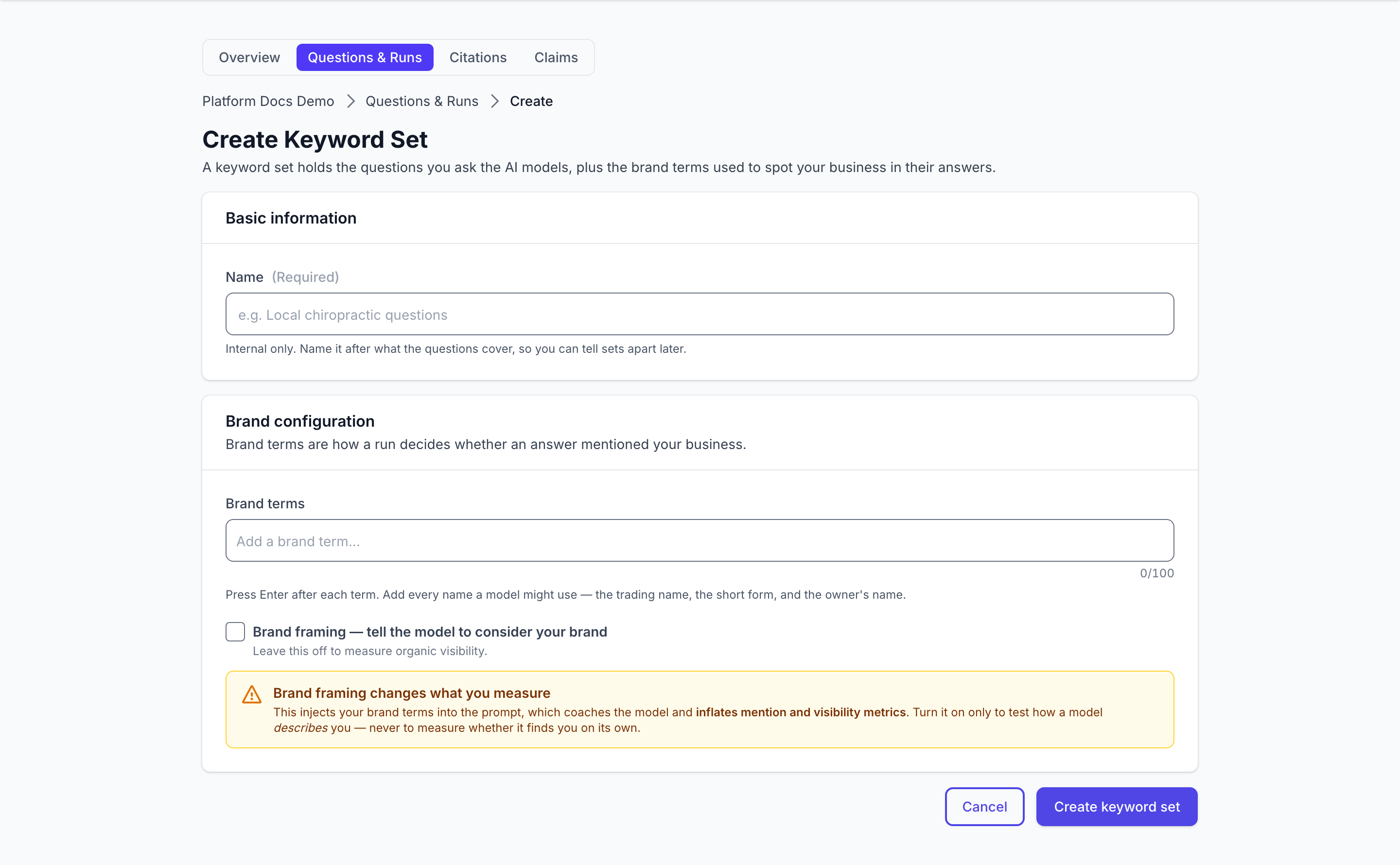
Step 1. Create keyword set
Container for prompts, brand terms, and run history.
What to do: llm-listening.keyword-sets.create → save set
Where: llm-listening.keyword-sets.create
Expected (pass)
- Set appears on index
- Project binding enforced on save
Negative cases (must fail safely)
- Flag off → llm-listening.upgrade or 403
-
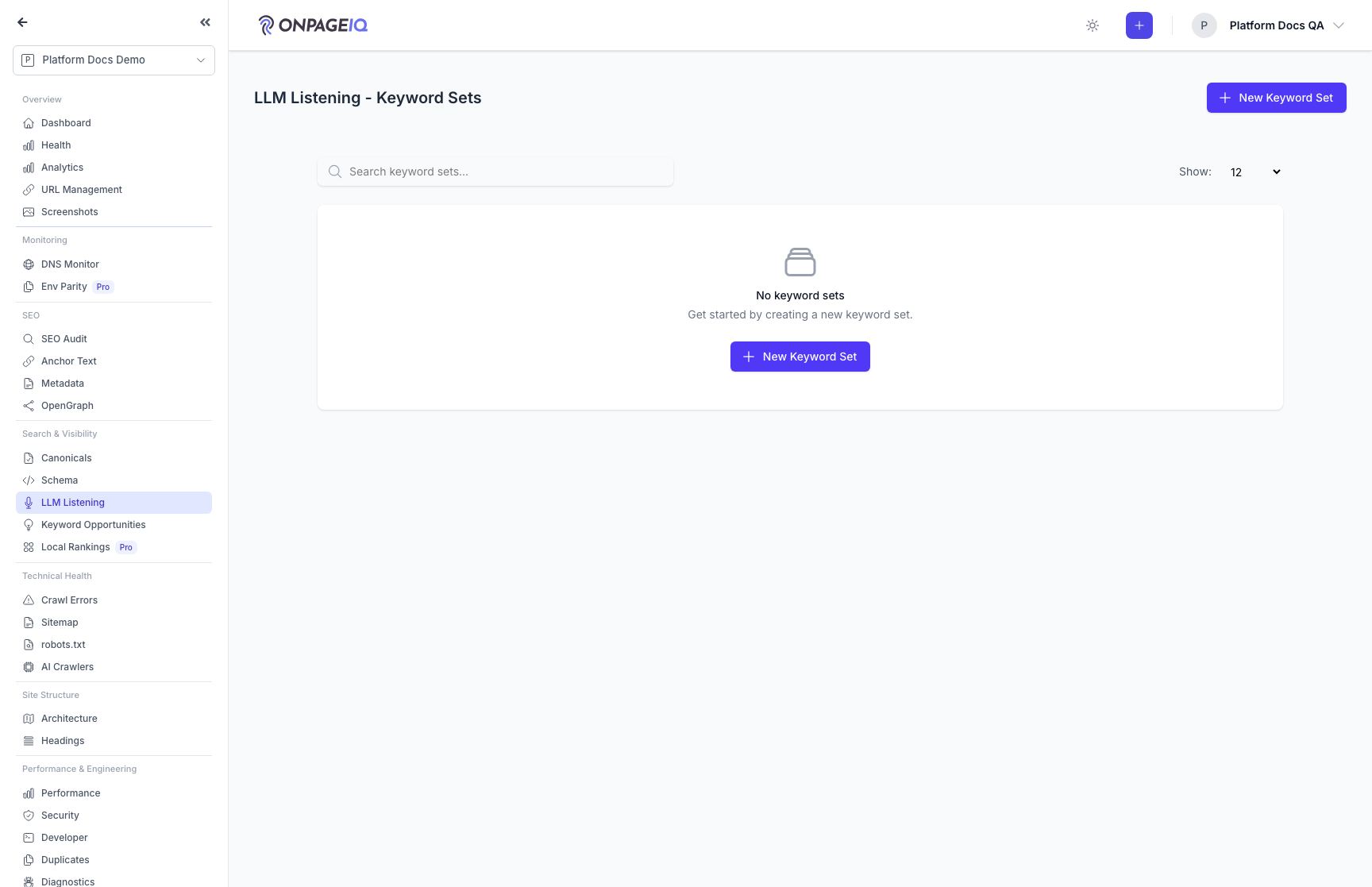
Step 2. Suggest keywords with AI (from the Business Profile)
On a keyword set, open "Suggest with AI" to turn the project's Business Profile into suggested SEO keywords, LLM prompts, and brand terms. Review, edit a term inline before accepting, select all high-confidence, or dismiss ones that do not fit (with Undo); accepting adds them to the set respecting the lock and tier cap. Requires an AI Business Profile — build it at Settings → Business Profile.
What to do: Open a set → Suggest with AI → select/edit → Add selected
Where: llm-listening.keyword-sets.index
Expected (pass)
- Accepted terms added respecting set lock + tier cap
- Duplicate/over-cap items reported honestly
Negative cases (must fail safely)
- No ready profile → CTA to generate one
-
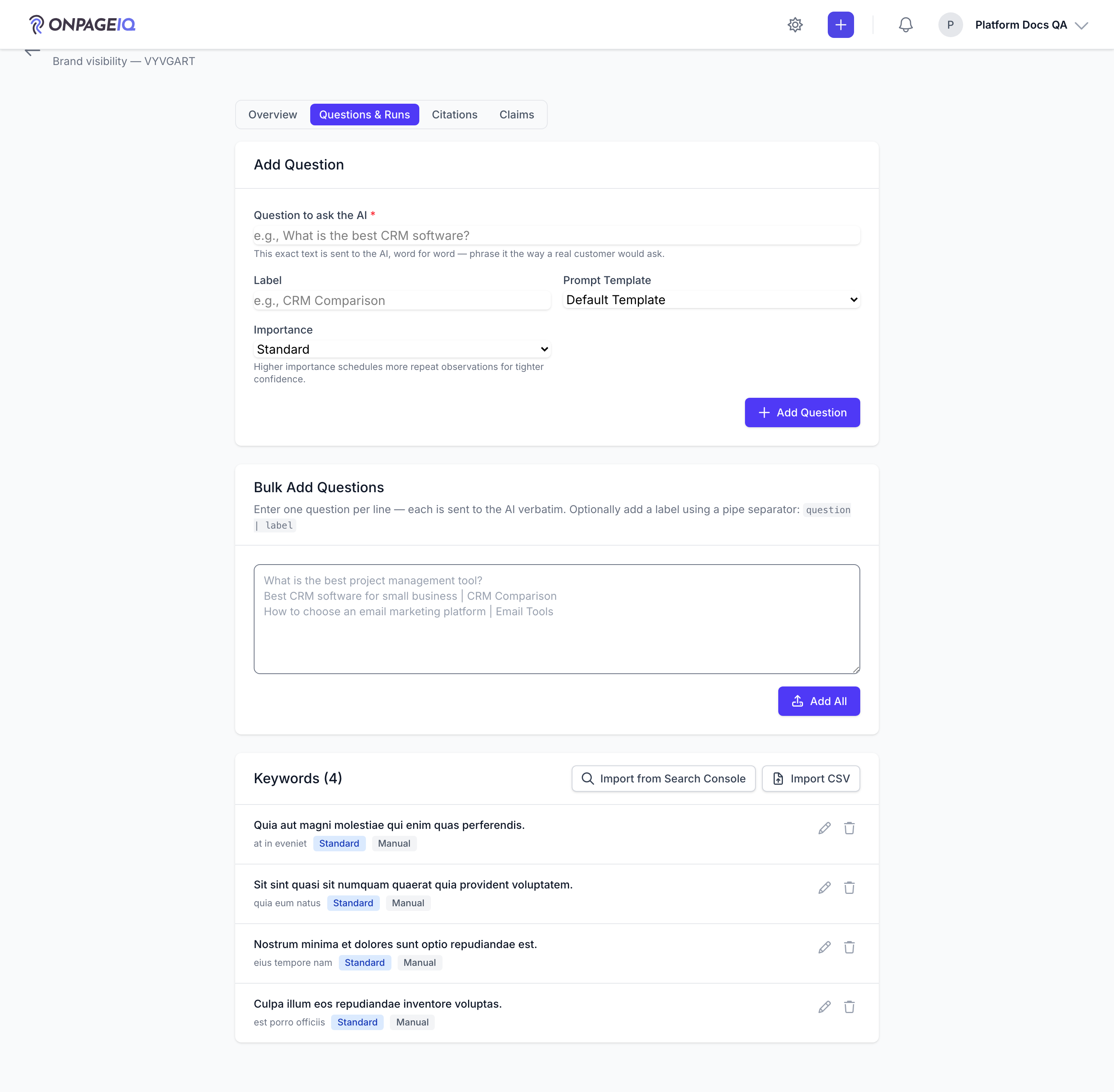
Step 3. Add keywords and launch run
Bulk editor for prompts; launcher selects models and starts run.
What to do: keywords.bulk-editor → add prompts → launch run
Where: llm-listening.keywords.bulk-editor
Expected (pass)
- Run status transitions queued → running → completed
- Cost estimate shown before launch
Negative cases (must fail safely)
- Over daily run limit → validation error
-
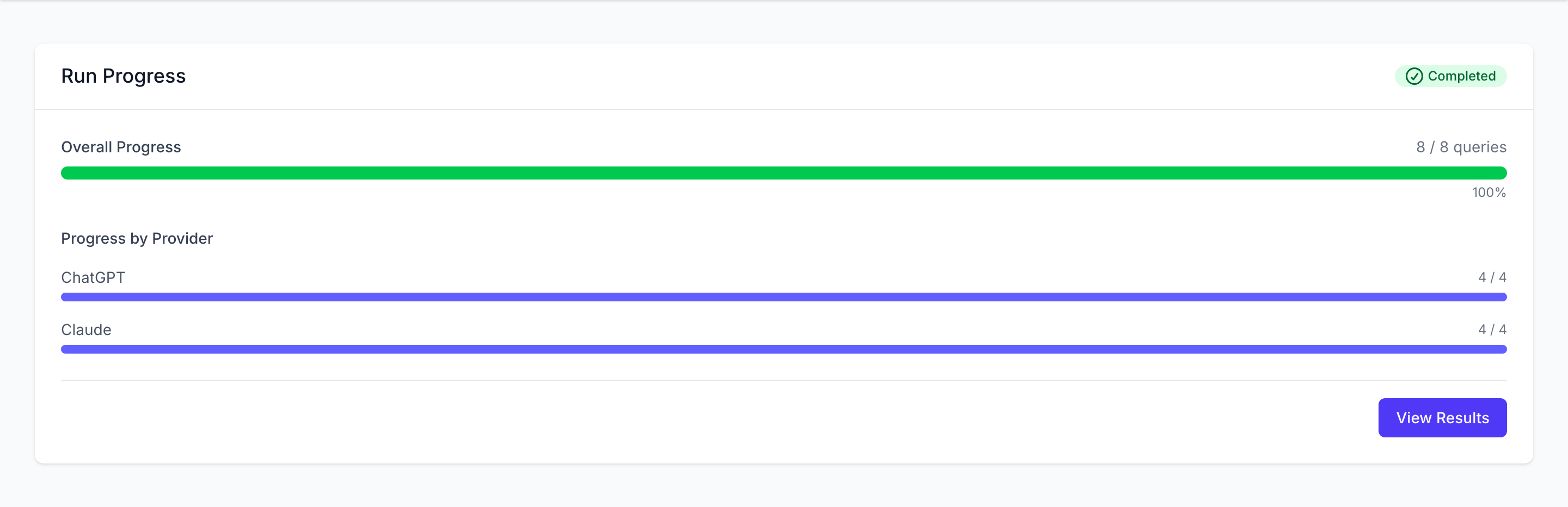
Step 4. Track progress
Real-time run progress with per-keyword/model status.
What to do: Open llm-listening.runs.progress during active run
Where: llm-listening.runs.progress
Expected (pass)
- Progress UI updates without full page reload
- Failed snapshots show error state
-
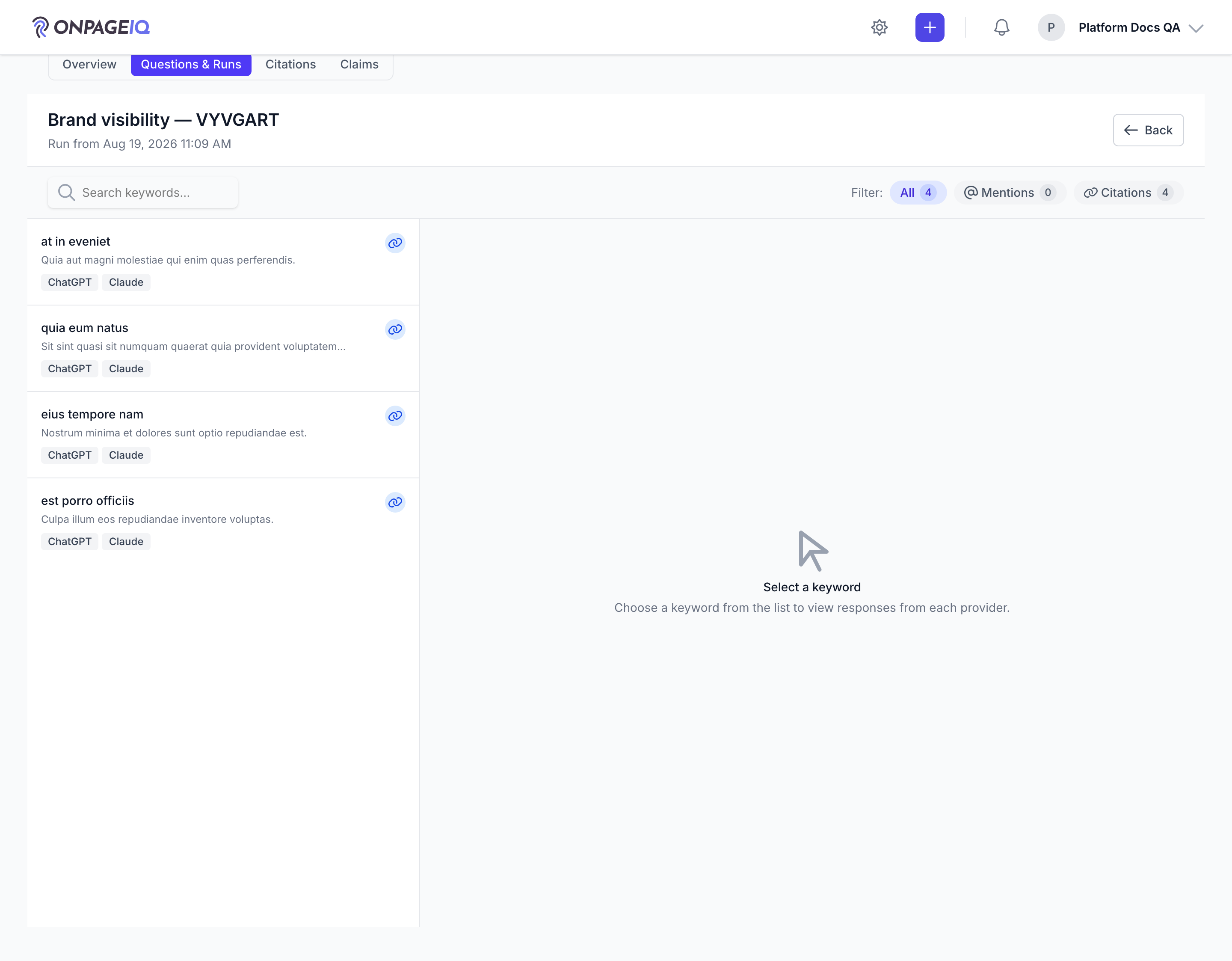
Step 5. Compare results
Master-detail view of answers side-by-side with brand mention extraction.
What to do: llm-listening.results.show with runId
Where: llm-listening.results.show
Expected (pass)
- All selected models have snapshot rows
- Export modal produces file when used
Negative cases (must fail safely)
- Foreign keywordSet → 404
-
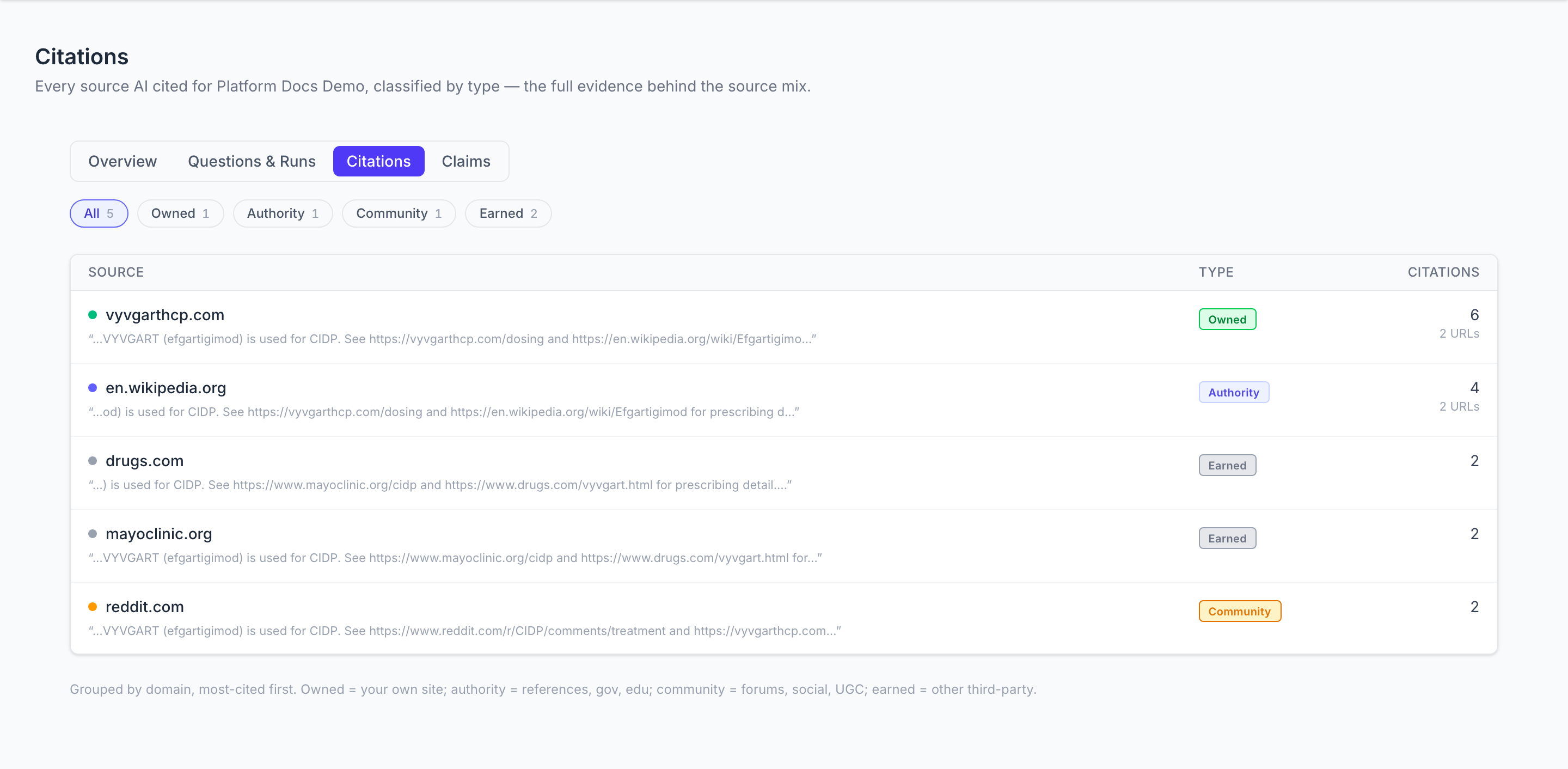
Step 6. See which sources the models cited
Citations lists every source behind the run, grouped by domain and classified as owned (your own site), authority, community, or earned — so you can see whether models are reading you or reading about you somewhere else. Rows are populated by the run roll-up, so the page shows the most recent run that actually cited sources, and says so when that is not the latest run.
What to do: AI Visibility → Citations → filter by source type
Where: llm-listening.citations.index
Expected (pass)
- Each cited domain appears once, with its citation count and a sample URL
- Source-type filters narrow the list
- A run with no cited sources leaves the page empty rather than erroring
Negative cases (must fail safely)
- No run has cited a source yet → empty state, not a crash
-
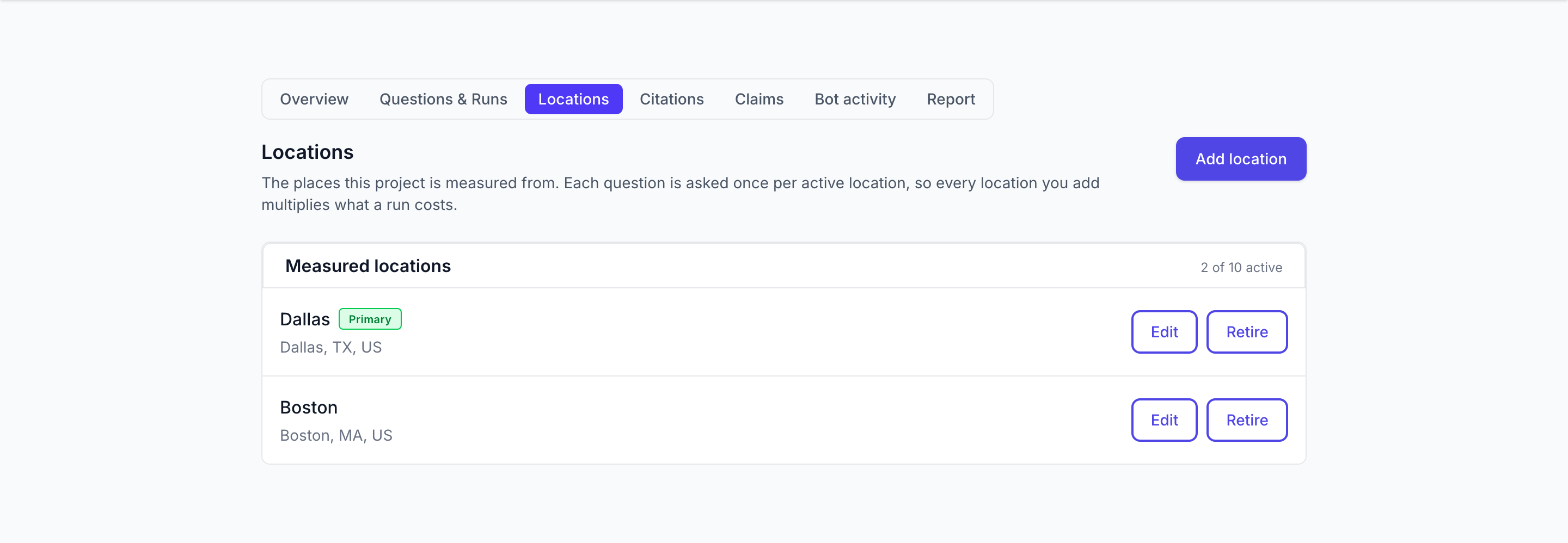
Step 7. Measure each place you serve
Turn on local mode for the project, then list the cities it serves. Every future run measures each one separately instead of producing a single national average that describes none of them.
What to do: Project Settings → Local SEO → set the mode to Local, then open AI Visibility → Locations and add a city
Where: llm-listening.locations.index
Expected (pass)
- Locations tab appears only for a project in local mode
- A location with no city and no coordinates is flagged "Cannot be measured"
- Retiring a location keeps everything it has already measured
Negative cases (must fail safely)
- Broad-mode project → no Locations tab and no change to any existing screen
- At the per-project cap → adding is refused, editing an existing location still works
-
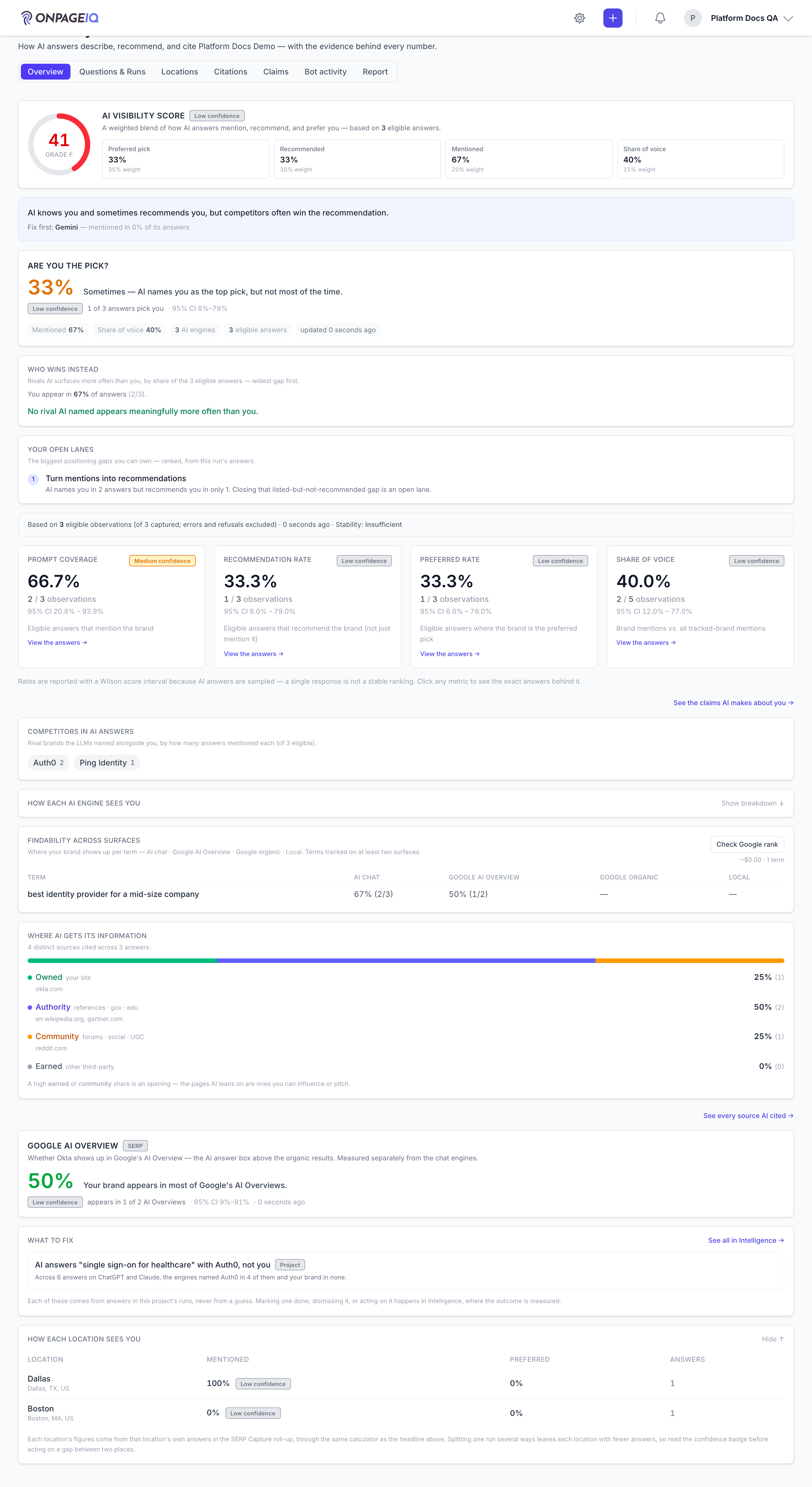
Step 8. Read the per-place breakdown
The Overview gains "How each location sees you". Every active location appears, measured or not — a place that produced no answer is shown with the reason rather than left out, because a missing row reads as "no visibility here" when the truth may be "this was never asked".
What to do: Open AI Visibility → Overview on a local project after a run completes
Where: llm-listening.overview
Expected (pass)
- Each location shows its own rate with its own confidence
- Unmeasured locations state which of the three reasons applies
Negative cases (must fail safely)
- Broad-mode project → panel absent entirely
-
Step 9. Filter citations by place
Citations lists every source the engines cited — now including Google AI Overview captures — and a local project can narrow it to one place.
What to do: Open AI Visibility → Citations and pick a location chip
Where: llm-listening.citations.index
Expected (pass)
- A chip appears only for a location this run actually cited
- Retired locations stay in the filter so the counts still add up
Negative cases (must fail safely)
- A location id from another organization in the URL → ignored, list stays unfiltered
-
Step 10. See which AI crawlers read the site
Connect a read-only Analytics token from your own Cloudflare account and Bot activity counts how often the AI crawlers fetch your pages. Aggregate counts only — no IP addresses are requested or stored.
What to do: Project Settings → Integrations → Cloudflare → paste an API token and zone ID, then open AI Visibility → Bot activity
Where: llm-listening.bots.index
Expected (pass)
- Saving checks the credentials immediately and reports the outcome
- The page states that crawler visits are a leading indicator, not visibility
- A failing connection shows the reason, never an empty week
Negative cases (must fail safely)
- Token rejected by Cloudflare → "Failing" with the fix, and no data claimed
- Disconnecting keeps the crawler history already collected
-
Step 11. Share the report
A summary of everything above, on screen and as a PDF with your agency branding. The on-screen version and the PDF are the same document.
What to do: Open AI Visibility → Report, then Download PDF
Where: llm-listening.reports.show
Expected (pass)
- Every measure shown as a count with its confidence
- Crawler numbers always carry the leading-indicator note
- No rank claims and no traffic attribution anywhere in the document
Negative cases (must fail safely)
- No completed runs → the report says so plainly instead of rendering empty tables
-
Step 12. Check the country you are measured in
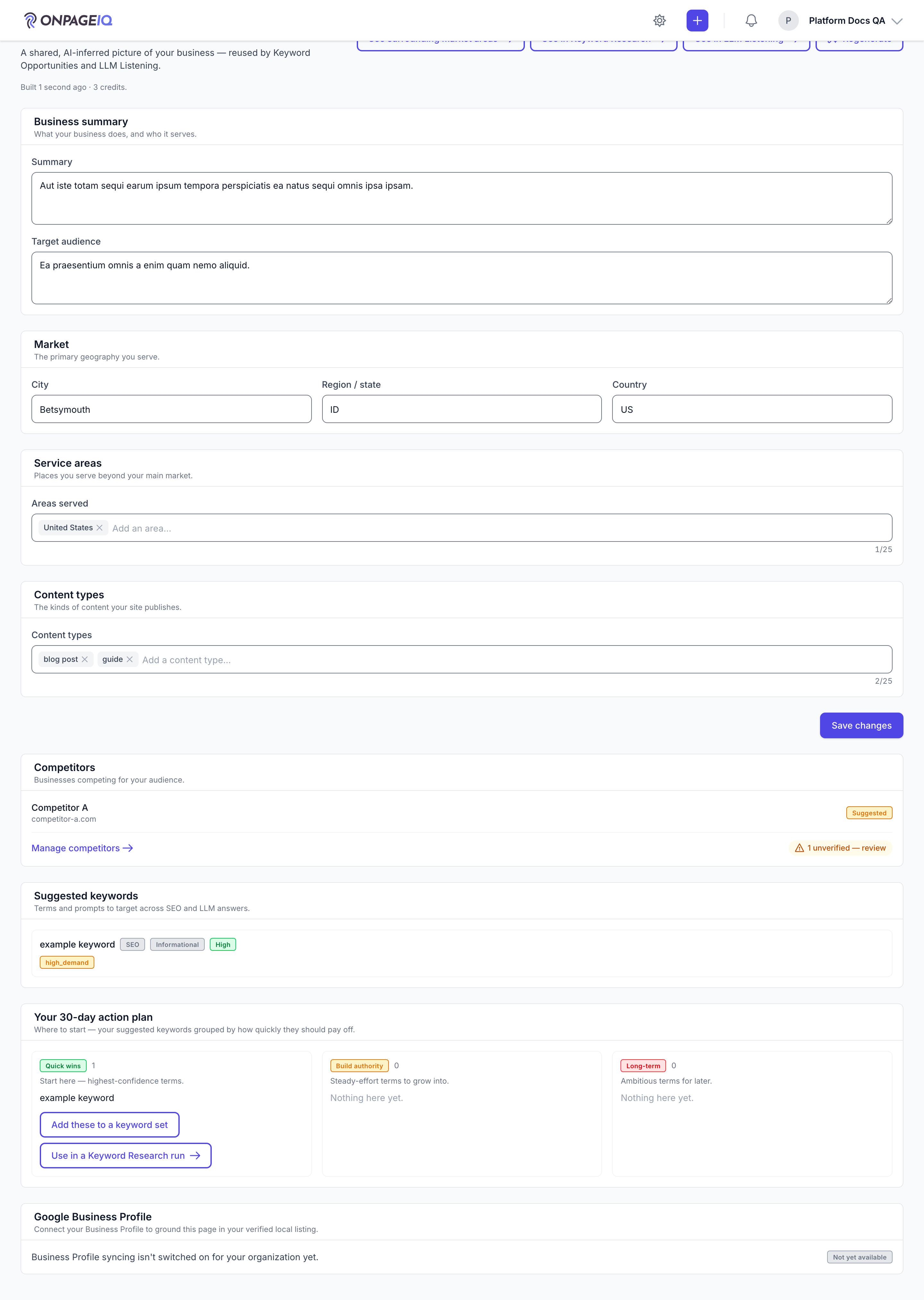
Every measurement is taken in one country's results, and a UK business asking a US search engine gets US answers, US competitors and US citations. You do not have to set this: the country is read from your Business Profile, from a confirmed address, from your Local SEO settings, or from your domain ending — whichever is the most reliable thing we already know about you. This screen is where to correct it if it is wrong.
What to do: Project Settings → Business Profile → Market → Country
Where: projects.settings.business-profile
Expected (pass)
- The country you type here wins over anything the profile inferred
- A spelled-out name works as well as a two-letter code — "United Kingdom" and "GB" both resolve
- A business with nothing set keeps being measured exactly as before
Negative cases (must fail safely)
- A country we cannot target yet → measurement falls back to the default market rather than failing the run, and the mismatch is logged
- Changing the country starts a fresh comparison instead of reporting the difference between two countries as a change in your visibility
Related guides
Billing & Subscriptions
Manage subscription tier, purchase credits, add-ons, and view billing history.
Integrations (GSC & GA4)
Connect Google Search Console and Google Analytics 4 per project.
Intelligence Hub
Cross-source insights combining GSC, GA4, scans, and audits.
AI Business Profile & Keyword Assist
Let AI infer your market, audience, competitors, and priority keywords from your crawl — then reuse it in Keyword Research and AI Visibility (LLM Listening).
Local AEO Visibility (retired — see AI Visibility)
Retired. Everything it measured now lives inside AI Visibility, behind a per-project local mode.